AI Agent n8n: Podcast to Newsletter Auto
If you’re a podcaster or content creator, you know the struggle. You invest significant time and energy recording valuable audio content, but repurposing it into other formats feels like starting from scratch. Writing newsletter summaries, formatting HTML emails, and manually sending to subscribers can easily consume another 2-3 hours per episode.
The full automation, in your inbox
AI Agent n8n: Podcast to Newsletter Auto

AI Agent n8n: Podcast to Newsletter Auto - Transform Your Audio Content into Engaging Newsletters (Free n8n Workflow + Video + Tutorial + Download)
Requirements: n8n instance & API keys.
! You'll needRequirements: n8n instance & API keys.
- A self-hosted n8n instance with terminal access.
- API credentials for the services used in this workflow.
The full automation, in your inbox
n8n workflow breakdown.
01 Step 01Manual Trigger - Start the Workflow Execution.
The Manual Trigger node serves as the entry point for your podcast-to-newsletter automation. This node allows you to initiate the workflow on-demand by clicking the "Execute" button directly in the n8n canvas.
In a production environment, you might replace this with a Schedule Trigger to run automatically at specific times, or a Webhook Trigger to start when new files are uploaded. For testing and initial setup, the Manual Trigger gives you complete control over when the workflow executes.
💡 Tip: Once your workflow is tested and working, consider replacing this with a Schedule Trigger set to run daily or weekly, automatically processing any new podcast files in your folder.
 Parameters
- Node type: Manual Trigger
- Configuration: This node has no configurable parameters
- Execution: Click "Execute step" or "Test workflow" to trigger
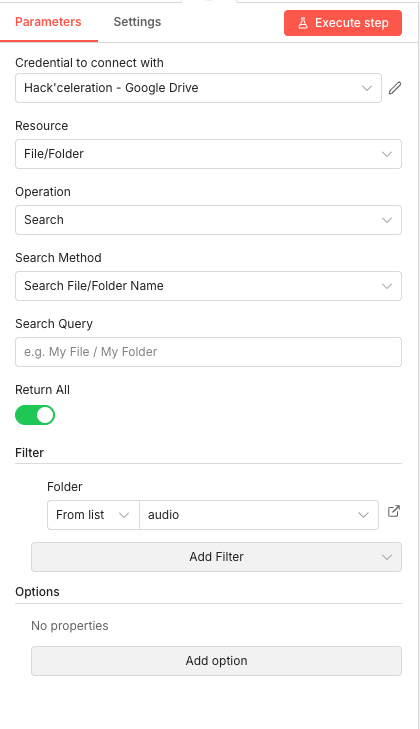
02 Step 02Google Drive Search - Find Audio Files to Process.
This Google Drive node searches your designated folder for audio files that need to be processed. It's configured to look specifically within your audio folder and return all matching files, making it easy to batch process multiple podcast episodes.
The search operation scans your Google Drive and retrieves file metadata including the unique file IDs needed for the download step. By filtering to a specific folder, you ensure the workflow only processes files you've explicitly placed there for newsletter conversion.
💡 Tip: Create a dedicated folder in Google Drive specifically for podcast files awaiting processing. Once the workflow runs, you can move processed files to an "archive" folder to avoid reprocessing.
 Parameters
- Credential to connect with: Select your Google Drive credential configured in n8n
- Resource:
File/Folder - Operation:
Search - Search Method:
Search File/Folder Name - Search Query: Leave empty to return all files, or enter a specific filename pattern
- Return All: Enabled (toggle ON) - retrieves all matching files
- Filter - Folder: From list → Select your audio folder (e.g., "audio")
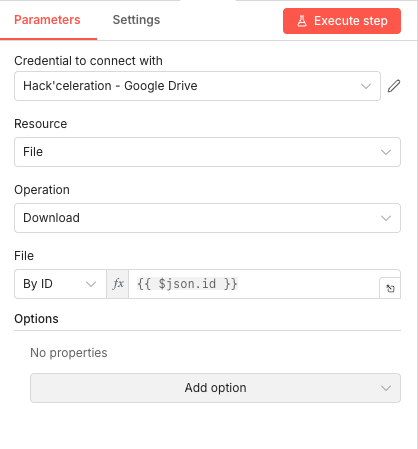
03 Step 03Google Drive Download - Fetch the Audio File.
After identifying the audio files, this node downloads the actual file content from Google Drive. It uses the file ID passed from the previous search step to fetch the correct audio file and prepare it for transcription.
The downloaded file is stored as binary data within n8n, which is then passed to the OpenAI transcription node. This approach handles files of any supported format (MP3, M4A, WAV, etc.) without requiring manual intervention.
💡 Tip: Ensure your audio files are under 25 MB for OpenAI transcription. For longer podcasts, consider splitting episodes into segments before uploading, or use a compression tool to reduce file size.
 Parameters
- Credential to connect with: Select your Google Drive credential configured in n8n
- Resource:
File - Operation:
Download - File: By ID →
{{ $json.id }}(expression referencing the file ID from the search results) - Options: No additional options configured
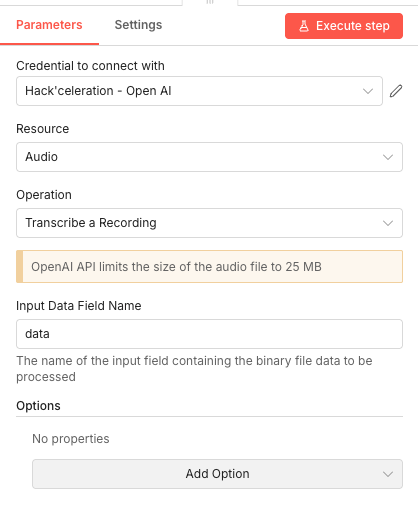
04 Step 04OpenAI Transcription - Convert Audio to Text.
This OpenAI node leverages the Whisper model to transcribe your podcast audio into text. Whisper provides highly accurate transcriptions across multiple languages and handles various audio qualities well, making it ideal for podcast content.
The transcription output becomes the foundation for your newsletter. The AI agent in the next step will analyze this text to extract key insights, structure the content, and generate the final newsletter format. Learn more about leveraging OpenAI with n8n for powerful automations.
💡 Tip: The Whisper model supports multiple languages and can auto-detect the spoken language. If your podcast is multilingual, the transcription will handle language switches naturally.
 Parameters
- Credential to connect with: Select your OpenAI credential configured in n8n
- Resource:
Audio - Operation:
Transcribe a Recording - Input Data Field Name:
data(the binary field containing the downloaded audio) - Options: No additional options configured
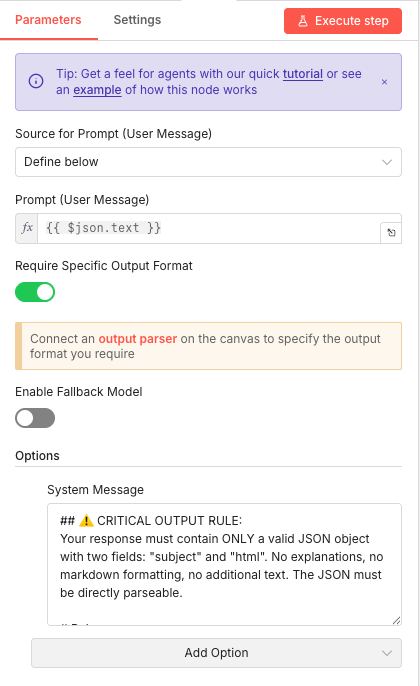
05 Step 05AI Agent Configuration - Set Up the Newsletter Generator.
The AI Agent node is the brain of this automation. It receives the podcast transcript and generates a complete HTML newsletter with a compelling subject line. The node is configured with strict output formatting rules to ensure the generated content can be reliably parsed and sent.
This configuration uses a system message that enforces JSON output containing exactly two fields: "subject" for the email subject line and "html" for the complete newsletter body. This structured approach eliminates parsing errors and ensures consistent output quality.
💡 Tip: The system message is crucial for reliable output. If you modify it, always test thoroughly to ensure the AI still produces valid JSON that downstream nodes can process.
 Parameters
- Source for Prompt (User Message): Define below
- Prompt (User Message):
{{ $json.text }}(expression passing the transcription text) - Require Specific Output Format: Enabled (toggle ON)
- Enable Fallback Model: Disabled (toggle OFF)
- Options - System Message:
## ⚠️ CRITICAL OUTPUT RULE: Your response must contain ONLY a valid JSON object with two fields: "subject" and "html". No explanations, no markdown formatting, no additional text. The JSON must be directly parseable.
06 Step 06ChatGPT Model Selection - Configure GPT-4.1-mini.
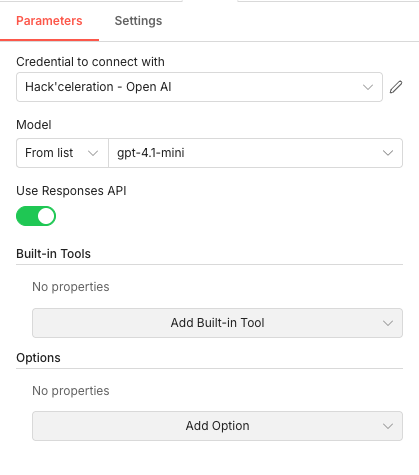
This node configures the specific OpenAI model used by the AI Agent. GPT-4.1-mini provides an excellent balance between quality and cost for newsletter generation tasks—it's capable enough to produce engaging content while keeping API costs reasonable for regular use.
The Responses API option is enabled to improve interaction handling and provide better structured outputs. This setting works in conjunction with the output format requirements defined in the AI Agent node.
💡 Tip: If you need higher quality output for premium newsletters, you can switch to
gpt-4orgpt-4-turbo. For cost-sensitive operations with simpler content,gpt-3.5-turbois also a viable option.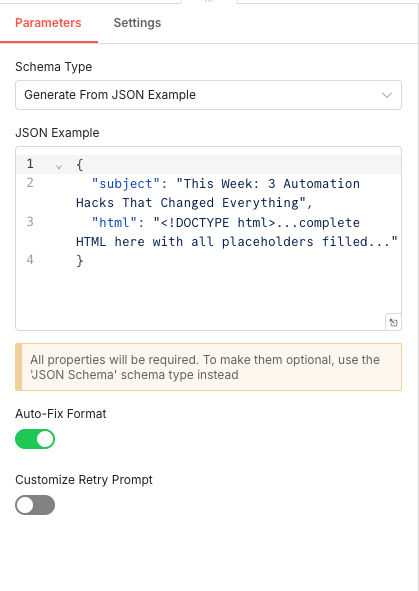 Parameters
- Credential to connect with: Select your OpenAI credential configured in n8n
- Model: From list →
gpt-4.1-mini - Use Responses API: Enabled (toggle ON)
- Built-in Tools: No additional tools configured
- Options: No additional options configured
07 Step 07Create Newsletter Schema - Define Output Structure.
This JSON node creates a schema that defines the expected structure for newsletter output. By providing an example JSON, you establish the contract that the AI must follow when generating content. This ensures consistency across all generated newsletters.
The schema specifies two required properties: a subject line for the email and the complete HTML content. The Auto-Fix Format option helps correct minor formatting issues automatically.
💡 Tip: Customize the JSON example to match your newsletter style. Include a realistic subject line example that reflects your brand voice, and a placeholder indicating the full HTML structure you expect.
 Parameters
- Schema Type: Generate From JSON Example
- JSON Example:
{"subject": "This Week: 3 Automation Hacks That Changed Everything", "html": "...complete HTML here with all placeholders filled..."} - Auto-Fix Format: Enabled (toggle ON)
- Customize Retry Prompt: Disabled (toggle OFF)
08 Step 08AI Agent Model Configuration - Connect to OpenAI.
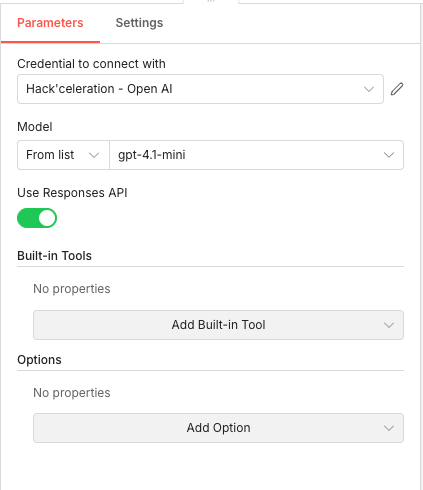
This additional AI Agent configuration ensures the model connection is properly established with your OpenAI credentials. It mirrors the ChatGPT node settings to maintain consistency throughout the newsletter generation process.
The configuration uses the same GPT-4.1-mini model with the Responses API enabled, ensuring all AI interactions follow the same parameters and produce consistent results.
 Parameters
- Credential to connect with: Select your OpenAI credential configured in n8n
- Model: From list →
gpt-4.1-mini - Use Responses API: Enabled (toggle ON)
- Built-in Tools: No additional tools configured
- Options: No additional options configured
09 Step 09Google Sheets - Retrieve Subscriber List.
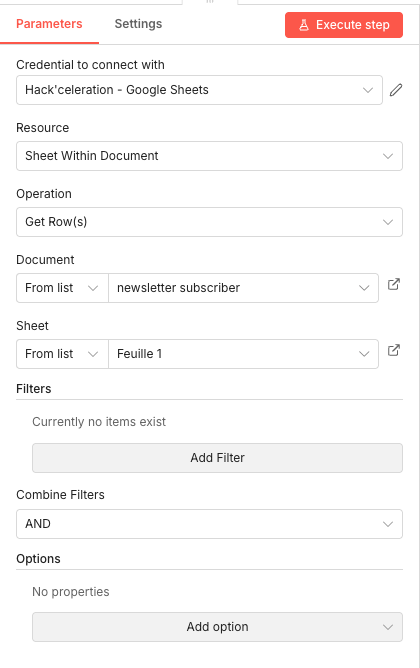
This Google Sheets node retrieves your newsletter subscriber list from a spreadsheet. It's configured to fetch all rows from your subscriber sheet, providing the email addresses needed for the final email distribution step.
Using Google Sheets as your subscriber database offers flexibility—you can easily add, remove, or segment subscribers without modifying the workflow. The node pulls the current list each time the workflow runs, ensuring you always send to the most up-to-date audience.
💡 Tip: Structure your Google Sheet with clear column headers like "Email", "First Name", "Subscribed Date". This makes it easy to personalize newsletters and segment your audience in the future.
 Parameters
- Credential to connect with: Select your Google Sheets credential configured in n8n
- Resource:
Sheet Within Document - Operation:
Get Row(s) - Document: From list → Select your subscriber spreadsheet (e.g., "newsletter subscriber")
- Sheet: From list → Select the specific sheet tab (e.g., "Sheet1" or your named tab)
- Filters: No filters applied (retrieves all rows)
- Combine Filters: AND (default)
- Options: No additional options configured
10 Step 10Split in Batches - Process Subscribers Individually.
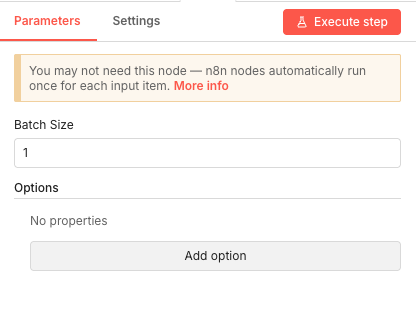
The SplitInBatches node divides your subscriber list into individual items for processing. With a batch size of 1, each subscriber is processed separately, ensuring reliable email delivery and easier error handling if any individual send fails.
This approach also helps respect rate limits imposed by email service providers. By processing one subscriber at a time, you avoid overwhelming the Postmark API and ensure each email is properly tracked.
💡 Tip: If you have a large subscriber list and want faster processing, you can increase the batch size. However, keep it reasonable (5-10) to avoid rate limiting issues with your email provider.
 Parameters
- Batch Size:
1(process one subscriber at a time) - Options: No additional options configured
- Batch Size:
11 Step 11Set Newsletter Content - Prepare Data for Sending.
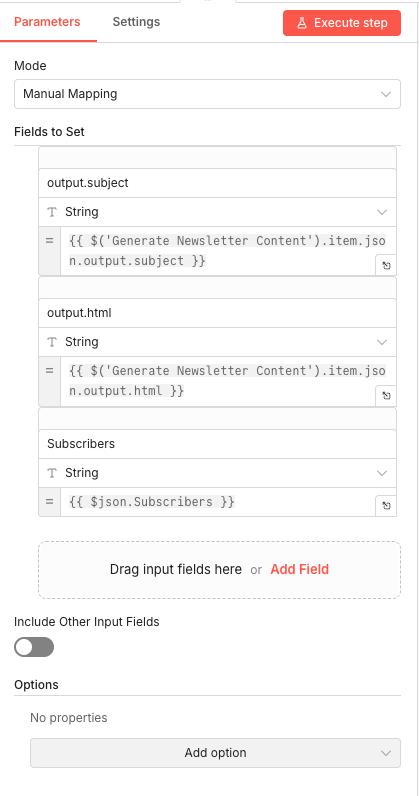
This Set node consolidates all the necessary data for email sending. It maps the generated newsletter subject and HTML content from the AI Agent output, along with the current subscriber's email address, into a clean data structure.
By explicitly setting these fields, you ensure that downstream nodes have reliable access to the exact data they need, regardless of any changes in upstream node outputs.
- Include Other Input Fields: Disabled (toggle OFF)
- Options: No additional options configured
💡 Tip: The node names in expressions (like 'Generate Newsletter Content') must match exactly. If you rename nodes, update these expressions accordingly.
 Parameters
- Mode: Manual Mapping
- Fields to Set:
- output.subject (String):
{{ $('Generate Newsletter Content').item.json.output.subject }} - output.html (String):
{{ $('Generate Newsletter Content').item.json.output.html }} - Subscribers (String):
{{ $json.Subscribers }}
- output.subject (String):
12 Step 12Set Email Payload - Build the Postmark Request.
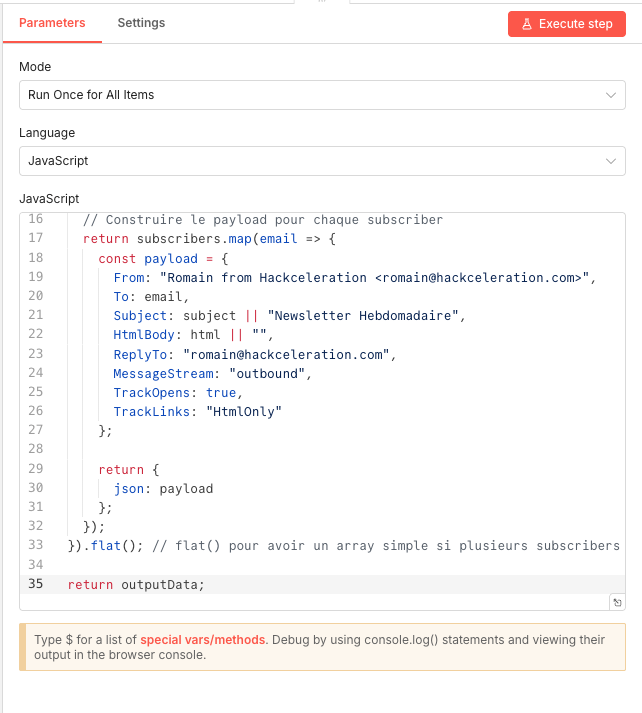
This Code node constructs the email payload object required by Postmark's API. It uses JavaScript to map subscriber data and newsletter content into the exact format Postmark expects, including sender information, tracking options, and message stream configuration.
The code iterates over subscribers and creates a properly structured JSON object for each email, ensuring all required fields are present and correctly formatted. For more details on the Postmark n8n integration, check our dedicated guide.
💡 Tip: Customize the "From" field to match your brand. The format "Name <email@domain.com>" displays your name in the recipient's inbox while using your verified sender address.
 Parameters
- Mode: Run Once for All Items
- Language: JavaScript
- JavaScript Code: Maps over subscribers to create email payloads with From, To, Subject, HtmlBody, ReplyTo, MessageStream, TrackOpens, and TrackLinks fields
13 Step 13HTTP Request - Send via Postmark API.
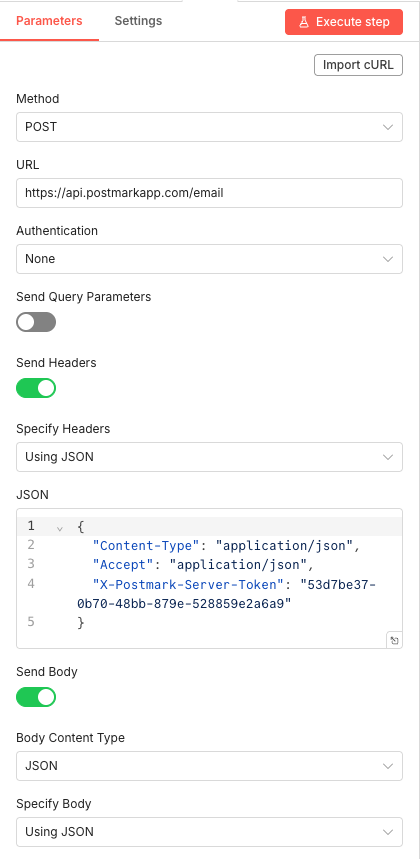
The final HTTP Request node sends the actual newsletter email through Postmark's API. It's configured as a POST request with the necessary authentication headers and JSON body containing all email details.
Postmark provides excellent deliverability and detailed tracking for opens and clicks, giving you visibility into how your newsletters perform with your audience.
💡 Tip: Test with a single subscriber (your own email) first to verify formatting and deliverability before sending to your full list.
Parameters- Method: POST
- URL:
https://api.postmarkapp.com/email - Authentication: None (handled via header)
- Send Query Parameters: Disabled (toggle OFF)
- Send Headers: Enabled (toggle ON)
- Specify Headers: Using JSON with Content-Type, Accept, and X-Postmark-Server-Token
- Send Body: Enabled (toggle ON)
- Body Content Type: JSON
- Specify Body: Using JSON (content from previous node)
Get the ready-to-import n8n JSON plus the install guide
Drop your email and we'll send you the complete scenario.
- n8n JSON ready to import
- Written setup guide
- Video tutorial included
Why Automating Podcast to Newsletter is a Game-Changer for Content Creators
For podcasters and content creators, repurposing content across channels is essential for maximizing reach. Your podcast episodes contain valuable insights that a significant portion of your audience will never hear—not everyone consumes audio content, and many prefer reading during their commute or work breaks.Common problems with manual repurposing:Writing newsletter summaries takes 1-2 hours per episode minimumFormatting HTML emails is tedious and error-proneManually copying subscriber lists leads to mistakes and missed contactsInconsistent publishing schedule when you're too busy to writeLost momentum and audience engagement between episodesBenefits of automating this workflow:Zero writing time—AI handles content transformation instantlyProfessional HTML formatting every single timeAlways-current subscriber list pulled directly from your databaseConsistent newsletter delivery with every podcast releaseFull tracking of opens and clicks for performance insightsScalable to any number of episodes or subscribersThe compound effect of consistent newsletter delivery cannot be overstated. Subscribers who regularly hear from you stay engaged, remember your brand, and are far more likely to become customers, supporters, or advocates. This automation ensures you never miss an opportunity to connect, regardless of how busy your production schedule gets. Consider exploring our n8n training program to master more advanced automation techniques.
The full automation, in your inbox.
n8n JSON, written guide and video tutorial, everything to ship this in under 15 minutes.
- Complete n8n scenario JSON
- Step-by-step setup documentation
- Full video walkthrough