n8n Workflow Error Alerts | Email + Slack
Running automations without error monitoring is like flying blind. You might have 10, 20, or even 50 workflows handling everything from lead capture to invoice generation. When one breaks, the consequences ripple through your entire operation—missed leads, incomplete data syncs, frustrated clients.
The full automation, in your inbox
n8n Workflow Error Alerts | Email + Slack
N8n Workflow Error Alerts | Email + Slack — Never Miss a Failed Automation Again
Requirements: n8n instance & API keys.
! You'll needRequirements: n8n instance & API keys.
- A self-hosted n8n instance with terminal access.
- API credentials for the services used in this workflow.
The full automation, in your inbox
n8n workflow breakdown.
01 Step 01Configure the Error Trigger Node.
The Error Trigger node is the foundation of your entire error monitoring system. Unlike regular trigger nodes that respond to external events like webhooks or schedules, this one listens specifically for failures occurring in other workflows within your n8n instance.
When any workflow fails—whether due to an API timeout, authentication error, or data validation issue—this node automatically captures the complete error context. It grabs everything you need to diagnose the problem: the execution ID, workflow name, error message, stack trace, and even request IDs for API-related failures.
The key requirement is that your other workflows must have "Error Workflow" enabled in their settings and point to this monitoring workflow. Once configured, every failure across your entire n8n instance gets funneled through this single error handler.
Output Data Structure:
execution.id— The unique execution ID (e.g., "346020")execution.url— Direct link to the failed execution in your n8n instanceworkflow.id— The workflow's internal IDworkflow.name— Human-readable workflow nameerror.message— The actual error messageerror.stack— Full stack trace for debugginglastNodeExecuted— Which node caused the failuremode— Execution mode (trigger, manual, etc.)
💡 Pro Tip: To enable error triggering on your other workflows, open each workflow's settings (the gear icon), scroll to "Error Workflow," and select this monitoring workflow from the dropdown. You need to do this for every workflow you want monitored.
 Parameters
- Node Type: Error Trigger — This node has no configurable parameters. It automatically activates when it receives error events from other workflows.
- Fetch Test Event: Click this button to manually pull a sample error event for testing your notification setup before a real failure occurs.
02 Step 02Send Gmail Error Notification.
The Gmail node transforms raw error data into a professional, easy-to-read email notification. Instead of a plain text dump, you get a beautifully formatted HTML email with clear sections for workflow details, error information, and action links.
This email serves as your primary notification channel—especially useful when you're away from Slack or need a permanent record of failures for compliance purposes. The HTML formatting ensures the email renders correctly across all email clients, from Gmail to Outlook to mobile apps.
The dynamic subject line immediately tells you which workflow failed, so you can prioritize issues at a glance from your inbox without even opening the email.
💡 Pro Tip: Customize the HTML template to match your brand colors and add your company logo. You can also add a "Silence this alert" link if you want to implement alert acknowledgment tracking later.
 Parameters
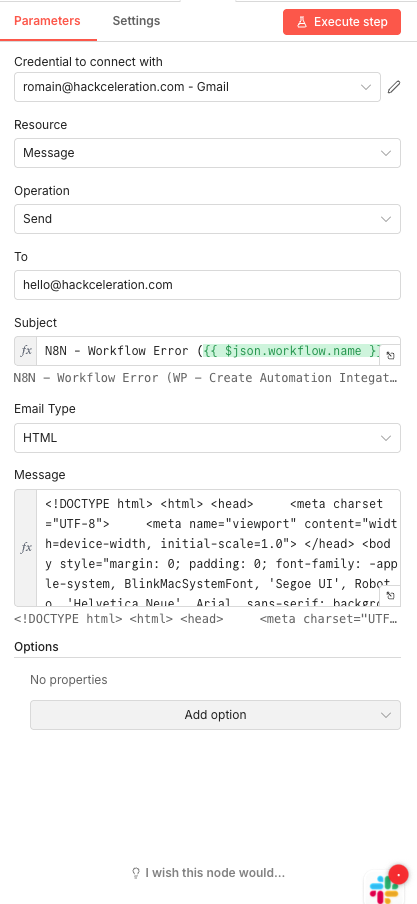
- Credential to connect with: Select your Gmail credential configured in n8n (e.g., "romain@hackceleration.com - Gmail")
- Resource:
Message— Indicates working with email messages - Operation:
Send— Specifies the action of sending an email - To: Enter your notification email address (e.g.,
hello@hackceleration.com) - Subject:
N8N - Workflow Error ({{ $json.workflow.name }})— This expression dynamically inserts the failed workflow's name - Email Type:
HTML— The message content is formatted in HTML - Message: Full HTML template with inline CSS styling, including DOCTYPE declaration, meta charset/viewport settings, branded header section, workflow details (name, execution ID), error message display, timestamp, and direct link to the failed execution
- Options: No additional options configured
03 Step 03Send Slack Notification.
The Slack node ensures your team gets instant visibility into workflow failures right where they're already working. Unlike email, Slack notifications grab attention immediately—especially when posted to a dedicated error channel that team members keep unread.
This node runs in parallel with the Gmail node, meaning both notifications fire simultaneously. You're covered whether you're at your desk checking Slack or on mobile checking email.
The message formatting uses Slack's markdown syntax and emojis to create a scannable, visually distinct alert that stands out from regular channel chatter. The structure makes it easy to quickly identify the workflow name, execution ID, and error message without digging through raw JSON.
Expression Breakdown:
{{ $json.workflow.name }}— Pulls the workflow name from the Error Trigger output{{ $json.execution.id }}— Inserts the execution ID for quick reference{{ $now.toLocaleString('en-US', { dateStyle: 'full', timeStyle: 'long' }) }}— Formats the current timestamp in readable US English format{{ $json.error.message }}— Displays the actual error message
💡 Pro Tip: Create a dedicated
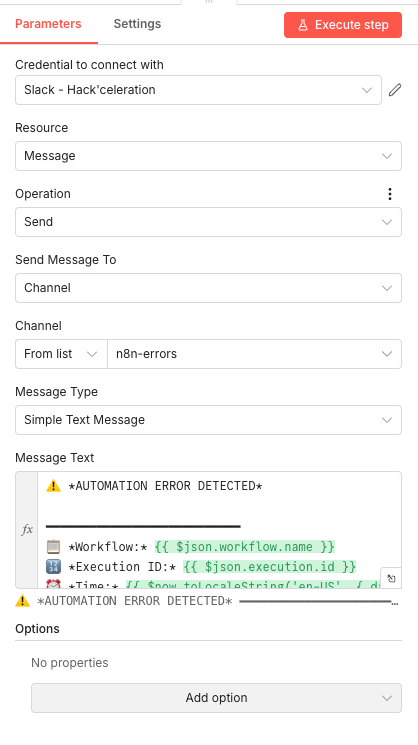
#n8n-errorschannel in Slack and invite only the team members who need to respond to automation failures. This keeps alerts separate from general conversation and prevents notification fatigue.Parameters- Credential to connect with: Select your Slack credential configured in n8n (e.g., "Slack - Hack'celeration")
- Resource:
Message— Specifies the resource type being operated on in Slack - Operation:
Send— Indicates the node will send a message - Send Message To:
Channel— The message will be sent to a Slack channel - Channel: From list →
n8n-errors— Select your dedicated error channel - Message Type:
Simple Text Message— Specifies the message format - Message Text: Formatted message body using emojis and markdown:
⚠️ *AUTOMATION ERROR DETECTED*_____________________________📋 *Workflow:* {{ $json.workflow.name }}🔢 *Execution ID:* {{ $json.execution.id }}🕐 *Time:* {{ $now.toLocaleString('en-US', { dateStyle: 'full', timeStyle: 'long' }) }}_____________________________❌ *Error:* {{ $json.error.message }} - Options: No additional options configured
Get the ready-to-import n8n JSON plus the install guide
Drop your email and we'll send you the complete scenario.
- n8n JSON ready to import
- Written setup guide
- Video tutorial included
Why Automating Error Monitoring Is a Game-Changer for Automation Teams
Running multiple n8n workflows without error monitoring is a recipe for disaster. As your automation stack grows, manually checking each workflow becomes impossible. Meanwhile, silent failures accumulate—missed leads, broken data syncs, incomplete processes that nobody notices until it's too late.Common problems without automated error alerts:Failures go unnoticed for hours or days, causing downstream data issuesYou discover problems only when clients or team members complainTroubleshooting becomes harder because you've lost the immediate contextCritical automations fail during off-hours when nobody's watchingNo historical record of which workflows are most problematicBenefits of automated error monitoring:Instant awareness of any workflow failure, day or nightComplete error context delivered directly to your inbox and SlackOne-click access to the failed execution for immediate investigationDual-channel notifications ensure you never miss an alertHistorical record of failures for identifying patterns and problem workflowsThis workflow transforms your n8n instance from a black box into a transparent, monitored system. You'll know exactly what's happening with your automations at all times—and when something breaks, you'll be the first to know, not the last. If you want to go further with workflow reliability, consider exploring our n8n training to master advanced automation techniques.
The full automation, in your inbox.
n8n JSON, written guide and video tutorial, everything to ship this in under 15 minutes.
- Complete n8n scenario JSON
- Step-by-step setup documentation
- Full video walkthrough