AI Agent n8n: Auto-Publish to YouTube
Every YouTuber knows the pain. You’ve just finished editing a video, you’re excited to share it—and then you hit the upload screen. Now you need to craft a catchy title, write a compelling description with timestamps and CTAs, research relevant tags, and set the publish schedule. Multiply that by several videos a week, and you’ve got a serious time sink.
The full automation, in your inbox
AI Agent n8n: Auto-Publish to YouTube

AI Agent n8n: Auto-Publish to YouTube with AI-Generated Metadata (Free n8n Workflow + Video + Tutorial + Download)
Requirements: n8n instance & API keys.
! You'll needRequirements: n8n instance & API keys.
- A self-hosted n8n instance with terminal access.
- API credentials for the services used in this workflow.
The full automation, in your inbox
n8n workflow breakdown.
01 Step 01Manual Trigger - Start Your Workflow.
The Manual Trigger node serves as the entry point for your entire automation. When you click the "Execute" button in n8n, this node kicks off the workflow and passes control to the subsequent nodes.
This is ideal for testing and on-demand execution. Once you've validated everything works, you can easily swap this trigger for a Schedule Trigger (to run daily at a specific time) or a webhook trigger (to respond to external events).
💡 Tip: For production use, consider replacing this with a Schedule Trigger set to run every morning. That way, any new audio files dropped into your folder overnight get processed automatically.
 Parameters
- Node Type: Manual Trigger
- Configuration: No parameters required—this node triggers when you click "Test workflow" or "Execute"
- Output: Empty item that initiates the workflow chain
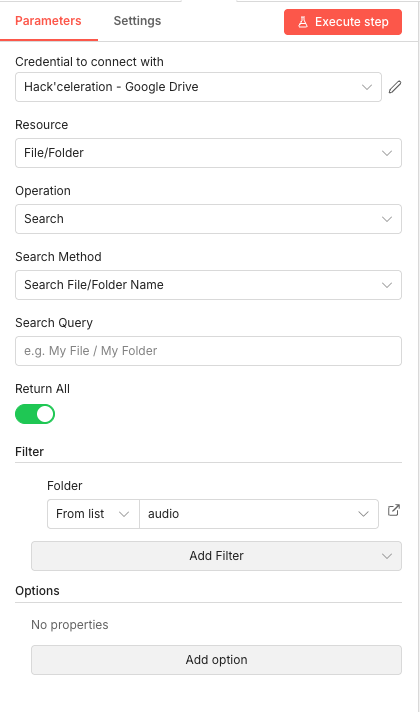
02 Step 02Get Audio Files - Retrieve Your Audio from Google Drive.
This Google Drive node searches for audio files in your designated folder. It's the first data-gathering step that identifies which files need to be processed through the transcription and metadata generation pipeline.
The node connects to your Google Drive, looks inside a specific folder, and returns all files found there. Each file becomes a separate item in n8n, allowing the workflow to process multiple audio files in sequence.
💡 Tip: Create a dedicated "to-process" folder in Google Drive. After the workflow runs successfully, you can add a final node to move processed files to an "archive" folder, preventing duplicate processing.
 Parameters
- Credential to connect with: Select your Google Drive credential configured in n8n
- Resource:
File/Folder - Operation:
Search - Search Method:
Search File/Folder Name - Search Query: Leave empty to retrieve all files, or enter a pattern to filter specific files
- Return All: Enabled (toggle ON) — returns all matching files, not just the first result
- Filter > Folder: From list → Select your audio folder (e.g., "audio")
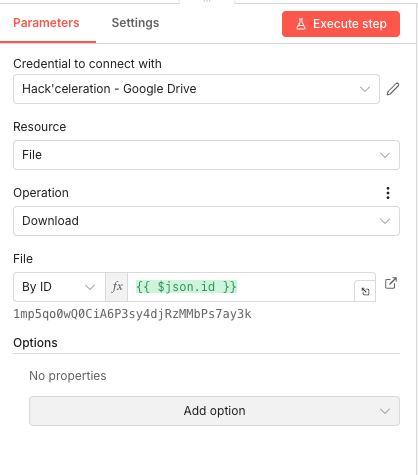
03 Step 03Google Drive - Download File - Get the Audio Binary Data.
This node downloads the actual audio file content from Google Drive. The previous node gave us file metadata (ID, name, etc.)—this node retrieves the binary audio data needed for transcription.
The file ID is passed dynamically from the search results, meaning each audio file found in Step 2 gets downloaded automatically. The binary data is stored in n8n's memory and passed to the OpenAI transcription node.
💡 Tip: OpenAI's Whisper has a 25 MB file size limit. If your audio files are larger, consider adding a compression step or splitting longer recordings before upload.
 Parameters
- Credential to connect with: Select your Google Drive credential
- Resource:
File - Operation:
Download - File: By ID →
{{ $json.id }}(expression that pulls the file ID from the previous node's output) - Options: No additional options required
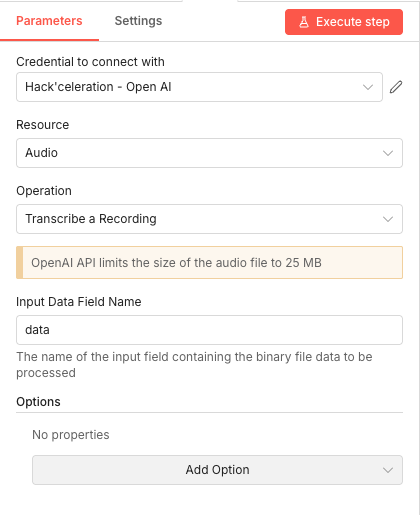
04 Step 04OpenAI1 - Transcribe a Recording - Convert Audio to Text.
This is where the magic begins. The OpenAI node uses the Whisper model to transcribe your audio file into text. This transcript becomes the foundation for all the AI-generated metadata that follows.
Whisper handles multiple languages and accents remarkably well, producing accurate transcriptions that capture what you actually said in your video. This raw text is then analyzed by the AI agent to extract key topics and generate relevant metadata.
💡 Tip: The transcription quality directly impacts your metadata quality. If your audio has significant background noise, consider running it through a noise reduction tool before uploading to Google Drive.
 Parameters
- Credential to connect with: Select your OpenAI credential
- Resource:
Audio - Operation:
Transcribe a Recording - Input Data Field Name:
data(this matches the binary field name from the Google Drive download) - Options: No additional options configured
05 Step 05AI Agent - Configure the Content Generation Brain.
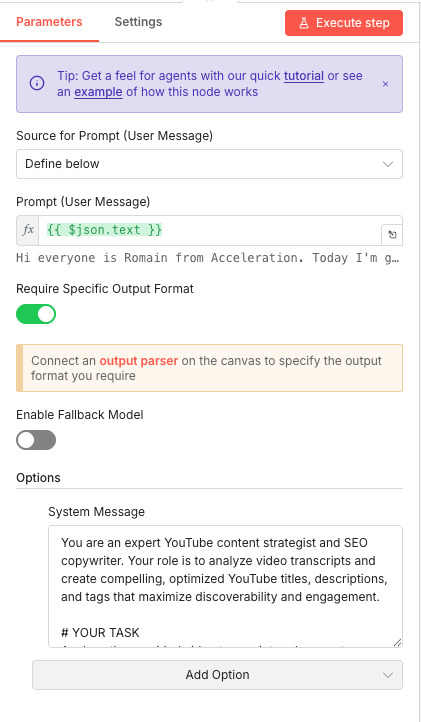
The AI Agent node is the creative engine of this workflow. It takes your transcript and transforms it into YouTube-ready metadata. This node defines how the AI should behave and what output format to produce.
The prompt configuration passes the transcript text to the AI, while the system message establishes the AI's role as a YouTube content strategist and SEO copywriter. This ensures the generated titles, descriptions, and tags are optimized for discoverability.
System Message (in Options):
You are an expert YouTube content strategist and SEO copywriter. Your task is to analyze the provided video transcript and generate: 1. A compelling, click-worthy title (under 60 characters) optimized for search 2. A structured description with hook paragraph, key takeaways, timestamps, call-to-action 3. 10 relevant, searchable tags. Focus on clarity, engagement, and SEO best practices.💡 Tip: Customize the system message to match your channel's voice. If you have a casual, humorous style, instruct the AI accordingly. If you're more formal and educational, reflect that in the prompt.
 Parameters
- Source for Prompt (User Message): Define below
- Prompt (User Message):
{{ $json.text }}(expression that injects the transcript from the previous node) - Require Specific Output Format: Enabled (toggle ON) — this is crucial for structured output
- Enable Fallback Model: Disabled
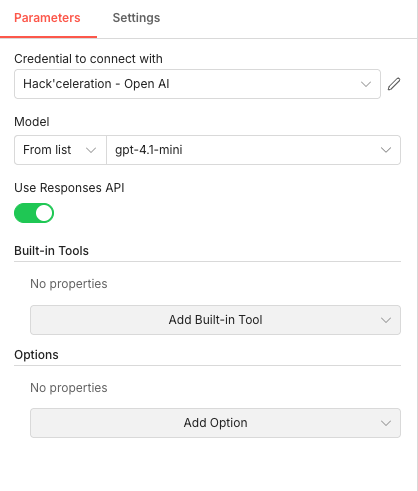
06 Step 06AI Agent - OpenAI Model Configuration.
This node configures the specific OpenAI model that powers the AI Agent. It's connected as a sub-node to the main AI Agent, providing the language model capabilities for content generation.
GPT-4.1-mini offers an excellent balance between quality and cost for metadata generation tasks. It's fast, accurate, and significantly cheaper than the full GPT-4 model while still producing professional-quality output.
💡 Tip: If you find the output quality lacking for complex topics, you can switch to
gpt-4orgpt-4-turbo. Just keep in mind the increased API costs and slightly longer processing times.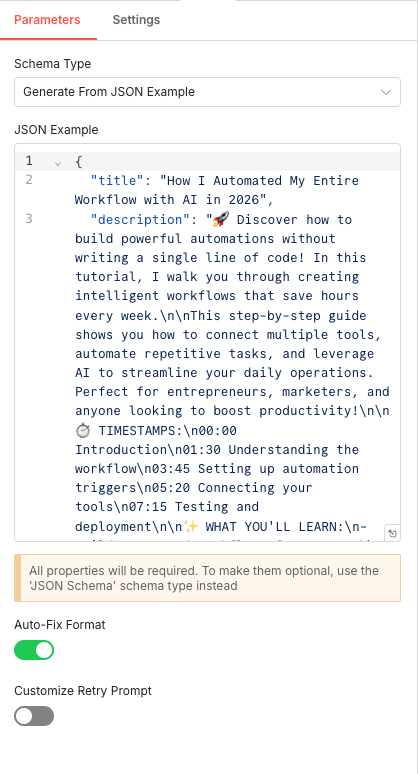 Parameters
- Credential to connect with: Select your OpenAI credential
- Model: From list →
gpt-4.1-mini - Use Responses API: Enabled (toggle ON)
- Built-in Tools: No properties configured
- Options: No additional options
07 Step 07Generate YouTube Metadata - Structure the AI Output.
The JSON Schema node ensures the AI's output follows a consistent, predictable structure. By providing a JSON example, you tell the AI exactly what format to produce—making it reliable for downstream nodes like the YouTube upload.
This structured output parser is connected to the AI Agent and enforces that every response includes a properly formatted title and description. No more parsing inconsistent AI responses manually.
JSON Example:
{"title": "How I Automated My Entire Workflow with AI in 2026", "description": "🚀 In this video, I walk you through my complete automation setup...\n\n⏰ TIMESTAMPS:\n0:00 - Intro\n1:30 - Setup overview\n...\n\n👍 Like & Subscribe for more automation content!"}💡 Tip: Expand the JSON example to include a
tagsarray if you want structured tag output:"tags": ["automation", "n8n", "youtube"]. This makes tag handling cleaner in the upload node.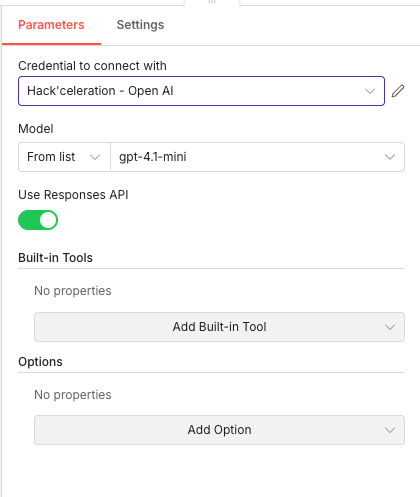 Parameters
- Schema Type: Generate From JSON Example
- Auto-Fix Format: Enabled (toggle ON) — automatically corrects minor JSON formatting issues
- Customize Retry Prompt: Disabled
08 Step 08GPT Agent 1 - Secondary AI Processing.
This secondary GPT agent node provides additional AI model connectivity for the workflow. Depending on your workflow structure, this may handle tag generation, description refinement, or serve as a backup processing path.
The configuration mirrors the primary AI model setup, ensuring consistent behavior across all AI-powered nodes in the workflow.
 Parameters
- Credential to connect with: Select your OpenAI credential
- Model: From list →
gpt-4.1-mini - Use Responses API: Enabled (toggle ON)
- Built-in Tools: No properties configured
- Options: No additional options
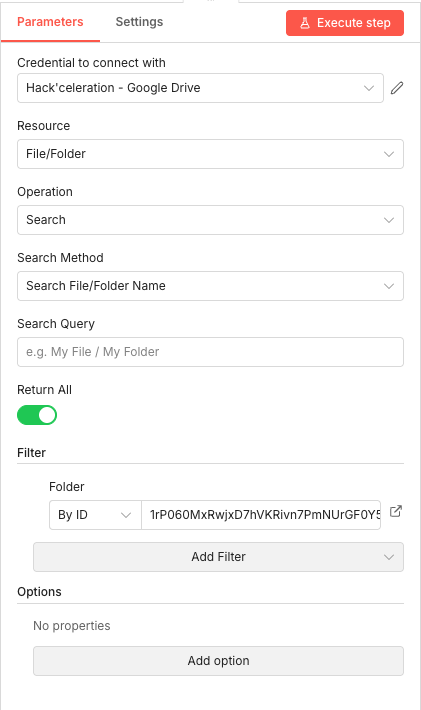
09 Step 09Search Audio Files - Locate Video Files for Upload.
This Google Drive node searches for the video file that corresponds to your processed audio. It looks in a designated video folder to find the matching file that will be uploaded to YouTube with the generated metadata.
The node uses the folder ID to target the correct directory and returns all video files ready for upload. The search can be refined with a query to match specific naming conventions.
💡 Tip: Use consistent naming conventions between your audio and video files (e.g.,
episode-42.mp3andepisode-42.mp4). This makes it easy to add logic that matches audio transcripts to their corresponding video files.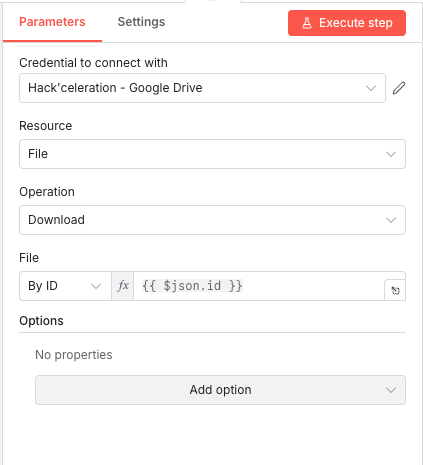 Parameters
- Credential to connect with: Select your Google Drive credential
- Resource:
File/Folder - Operation:
Search - Search Method:
Search File/Folder Name - Search Query: Leave empty or enter a pattern to match specific files
- Return All: Enabled (toggle ON)
- Filter > Folder: By ID →
1rP060MxRwxjXD7hVKRivn7PmNUrGF0Y5(paste your Google Drive folder ID here) - Options: No additional options
10 Step 10Google Drive1 - Download Video File for YouTube.
This node downloads the actual video file from Google Drive, preparing it for upload to YouTube. The binary video data is stored in memory and passed to the YouTube upload node.
Like the audio download, the file ID is pulled dynamically from the search results, ensuring the correct video file is retrieved for each workflow execution.
💡 Tip: Video files can be large. Ensure your n8n instance has sufficient memory allocation. For self-hosted instances, consider increasing the
N8N_DEFAULT_BINARY_DATA_MODEtofilesystemfor better handling of large files.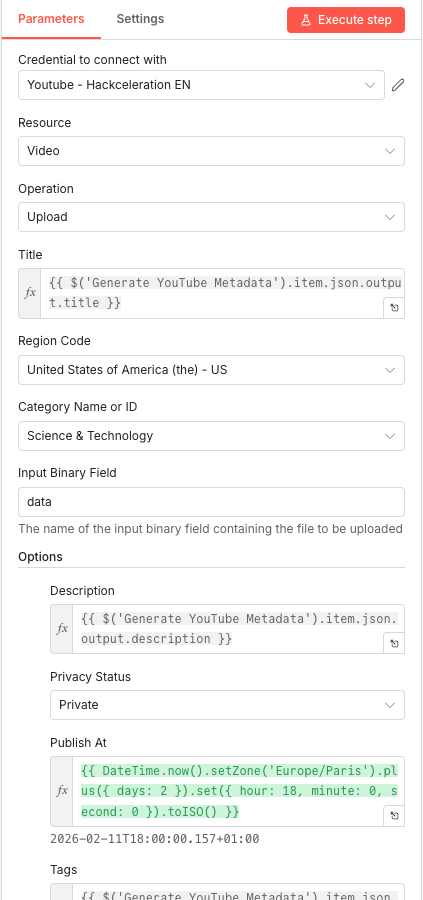 Parameters
- Credential to connect with: Select your Google Drive credential
- Resource:
File - Operation:
Download - File: By ID →
{{ $json.id }}(expression pulling the video file ID) - Options: No additional options
11 Step 11Upload Video to YouTube - Publish with AI-Generated Metadata.
The final node brings everything together. It uploads your video to YouTube using all the AI-generated metadata: the optimized title, the structured description, the relevant tags, and a scheduled publish time.
The video is initially set to private with a future publish date, giving you time to review the AI's work before the video goes live. This safety net ensures you maintain quality control while enjoying the automation benefits.
Options:
- Description:
{{ $('Generate YouTube Metadata').item.json.output.description }}(pulls the AI-generated description) - Privacy Status: Private (video is uploaded but not visible until scheduled time)
- Publish At:
{{ DateTime.now().setZone('Europe/Paris').plus({ days: 2 }).set({ hour: 18, minute: 0, second: 0 }).toISO() }}(schedules publish for 2 days later at 6 PM) - Tags:
{{ $('Generate YouTube Metadata').item.json.output.tags }}(pulls the AI-generated tags)
💡 Tip: Adjust the
Publish Atexpression to match your audience's peak viewing times. Use YouTube Analytics to identify when your subscribers are most active, then update the hour and timezone accordingly.Parameters- Credential to connect with: Select your YouTube channel credential
- Resource:
Video - Operation:
Upload - Title:
{{ $('Generate YouTube Metadata').item.json.output.title }}(pulls the AI-generated title) - Region Code: United States of America (the) - US (or your target region)
- Category Name or ID: Science & Technology (select your channel's primary category)
- Input Binary Field:
data(matches the field name from Google Drive download)
- Description:
Get the ready-to-import n8n JSON plus the install guide
Drop your email and we'll send you the complete scenario.
- n8n JSON ready to import
- Written setup guide
- Video tutorial included
Why Automating YouTube Publishing Is a Game-Changer for Content Creators
YouTube success depends on consistency. The algorithm rewards creators who publish regularly, engage their audience with optimized content, and maintain professional-quality presentation across every upload. But the manual work required to achieve this consistency is exhausting. The problems with manual YouTube publishing: Writing unique, SEO-optimized titles for every video takes significant research time Crafting structured descriptions with timestamps, CTAs, and links is repetitive and tedious Researching relevant tags requires keyword analysis for each piece of content The upload process itself involves multiple clicks and form fields Human error leads to inconsistent formatting, forgotten tags, or publishing mistakes What automation delivers: Consistent, professional metadata for every single video you publish SEO optimization built into every title and description automatically Time savings of 1-2 hours per video that compounds with your publishing schedule Reduced cognitive load—just drop files in a folder and let the workflow handle the rest Scalability to handle multiple channels or increased publishing frequency without additional effort For content creators publishing weekly, this workflow saves 50-100 hours per year. For agencies managing multiple channels, the savings multiply dramatically. More importantly, it removes friction from your creative process—you can focus entirely on making great content while the boring parts handle themselves.
The full automation, in your inbox.
n8n JSON, written guide and video tutorial, everything to ship this in under 15 minutes.
- Complete n8n scenario JSON
- Step-by-step setup documentation
- Full video walkthrough