AI Agent in n8n to Automatically Extract Data from PDF Invoices
Still wasting time manually copying data from PDF invoices every day? This n8n automation puts an end to that.
The full automation, in your inbox
AI Agent in n8n to Automatically Extract Data from PDF Invoices

Automatically Extract Key Invoice Data with an AI Agent (Free n8n Workflow + Video + Tutorial + Download)
Requirement: Use a Self-Hosted n8n Instance with Terminal Access
! You'll needRequirement: Use a Self-Hosted n8n Instance with Terminal Access
- A self-hosted n8n instance with terminal access.
- API credentials for the services used in this workflow.
The full automation, in your inbox
n8n workflow breakdown.
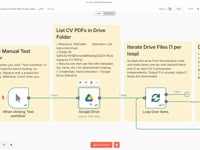
01 Step 01Launch the Workflow (Manual Trigger).
This initial step lets you manually test your PDF invoice processing. The Manual Trigger node in n8n is perfect for simulating the automation step-by-step and making sure every field (amount, supplier, IBAN, etc.) is correctly extracted.
It’s the best way to confirm that your AI agent reads each file and pulls the correct data before adding a real trigger like new email received, file added to drive, or API call.
Start your first test by clicking “Execute Workflow” in the n8n editor.
Settings- Trigger Type: Manual Trigger
- Usage: Manually launch the workflow to test one or several invoice PDFs
02 Step 02Retrieve PDF Invoices from Google Drive.
This step automatically scans a specific folder in your Google Drive to fetch all PDF invoices ready for processing. Each file will then be analyzed individually by the AI agent.
💡 Tip: To find your Drive folder ID, open the folder in your browser—the ID appears in the URL after
/folders/.Settings- Module: Google Drive
- Operation: List all files in a folder
- Folder: ID of the folder containing your invoice PDFs
- Authentication: Your Google Drive account connected to n8n
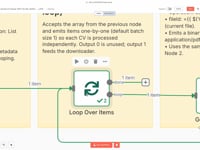
03 Step 03Process Each Invoice with a Loop Node.
This step uses a Loop node in n8n to process each invoice PDF individually. It ensures that every file is analyzed one by one, preventing data overlap or workflow collisions.
Looping over the list of files lets your automation treat every invoice as a separate item—from text extraction to AI analysis and data structuring.
Settings- Module: Loop
- Operation: Iterate through the list of PDF files
- Purpose: Ensure that each invoice is processed in isolation
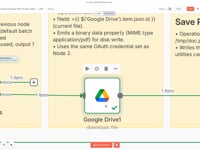
04 Step 04Download the Invoice PDF from Google Drive.
This step automatically downloads the invoice PDF file from your Google Drive folder, using the dynamic file ID retrieved during the previous loop step.
💡 You can also replace Google Drive with a Gmail module, a webhook trigger, or your ERP's API if invoices come from another source.
Settings- Module: Google Drive
- Operation: Download file
- File: Dynamic file ID (from the loop)
- Authentication: Your connected Google account in n8n
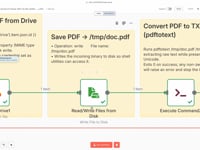
05 Step 05Save the PDF Invoice Locally.
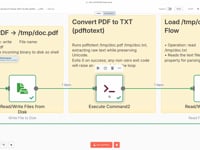
The invoice is saved in PDF format inside a temporary server folder (
/tmp/doc.pdf). This step is required to make the file accessible for text extraction using a terminal command.This method works with any type of PDF: customer invoice, vendor invoice, credit note, purchase order, etc.
Settings- File path: /tmp/doc.pdf
- Content: Binary data from the downloaded PDF invoice
06 Step 06Extract Text from the Invoice (PDFtoText).
In this step, we use the
pdftotextcommand (included in the Poppler library) to convert the PDF invoice into a plain text file. This format is essential for the AI agent to analyze and structure the information extracted from the invoice.➡️ Command executed:
pdftotext /tmp/doc.pdf /tmp/doc.txtThis method extracts all visible fields from an invoice: number, date, line items, VAT, total amount, IBAN, and more.
Not sure how to install pdftotext? Ask ChatGPT depending on your system (Ubuntu, Docker, Mac…) or contact us.
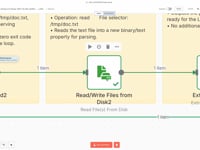
07 Step 07Read the Extracted Text File.
In this step, we use the Read File from Disk node to load the plain text content previously extracted from the PDF invoice. This data will then be passed to the AI agent for analysis and structured extraction.
This step is crucial to ensure that the AI receives clean, readable input data for accurate processing.
Parameters- File Path:
/tmp/doc.txt - Encoding: UTF-8
- File Path:
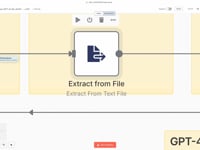
08 Step 08Prepare the Text for Analysis.
The raw text extracted from the invoice may contain unwanted line breaks, extra spaces, or repeated headers. This step is used to clean and standardize the content so it can be properly interpreted by the AI agent.
The cleaned output is stored in
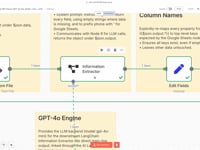
$json.data, ready to be passed to the analysis step. This ensures the AI model receives clear, usable input such as dates, invoice numbers, product lines, VAT, totals, and more.09 Step 09Analyze the Invoice with an AI Agent (GPT-4o).
The cleaned text is sent to an AI agent powered by GPT-4o, using LangChain. This agent is trained to automatically extract all key invoice data: invoice number, date, client, vendor, subtotal, total with tax, IBAN, product lines, and more.
➡️ Prompt: JSON-formatted output with standardized fields, optimized for Google Sheets (e.g. using apostrophes to prevent number formatting issues).
10 Step 10Flatten the Extracted Data.
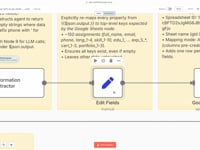
The JSON generated by the AI agent is transformed into a flat structure, with standardized fields (e.g.,
invoice_number,invoice_date,total_amount,client_name, etc.) for direct integration into Google Sheets.💡 You can easily adapt this structure for other tools like Notion, Airtable, or your accounting database depending on your stack.
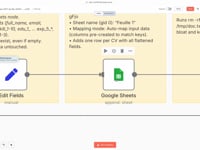
11 Step 11Insert Structured Data into Google Sheets.
The extracted invoice information (amount, date, client, supplier, IBAN, etc.) is automatically added as a new row in a Google Sheet. Each column corresponds to a clearly defined field.
➡️ Connection: Google Sheets linked to your account
You can easily replace this output with Notion, Airtable, an ERP, an invoicing tool, or a SQL database depending on your needs.
12 Step 12Clean Up the Server.
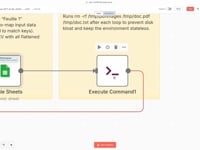
To keep your server clean and avoid unnecessary storage usage, this step automatically deletes the temporary files created during the invoice processing (
/tmp/doc.pdfand/tmp/doc.txt).➡️ Command:
rm -rf /tmp/doc.pdf /tmp/doc.txtYou can customize this path depending on your storage system or if you want to archive files in a different location.
Get the ready-to-import n8n JSON plus the install guide
Drop your email and we'll send you the complete scenario.
- n8n JSON ready to import
- Written setup guide
- Video tutorial included
Why Automatically Extracting Invoice Data is a Game-Changer for Your Admin Workflow
Managing your incoming invoices in your CRM, ERP, or Google Sheets efficiently is essential to automate your admin workflow and avoid manual entry errors. Manually reviewing PDF invoices is time-consuming, error-prone, and slows down follow-ups or accounting processes. Common issues with manual invoice data entry: Missing or incorrect information (invoice number, date, amount, client, etc.). Time wasted opening each PDF and copying the data manually. Risk of duplicates or incorrect amounts entered. Difficulty centralizing and using data for tracking or follow-up. Benefits of automatically extracting invoice data: Instantly structured and standardized billing information. Significant time savings on administrative tasks. Seamless integration with Google Sheets, Notion, Airtable, or accounting tools. Automated triggers (notifications, archiving, follow-ups, accounting sync, etc.). By automating the extraction of data from PDF invoices using an AI agent, you eliminate repetitive tasks, improve data accuracy, and boost productivity. This n8n scenario becomes a powerful asset to scale your admin operations effortlessly.
The full automation, in your inbox.
n8n JSON, written guide and video tutorial, everything to ship this in under 15 minutes.
- Complete n8n scenario JSON
- Step-by-step setup documentation
- Full video walkthrough