AI Agent to Automatically Extract Resume Data (via n8n)
Want to extract key Resume data without wasting time copying everything by hand? This n8n automation uses an AI agent to structure all the information for you—instantly.
The full automation, in your inbox
AI Agent to Automatically Extract Resume Data (via n8n)

Automatically Extract Key Resume Data with an AI Agent (Free n8n Workflow + Video + Tutorial + Download)
Requirements: Self-Hosted n8n Instance with Terminal Access
! You'll needRequirements: Self-Hosted n8n Instance with Terminal Access
- A self-hosted n8n instance with terminal access.
- API credentials for the services used in this workflow.
The full automation, in your inbox
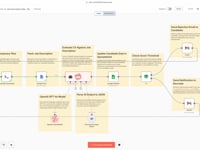
n8n workflow breakdown.
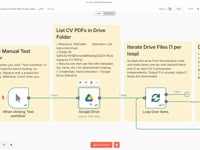
01 Step 01Start the Workflow (Manual Trigger).
This first step lets you manually test the workflow. Using n8n’s Manual Trigger module, you can launch the automation on demand to make sure everything runs smoothly before deploying it in production.
Manual triggering is especially useful for debugging and step-by-step testing. Once your test results are validated, you can replace it with an automated trigger (e.g. cron, webhook, etc.) if needed.
To begin: click “Execute Workflow” in n8n to start the process.
Settings- Trigger type: Manual Trigger
- Usage: Run the workflow manually from the n8n interface
02 Step 02Fetch the List of Resume from Google Drive.
This step automatically lists all PDF files located in a specific folder on your Google Drive. Each file is treated as an individual Resume to be processed by the AI agent.
💡 Pro tip: You can find your Drive folder ID in the URL when you're inside the folder — it’s the part that comes after
/folders/.Settings- Module: Google Drive
- Operation: List all files in a folder
- Folder: Your Google Drive folder ID containing the Resume
- Authentication: Your connected Google account in n8n
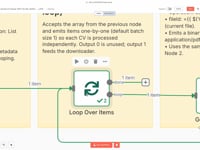
03 Step 03Process Each Resume Individually (Loop).
This step uses the Split In Batches module to process each Resume file independently. The loop goes through every retrieved PDF and handles them one by one in an isolated flow.
This ensures clean execution and avoids confusion when multiple files are stored in the folder.
Settings- Batch Size: 1 (to process one file at a time)
- Output Used: Output 1 (connected to the file download step)
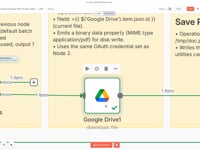
04 Step 04Download the Resume from Google Drive.
This step downloads the Resume PDF file directly from your Google Drive folder, using the file ID retrieved during the loop process.
💡 You can replace this source with a Gmail trigger, an API endpoint, or any other system that receives Resumes.
Settings- Module: Google Drive
- Operation: Download File
- File: Dynamic file ID (from the loop)
- Authentication: Your connected Google account in n8n
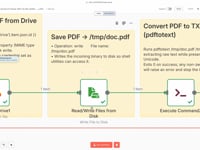
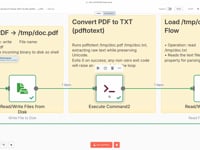
05 Step 05Save the PDF File Locally.
The PDF file is saved locally on the server to a temporary path (
/tmp/doc.pdf) so it can be used in the next step to extract text content.Settings- File Path: /tmp/doc.pdf
- Content: Binary data of the downloaded PDF
06 Step 06Extract Text from the Resume (PDFtoText).
Here, we use the
pdftotextcommand (from Poppler) to convert the PDF into a plain text file that can be processed by the AI agent. This command must be installed on your server.➡️ Command executed:
pdftotext /tmp/doc.pdf /tmp/doc.txt💡 Not sure how to install it? Ask ChatGPT based on your system (Linux, Docker, Mac…) or reach out to us for support.
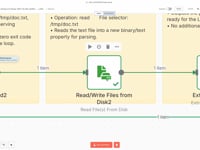
07 Step 07Read the Text File Content.
The file
/tmp/doc.txt, generated bypdftotext, is now read. Its content is loaded into n8n to be passed to the AI agent in the next step.08 Step 08Prepare the Text for Analysis.
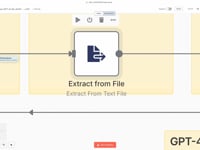
This step cleans and structures the raw text content to ensure it’s properly analyzed by the AI agent. The formatted text is then available in
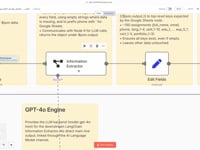
$json.data.09 Step 09Analyze the Resume with an AI Agent (GPT-4o).
The text content is sent to an AI agent powered by GPT-4o via LangChain. It extracts all key information from the Resume (name, email, work experience, skills, etc.).
➡️ Prompt: fixed structure, predefined column names, apostrophes added to numbers for Google Sheets compatibility.
10 Step 10Flatten the Structured Data.
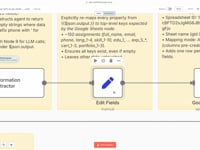
We convert the JSON returned by the AI agent into a flat structure, compatible with automatic import into Google Sheets. Each property (e.g.
lang_1,edu_1_degree) is explicitly mapped.💡 If you want to send the data elsewhere (Notion, Airtable, SQL database…), you can easily adapt this block.
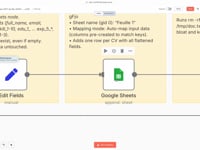
11 Step 11Add Structured Data to Google Sheets.
The extracted information is automatically added to a new row in your Google Sheet. Each column matches a clearly defined Resume field.
➡️ Connection: Google Sheets connected to your account
💡 You can also modify this step to send data to Notion, Airtable, or any other database.
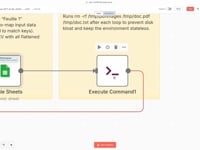
12 Step 12Clean the Server.
This command deletes all temporary files (
/tmp/doc.pdfand/tmp/doc.txt) after each loop to keep the environment clean and optimized.➡️ Command:
rm -rf /tmp/doc.pdf /tmp/doc.txt
Get the ready-to-import n8n JSON plus the install guide
Drop your email and we'll send you the complete scenario.
- n8n JSON ready to import
- Written setup guide
- Video tutorial included
Why Automatically Extracting Information from a Resume is Essential for Your Hiring Process
Efficiently managing Applications or Profiles in your CRM or ATS is essential to automate your hiring process and avoid losing valuable information. Manually analyzing PDF resumes is time-consuming, slows down decision-making, and leads to human error. Common issues with manual resume handling: Missing or incorrectly entered information (emails, experience, languages, etc.). Wasted time copy-pasting each resume into a file or database. Difficulty filtering or sorting profiles based on specific criteria. Delays in processing applications and missed opportunities. Benefits of automatically extracting resume data: Clean, standardized structure for all incoming profiles. Massive time savings on candidate sorting and qualification. Seamless automation with Google Sheets, Notion, Airtable, or your CRM. Trigger custom actions (emails, scoring, tagging, etc.). By automating resume data extraction from PDF files using an AI agent, you eliminate repetitive tasks, improve data accuracy, and boost your reactivity. This n8n workflow becomes a strategic asset to scale your recruitment process effortlessly.
The full automation, in your inbox.
n8n JSON, written guide and video tutorial, everything to ship this in under 15 minutes.
- Complete n8n scenario JSON
- Step-by-step setup documentation
- Full video walkthrough