Enrich Inbound Leads via LinkedIn | n8n
Manual lead research is a productivity killer. Every time someone fills out your contact form, you’re faced with a choice: spend 10 minutes researching them on LinkedIn, or skip the research and risk sending generic, ineffective follow-ups. Neither option is great.
The full automation, in your inbox
Requirements: n8n instance & API keys.
! You'll needRequirements: n8n instance & API keys.
- A self-hosted n8n instance with terminal access.
- API credentials for the services used in this workflow.
The full automation, in your inbox
n8n workflow breakdown.
01 Step 01Manual Trigger – Set Up the Lead Capture Form.
This first node creates a simple form that captures lead emails—your workflow's entry point. In production, you'd typically replace this with a webhook connected to your actual lead capture form, but the Manual Trigger with form capability is perfect for testing and demonstrations.
The form configuration here is intentionally minimal: just an email field. That's all you need to kick off the enrichment process. Everything else—name, company, title—gets pulled automatically from LinkedIn.
💡 Tip: In real-world use, you'd connect a Webhook node instead of this form, pulling the email from your actual lead capture system (Typeform, landing page, CRM, etc.).
 Parameters
- Form URL: Your n8n instance generates a unique form URL (Test URL for testing, Production URL for live use)
- Authentication: Set to
Nonefor this example (add authentication in production if needed) - Form Title:
Example Lead Form (Trigger for Automation Workflow)– customize this to match your use case - Form Description: Explanatory text for form visitors
- Form Elements:
- Field Name:
Email - Element Type:
Text - Required Field: Toggle
ON– ensures you always capture the email
- Field Name:
02 Step 02Set Email – Normalize the Input Data.
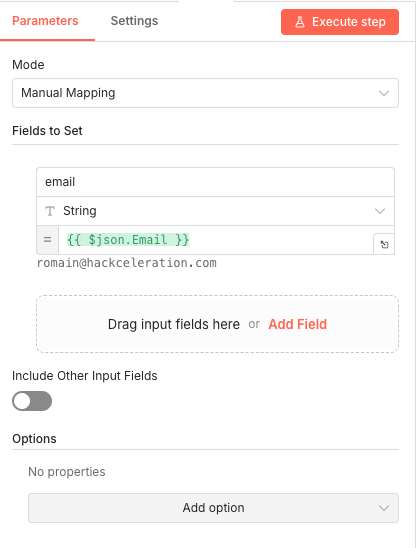
This Set node standardizes the email field name for downstream nodes. Different triggers might pass the email with different field names (Email, email, user_email, etc.), so this step ensures consistency throughout the workflow.
It's a simple but crucial data hygiene step. By explicitly mapping the email field here, you make the rest of your workflow more robust and easier to modify later.
- Include Other Input Fields: Toggle
OFF– only pass the email field forward💡 Tip: If your trigger uses a different field name for email, just update the expression. For example,
{{ $json.user_email }}or{{ $json.contact_email }}.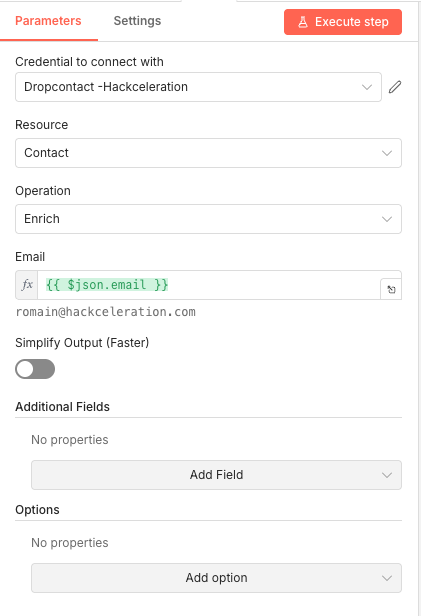 Parameters
- Mode:
Manual Mapping– explicitly define which fields to set - Fields to Set:
- Field Name:
email - Type:
String - Value:
{{ $json.Email }}– pulls the Email field from the form submission
- Field Name:
- Include Other Input Fields: Toggle
03 Step 03Dropcontact – Find LinkedIn Profile from Email.
This is where the magic starts. Dropcontact takes the email address and returns the associated LinkedIn profile URL. Their database cross-references professional emails with LinkedIn profiles, giving you the connection you need for deeper enrichment.
Dropcontact is particularly good at finding LinkedIn profiles for business emails. Personal Gmail or Yahoo addresses will have lower match rates, but for B2B leads using company emails, expect strong results.
💡 Tip: Dropcontact offers a free tier perfect for testing. For production with higher volume, you'll need a paid plan. The API returns the LinkedIn URL in the
linkedinfield when found.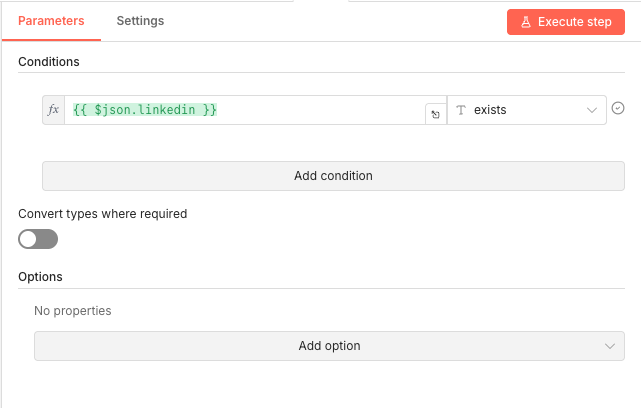 Parameters
- Credential to connect with: Select your Dropcontact API credential
- Resource:
Contact– we're enriching contact data - Operation:
Enrich– fetch additional data for the contact - Email:
{{ $json.email }}– dynamically passes the email from the previous node - Simplify Output (Faster): Toggle
OFF– keep detailed output for maximum data - Additional Fields: None configured (add if you need company enrichment)
- Options: None configured
04 Step 04IF LinkedIn Profile Exists – Route Based on Match Success.
Not every email will have a findable LinkedIn profile. This IF node checks whether Dropcontact returned a LinkedIn URL and routes the workflow accordingly—successful matches continue to Apify scraping, while non-matches go to a fallback path.
This branching logic ensures your workflow doesn't break when LinkedIn data isn't available. You can still capture minimal lead data (just the email) and flag those leads for manual research later.
- Convert types where required: Toggle
OFF- Options: None configured
The "true" branch (LinkedIn found) continues to Apify. The "false" branch (no LinkedIn) routes to a simplified Set node that captures just the email.
💡 Tip: Consider adding a notification node on the "false" branch to alert you when leads can't be enriched—these might need manual attention.
 Parameters
- Conditions:
- Value 1:
{{ $json.linkedin }}– the LinkedIn URL field from Dropcontact - Condition:
exists– checks if the field has a value
- Value 1:
- Convert types where required: Toggle
05 Step 05Apify LinkedIn Scraper – Extract Full Profile Data.
Now we're pulling the real gold. Apify's LinkedIn scraper takes the profile URL from Dropcontact and extracts comprehensive data: name, headline, current company, job history, education, skills, connection count, location, and more.
This is the step that transforms a simple email into a full lead profile. The data you get here is what your sales team needs to personalize outreach and qualify leads without any manual research.
💡 Tip: Apify offers various LinkedIn scrapers with different capabilities and pricing. The "Mass LinkedIn Profile Scraper" works well for this use case. Check Apify's documentation for alternatives if you need specific data points.
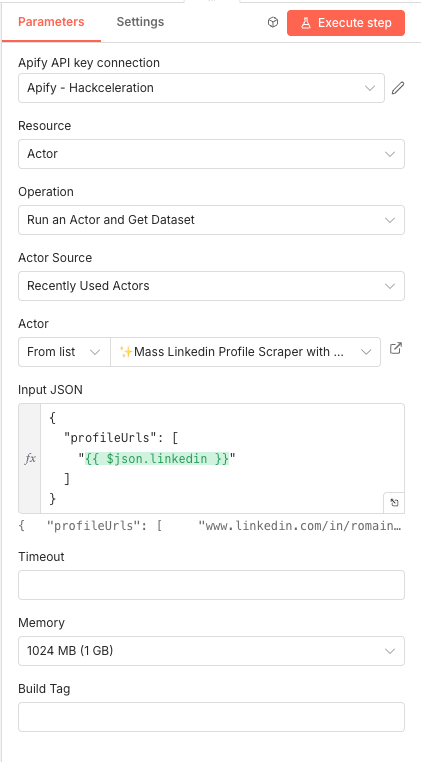
 Parameters
- Credential to connect with: Select your Apify API key credential
- Resource:
Actor– Apify organizes scrapers as "Actors" - Operation:
Run an Actor and Get Dataset– executes the scraper and retrieves results - Actor Source:
Recently Used Actors– or search for LinkedIn scrapers - Actor: Select
Mass LinkedIn Profile Scraperor similar LinkedIn scraping Actor from Apify's library - Input JSON:
{ "profileUrls": [ "{{ $json.linkedin }}" ] } - Memory:
1024 MB (1 GB)– sufficient for single profile scraping - Timeout: Empty (uses default)
- Build Tag: Empty (uses latest build)
06 Step 06Set Lead LinkedIn Profile Data – Structure the Enriched Data.
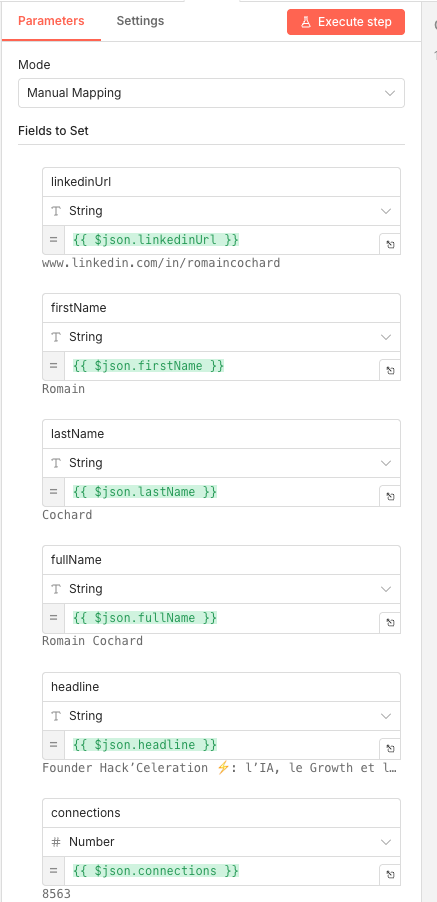
Apify returns a lot of data, and not all of it is useful for every use case. This Set node extracts the specific fields you want and structures them cleanly for your CRM or database.
The fields mapped here represent the most valuable data points for sales follow-up. You can customize this list based on your specific needs—add company size, industry, or skills if those matter for your qualification process.
- Include Other Input Fields: Toggle
OFF– only keep the explicitly mapped fields💡 Tip: Apify's LinkedIn scraper returns many more fields than shown here—company name, location, experience array, education, skills, etc. Check the Actor's output documentation and add any fields relevant to your sales process.
 Parameters
- Mode:
Manual Mapping - Fields to Set:
- linkedinUrl (String):
{{ $json.linkedinUrl }}– the profile URL for reference - firstName (String):
{{ $json.firstName }}– lead's first name - lastName (String):
{{ $json.lastName }}– lead's last name - fullName (String):
{{ $json.fullName }}– combined full name - headline (String):
{{ $json.headline }}– LinkedIn headline (usually job title + company) - connections (Number):
{{ $json.connections }}– connection count (useful for influence scoring)
- linkedinUrl (String):
- Include Other Input Fields: Toggle
07 Step 07Set Email (Merge Branch) – Preserve Email Through the Flow.
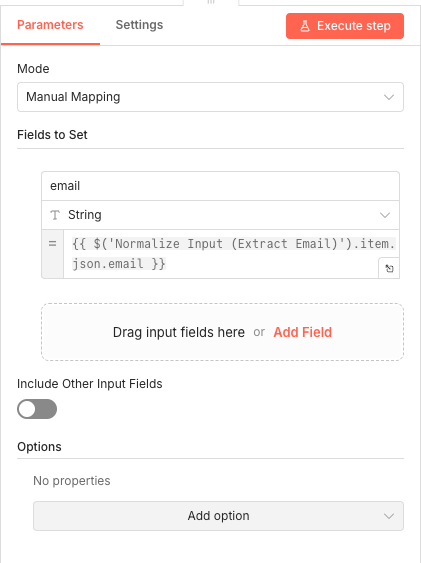
This Set node handles the "no LinkedIn found" branch, ensuring leads without LinkedIn profiles still get captured with their email address. It references the email from the earlier normalization step to maintain data consistency.
Even when you can't enrich a lead fully, you don't want to lose them. This node ensures every lead—enriched or not—flows into your final destination.
- Include Other Input Fields: Toggle
OFF- Options: None configured
💡 Tip: The expression
$('Node Name')lets you reference data from any previous node by name. This is essential when you have branching logic and need to pull data from nodes that aren't immediately upstream.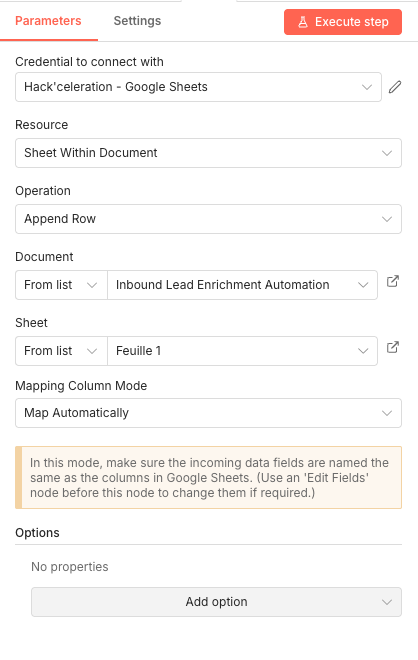 Parameters
- Mode:
Manual Mapping - Fields to Set:
- email (String):
{{ $('Normalize Input (Extract Email)').item.json.email }}– pulls email from the earlier Set node by referencing its name
- email (String):
- Include Other Input Fields: Toggle
08 Step 08Google Sheets – Save Enriched Lead Data.
The final step pushes all your enriched lead data into Google Sheets. Each new lead gets a new row with all the fields you've mapped throughout the workflow. From here, your sales team can review, prioritize, and take action.
Google Sheets is used here for simplicity, but you can easily swap this node for HubSpot, Pipedrive, Salesforce, Airtable, or any CRM that n8n supports.
Important: For automatic mapping to work, your Google Sheet column headers must exactly match the field names from the previous Set node (email, linkedinUrl, firstName, lastName, fullName, headline, connections).
💡 Tip: Create your Google Sheet with the correct column headers before running the workflow. If you need to add more fields later, just add columns to the sheet and map those fields in the Set node.
Parameters- Credential to connect with: Select your Google Sheets credential
- Resource:
Sheet Within Document– we're targeting a specific sheet - Operation:
Append Row– adds new data as a new row - Document: Select
From list→ Choose your target spreadsheet (e.g., "Inbound Lead Enrichment Automation") - Sheet: Select
From list→ Choose your target sheet (e.g., "Sheet1" or "Leads") - Mapping Column Mode:
Map Automatically– field names in n8n will match column headers in your sheet - Options: None configured
Get the ready-to-import n8n JSON plus the install guide
Drop your email and we'll send you the complete scenario.
- n8n JSON ready to import
- Written setup guide
- Video tutorial included
Why Automating LinkedIn Lead Enrichment Is a Game-Changer for Sales Teams
Inbound leads are the lifeblood of B2B sales, but raw form submissions don't tell you much. An email address alone won't help you prioritize follow-ups, personalize your outreach, or qualify whether someone's worth your time.The manual research problem:Spending 5-10 minutes per lead searching LinkedIn and gathering basic infoInconsistent data quality depending on who's doing the researchLeads going cold while you're still figuring out who they areSales reps wasting time on low-quality leads because they couldn't quickly qualify themWhat automation solves:Instant enrichment—full profile data available seconds after submissionConsistent data structure across all leads for better reporting and scoringFaster follow-up that catches leads while they're still warmBetter qualification so reps focus on leads that actually match your ICPThe math is simple: if you get 50 leads per week and spend 7 minutes manually researching each one, that's nearly 6 hours of pure research time. This workflow reduces that to zero active time—just set it up once and let it run.For growth teams and sales managers, automated LinkedIn enrichment means your team spends more time selling and less time playing detective. The data's already there when they pick up the phone.
The full automation, in your inbox.
n8n JSON, written guide and video tutorial, everything to ship this in under 15 minutes.
- Complete n8n scenario JSON
- Step-by-step setup documentation
- Full video walkthrough