AI Agent n8n Scan Business Cards to Google Sheets Sheets
You come back from a networking event with 30 business cards. Maybe you photograph them all with good intentions. But then what? You’re staring at manual data entry—typing names, emails, phone numbers, LinkedIn URLs one by one. It’s mind-numbing work, and realistically, most of those cards never make it into your CRM.
The full automation, in your inbox
AI Agent n8n: Scan Business Cards to Google Sheets

AI Agent n8n: Scan Business Cards
Requirements: what you'll need first.
! You'll needRequirements: what you'll need first.
- An n8n instance (cloud or self-hosted) — new to the platform? Check our n8n review for setup tips
- A Google account with Google Drive and Google Sheets access
- A Google Cloud project with the Gemini API enabled
- API credentials configured in n8n for: Google Drive (OAuth2), Google Sheets (OAuth2), Google Gemini (API Key)
The full automation, in your inbox
Step-by-step n8n workflow breakdown.
01 Step 01Daily Trigger — Schedule Your Automatic Folder Scan.
This node kicks off your entire workflow automatically—no manual clicking required. It fires once every day at midnight, scanning your business card folder while you sleep.
The Schedule Trigger is n8n’s way of running workflows on autopilot. You configure when it should fire, and n8n handles the rest. For business card processing, daily makes sense—it batches your new cards from the day before without overwhelming your Google API quotas.
 Parameters
- Trigger Interval: Days — Sets the cadence unit for how often the workflow runs
- Days Between Triggers: 1 — Fires every single day (valid range: 1-31)
- Trigger at Hour: Midnight — Workflow executes at 00:00
- Trigger at Minute: 0 — Precise start at exactly midnight
02 Step 02Google Drive — Search for New Business Card Images.
Now we need to find the actual business card images in your Google Drive. This node scans a specific folder and returns all files it contains—these are your unprocessed cards waiting to be digitized.
The Search operation retrieves file metadata (including the crucial file ID) without downloading the actual content yet. This keeps things fast and lets us loop through potentially dozens of cards efficiently.
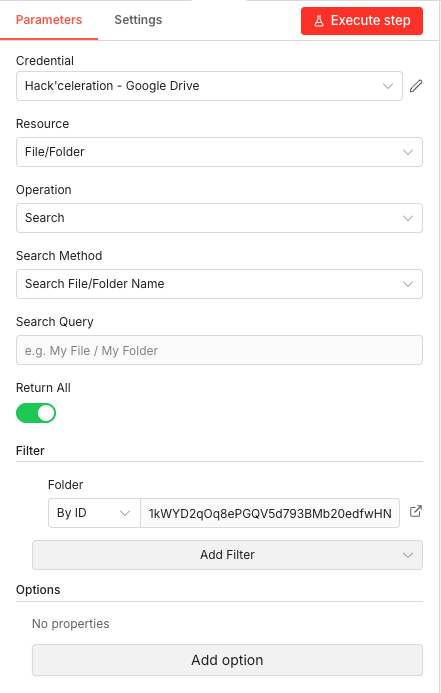
 Parameters
- Credential: Select your Google Drive credential configured in n8n
- Resource:
File/Folder— Scopes the operation to file and folder entities - Operation:
Search— Retrieves matching items rather than downloading them - Search Method:
Search File/Folder Name— Searches by name within the scoped location - Search Query: (empty) — No filter applied, returns all files in the folder
- Return All: ON (enabled) — Retrieves every matching file, not just the first page
- Folder (Filter): By ID →
[YOUR_FOLDER_ID]— The unique Google Drive folder ID where you store business card photos
03 Step 03Loop Over Items — Process Each Card Individually.
With potentially many business card images to process, this node ensures we handle them one at a time. This is crucial for reliable AI processing—Gemini analyzes one image per request, and we want each card’s data to flow cleanly into its own spreadsheet row.
The Loop Over Items node (also called SplitInBatches) takes your array of files and processes them sequentially. After each iteration completes, it loops back to handle the next card until all are done.
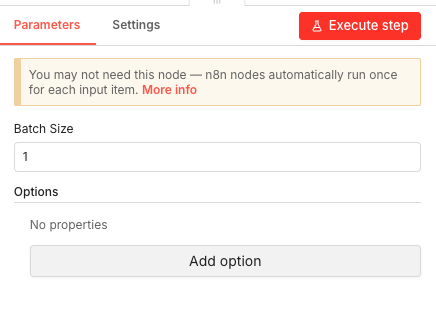
 Parameters
- Batch Size: 1 — Process exactly one business card per iteration
- Options: No additional properties configured
04 Step 04Download File — Fetch the Business Card Image.
Now we actually download the business card image from Google Drive. The previous Search node gave us file metadata—this node grabs the actual image content so we can send it to Gemini for analysis.
The node uses the file ID from the current loop iteration to know exactly which file to download. The image gets stored as binary data in n8n’s memory, ready to pass to the AI.
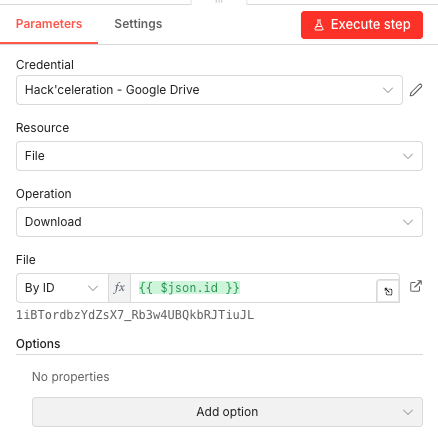
 Parameters
- Credential: Select your Google Drive credential configured in n8n
- Resource:
File— Targets file-level operations - Operation:
Download— Fetches the actual file content - File: By ID →
{{ $json.id }}— Expression that pulls the file ID from the current item’s JSON data - Options: No additional properties configured
05 Step 05Analyze Image — Extract Contact Data with Gemini AI.
This is where the magic happens. The Google Gemini node sends your business card image to Google’s vision AI along with a specialized prompt that tells it exactly what data to extract and how to format the response.
Gemini 2.5 Flash is perfect for this task—it’s fast, accurate with text recognition, and handles varied business card layouts well. The key is the prompt: we tell it to act as a “business card data extraction specialist” and return a clean JSON object with specific fields.
 Parameters
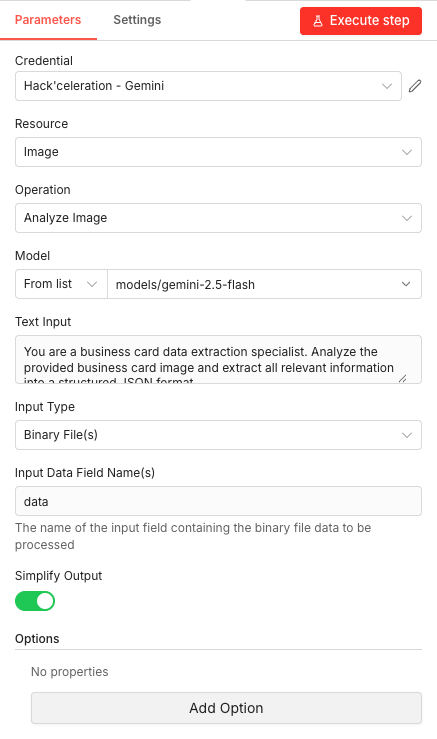
- Credential: Select your Google Gemini API credential configured in n8n
- Resource:
Image— Indicates we’re working with image-based input - Operation:
Analyze Image— The specific vision analysis action - Model: From list →
models/gemini-2.5-flash— The Gemini model version for image analysis - Text Input: (See prompt below)
- Input Type:
Binary File(s)— Image is passed as binary data, not a URL - Input Data Field Name(s):
data— The binary field name containing the image from the download step - Simplify Output: ON (enabled) — Returns cleaner, easier-to-parse output
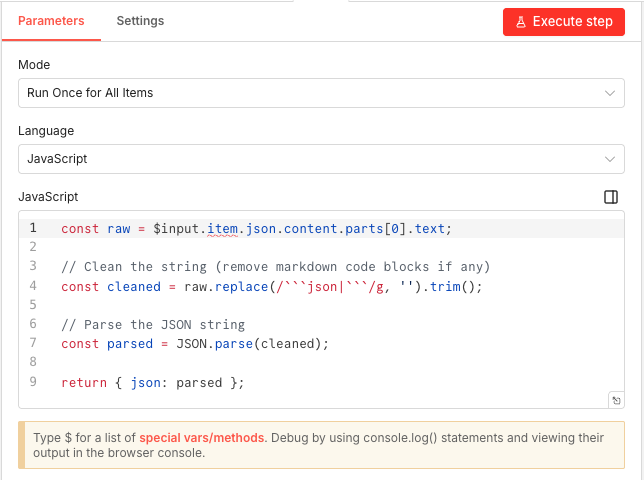
06 Step 06Code — Parse the AI Response into Clean Data.
Gemini returns its response in a nested structure, and sometimes wraps the JSON in markdown code blocks. This Code node extracts the text, cleans off any formatting, and parses it into a proper JavaScript object that downstream nodes can work with.
This is a simple but essential transformation step. Without it, you’d be trying to map nested text strings into spreadsheet columns—not fun.
 Parameters
- Mode:
Run Once for All Items— Executes the code one time for the batch - Language:
JavaScript— Code runs in JS runtime
- Mode:
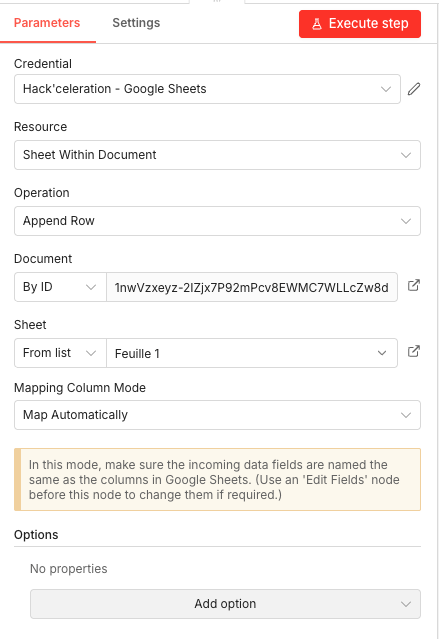
07 Step 07Google Sheets — Save Extracted Data to Your Spreadsheet.
Now we write the extracted contact information to your Google Sheets database. Each processed business card becomes one new row with all the structured data neatly organized in columns.
The node uses automatic column mapping, which means your spreadsheet headers need to match the JSON field names from the AI extraction (first_name, last_name, email, etc.). Set up your headers once, and every future card automatically populates the right columns.
 Parameters
- Credential: Select your Google Sheets credential configured in n8n
- Resource:
Sheet Within Document— Targets a specific sheet inside a spreadsheet file - Operation:
Append Row— Adds a new row at the bottom of existing data - Document: By ID →
[YOUR_SPREADSHEET_ID]— The unique ID of your Google Sheets file - Sheet: From list → Select your target sheet (e.g., “Sheet1” or “Contacts”)
- Mapping Column Mode:
Map Automatically— Matches JSON field names to spreadsheet column headers - Options: No additional properties configured
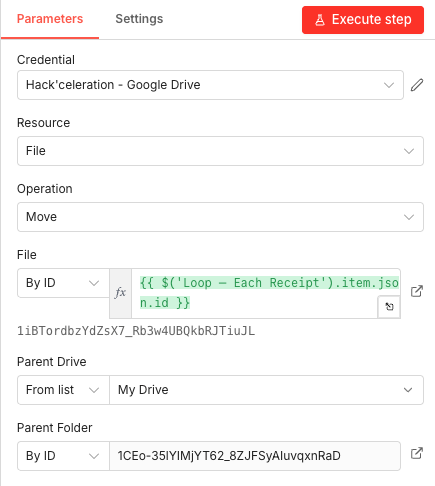
08 Step 08Google Drive — Move Processed Files to Archive.
The final step moves each processed business card image to a “Processed” folder. This is crucial—without it, the workflow would re-process the same cards tomorrow, creating duplicate entries in your spreadsheet.
By relocating handled files, your source folder always contains only new, unprocessed cards. Clean and efficient.
Parameters- Credential: Select your Google Drive credential configured in n8n
- Resource:
File— Targets file-level operations - Operation:
Move— Relocates the file to a different folder - File: By ID →
{{ $('Loop Over Items').item.json.id }}— Expression referencing the file ID from the loop node - Parent Drive: From list →
My Drive— The destination is within your personal Google Drive - Parent Folder: By ID →
[YOUR_PROCESSED_FOLDER_ID]— The ID of your “Processed” archive folder
Get the ready-to-import n8n JSON plus the install guide
Drop your email and we'll send you the complete scenario.
- n8n JSON ready to import
- Written setup guide
- Video tutorial included
Why Automating Business Card Scanning is a Game-Changer for Sales Professionals
If you’re in sales, networking, or any role where relationships matter, business cards are still everywhere. Conferences, meetups, client visits—you accumulate them constantly. But a stack of cards on your desk isn’t a contact database. It’s a missed opportunity sitting in paper form.
The problems with manual processing:
- Hours spent typing the same fields over and over
- Typos that corrupt email addresses and phone numbers
- Cards that never get entered and connections that fade
- No consistency in how data is formatted
- Zero scalability when you come back from a big event
What automation gives you:
- Instant processing while you sleep—drop photos, wake up to data
- AI-powered accuracy that reads handwriting and unusual layouts
- Consistent, structured data every single time
- A searchable, sortable database that integrates with your CRM
- Time back in your day for actual selling and relationship-building
The real value isn’t just saved time—it’s the contacts you’d never have added manually. That person you met briefly at the conference? Their info is now in your system, ready to follow up. That’s how opportunities happen. Need to sync this data with your sales tools? Explore our HubSpot n8n integration or connect with LinkedIn via n8n for lead enrichment.
The full automation, in your inbox.
n8n JSON, guide and video tutorial.
- Complete n8n scenario
- Setup documentation
- Video walkthrough