Generate Personalized HubSpot → Drive Presentation with Make – Guide + Workflow
The full automation, in your inbox
Generate Personalized HubSpot → Drive Presentation with Make – Guide + Workflow
Auto-Generate Personalized HubSpot Deal Slides on Google Drive with Make (Beginner) – Full Guide + Downloadable Workflow
Prerequisites: Initial Setup in HubSpot
! You'll needPrerequisites: Initial Setup in HubSpot
- A Make account — the free tier covers most scenarios; upgrade only if you hit the operations cap.
- API credentials for the services used in this workflow.
The full automation, in your inbox
Make workflow breakdown.
01 Step 01Prepare the Google Slides Template.
Before running the automation, set up a Google Slides template with your custom variables. On Slide 1, create a text box with the {{Service}} variable and insert a placeholder logo. On Slide 2, set up four text boxes with the following variables: {{Service}}, {{Product}}, {{Description}}, {{Price}}. Make sure to use this exact syntax so Make can automatically replace each value.
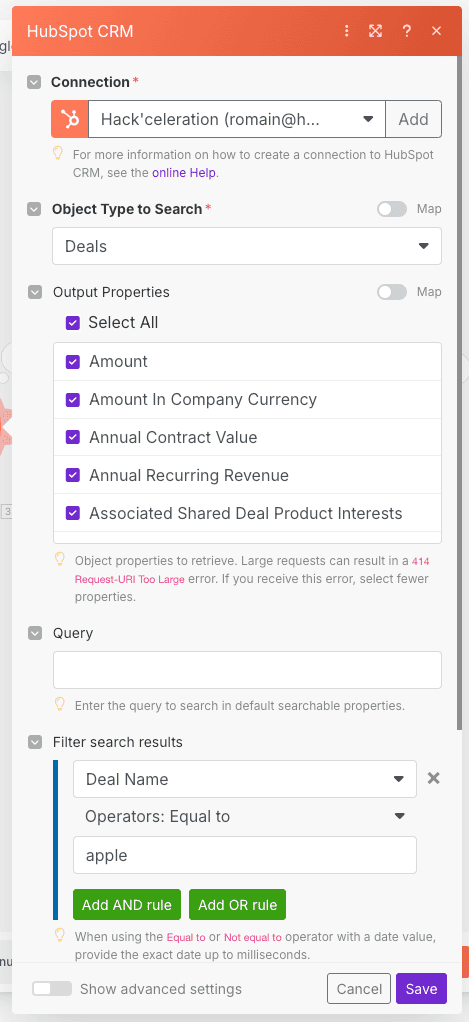
02 Step 02Set Up the Search for CRM Object Module (HubSpot).
This first HubSpot module allows you to precisely search for the desired deal. Configure it by selecting Deal as the object type. Then add a clear filter based on the deal name to automatically retrieve the one you want to use for generating your personalized slides.
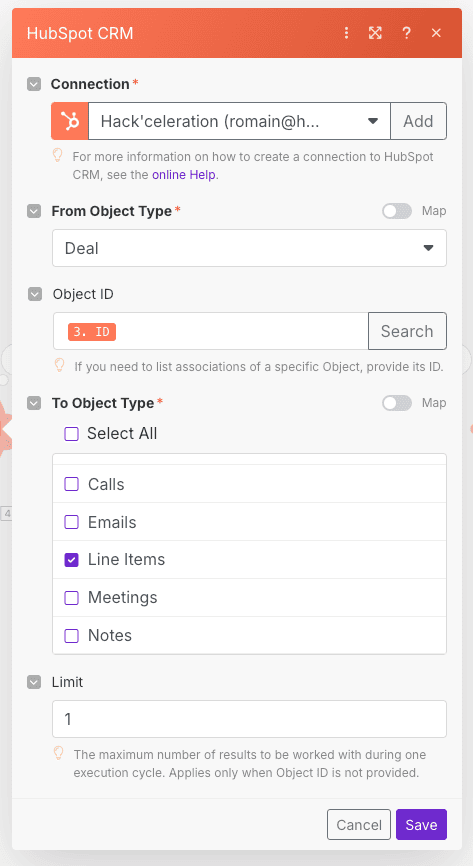
03 Step 03Set Up the List Associations Module (Line Item).
Configure this module by selecting From Object Type: Deal and To Object Type: Line Item. This allows you to automatically retrieve the ID of the Line Item associated with the previously fetched deal.
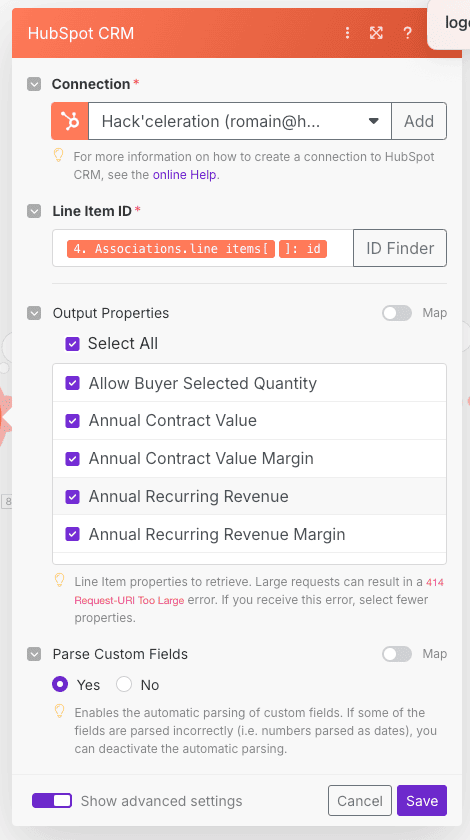
04 Step 04Set Up the Get Line Item Module (HubSpot).
Configure the module by adding the Line Item ID retrieved in the previous step. This lets you automatically extract all the product properties (name, description, price, etc.) needed to personalize your presentation.
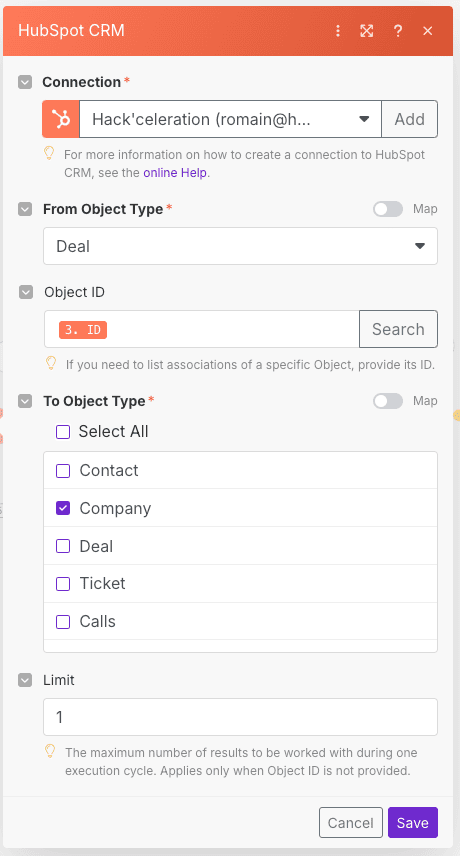
05 Step 05Set Up the List Associations Module (Company).
Select From Object Type: Deal and To Object Type: Company. This setup allows you to directly retrieve the ID of the company associated with the HubSpot deal being processed.
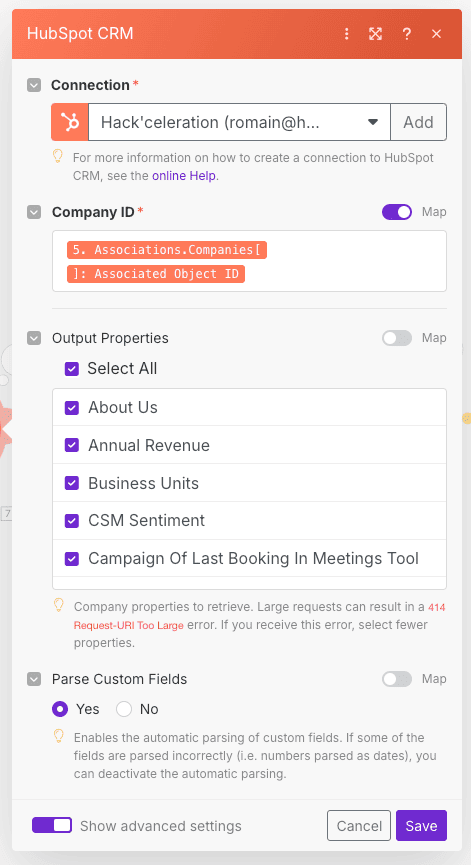
06 Step 06Set Up the Get a Company Module (HubSpot).
In this module, simply enter the Company ID retrieved in the previous step to automatically extract all its details (name, industry, size, logo URL, etc.). This data will be used directly in your slides.
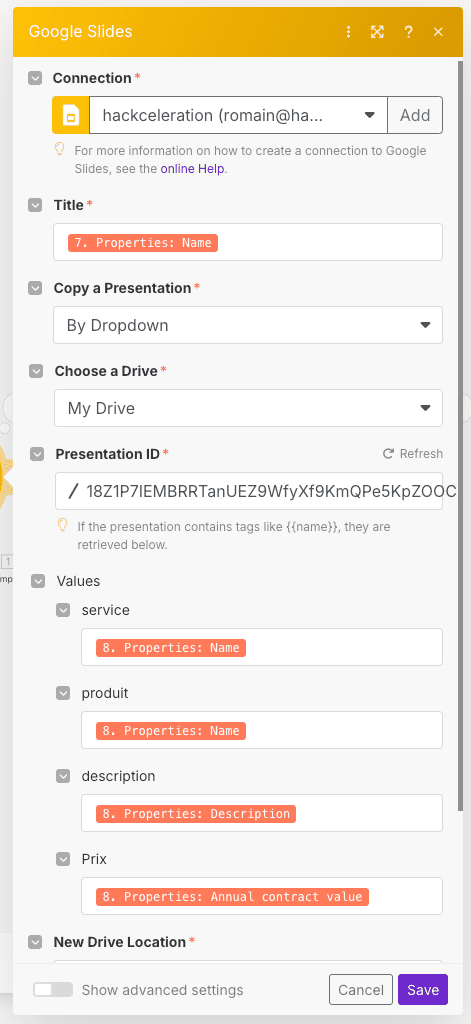
07 Step 07Set Up the Create Presentation from Template Module (Google Slides).
Select your Google Slides template, then add the variables from the previous steps. For example:
- Title: Company name pulled from HubSpot
- Service, Product, Description, Price: values retrieved from the HubSpot Line Item
Make sure each variable is properly mapped to enable the automatic generation of the slides.
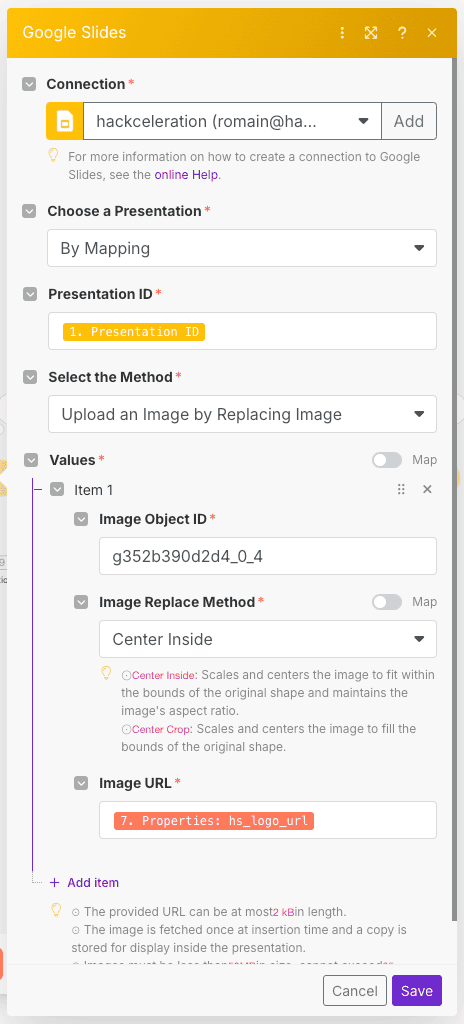
08 Step 08Set Up the Upload an Image Module (Google Slides).
To automatically replace the logo image on the first slide, provide two key parameters:
- Presentation ID: ID of the presentation created in the previous step.
- Image URL: URL of the company logo retrieved from HubSpot.
Make will automatically replace the existing image with the one specified here.
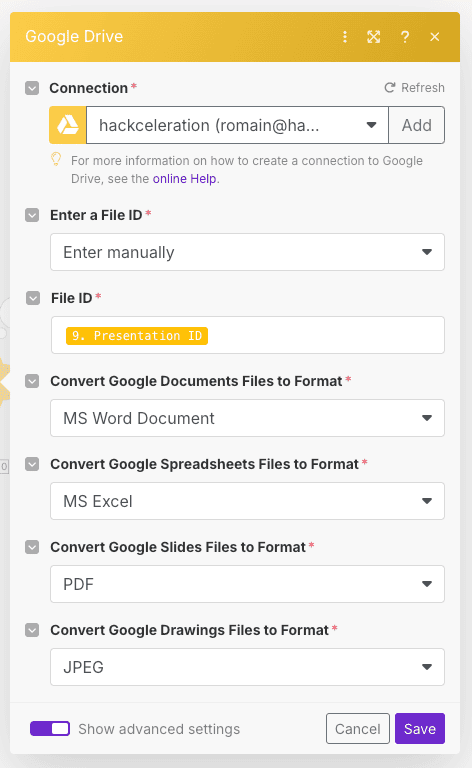
09 Step 09Set Up the Download a File Module (Google Slides).
Configure this module to automatically download the presentation as a PDF. Simply add the Google Slides presentation ID created earlier, then select PDF as the download format.
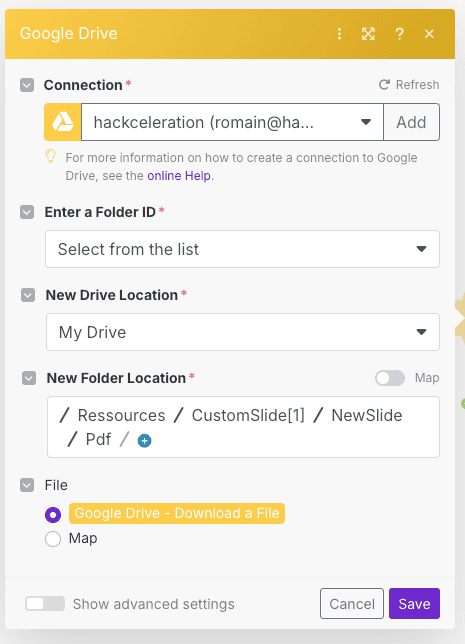
10 Step 10Set Up the Upload a File Module (Google Drive).
Select a specific Google Drive folder to automatically save the generated PDF file. Provide the PDF downloaded in the previous step. Your personalized presentation will then be instantly available in your Drive, perfectly organized and ready to use or share.
Discover how to easily automate the creation of personalized slides for your clients or team from HubSpot and save them to Google Drive using Make. Save time, eliminate manual errors, and deliver impactful presentations in just a few clicks. Follow the step-by-step guide or download the ready-to-use workflow!
Get the ready-to-import Make JSON plus the install guide
Drop your email and we'll send you the complete scenario.
- Make JSON ready to import
- Written setup guide
- Video tutorial included
The full automation, in your inbox.
Make JSON, written guide and video tutorial, everything to ship this in under 15 minutes.
- Complete Make scenario JSON
- Step-by-step setup documentation
- Full video walkthrough