
DROPBOX Make INTEGRATION: AUTOMATE DROPBOX WITH MAKE
DROPBOX MAKE INTEGRATION: AUTOMATE DROPBOX WITH MAKE
Need help automating Dropbox with Make?
Our team will get back to you in minutes.
Why automate Dropbox with Make?
The Dropbox Make integration gives you access to 1 trigger and 17 actions that cover virtually every file management scenario you can think of. From monitoring folder changes to creating share links, uploading files, and managing file requests—everything becomes programmable.
The benefits are substantial and immediate. Time savings come first: no more manually downloading files from one place to upload them elsewhere, no more creating share links one by one, no more renaming files following a naming convention by hand. Set up your rules once, and Make handles the execution 24/7. Improved responsiveness follows naturally—the Watch Files trigger monitors your folders continuously, so the moment a new file lands in your Dropbox, your workflow springs into action. Zero oversight means you'll never miss a file that needs processing or forget to share an important document.
Concrete use cases? Automatically back up email attachments to organized Dropbox folders. Create a client portal where uploaded files trigger notifications and CRM updates. Build a content pipeline where new assets in Dropbox get watermarked, resized, and distributed to multiple channels. Sync files between Dropbox and Google Drive bidirectionally. Generate share links automatically when files are added to specific folders and send them via Slack or email. The possibilities multiply when you connect Dropbox to Make's 1,500+ app integrations.
How to connect Dropbox to Make?
! 1 stepHow to connect Dropbox to Make?
- 01
Add the node
Search and add the node in your workflow.
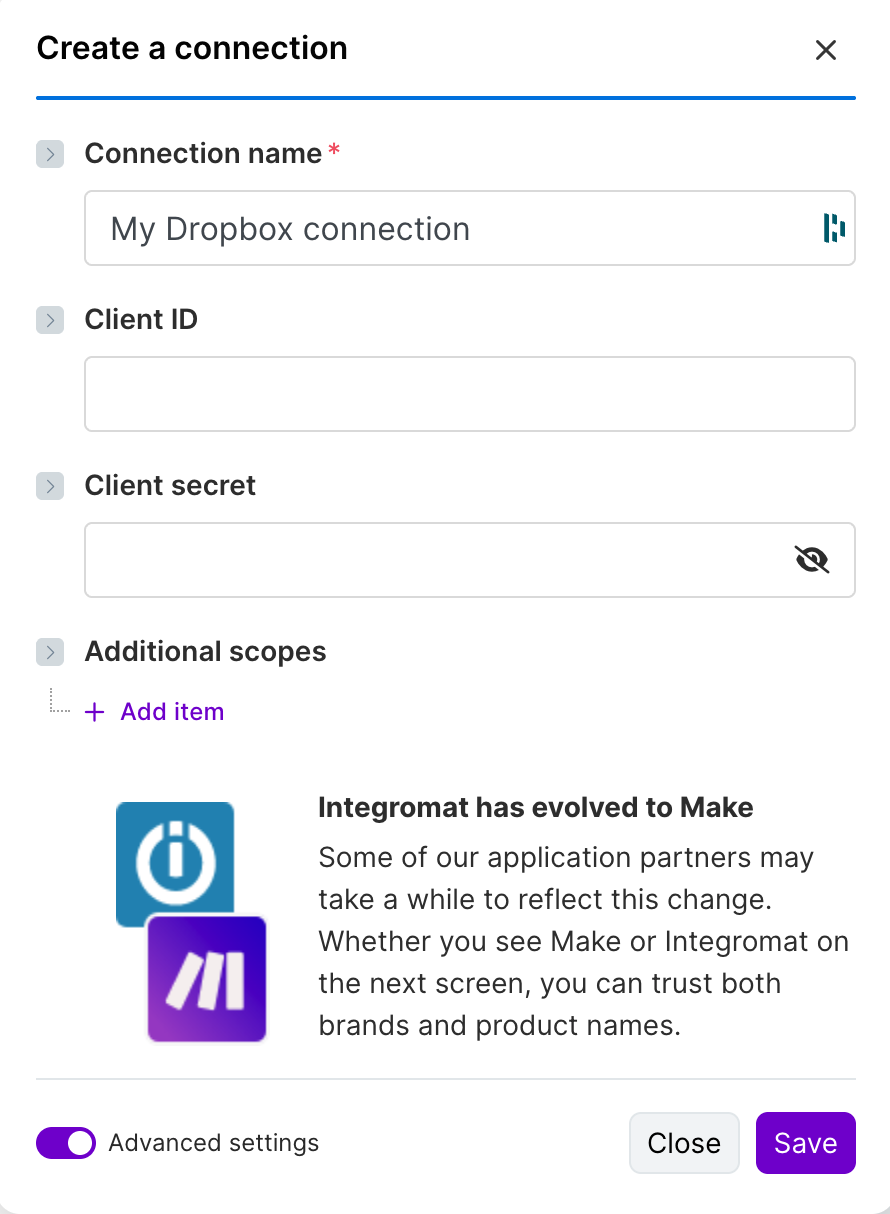 TIP💡 TIP: If you manage multiple Dropbox accounts (personal and business, or client accounts), create separate connections with clear naming conventions like "Dropbox - Personal" or "Dropbox - ClientName". This prevents accidentally modifying files in the wrong account and makes scenario management much cleaner as your automation library grows. For more advanced automation techniques, explore our Make training.
- 01
Need help automating Dropbox with Make?
Our team will get back to you in minutes.
Dropbox triggers available in Make
01 Trigger 01Watch Files
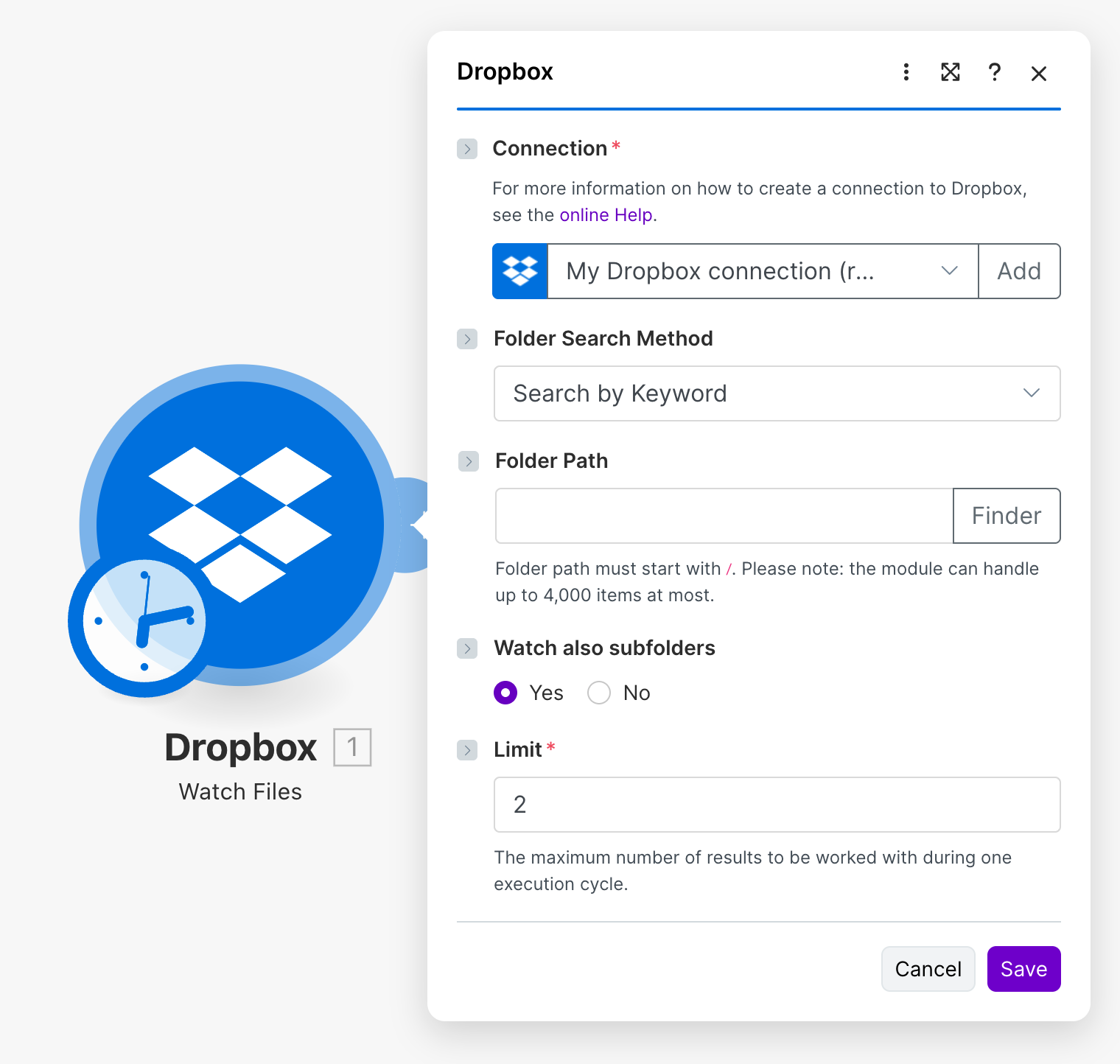
The Watch Files trigger is your automation's eyes on Dropbox—it continuously monitors a specified folder and fires your workflow whenever new or modified files are detected. This is the foundation for any reactive file-based automation, whether you're building an intake system, a processing pipeline, or a sync mechanism.
Configuration parameters: Connection (required) selects your authenticated Dropbox connection. Folder Search Method (optional) helps navigate complex folder hierarchies by keyword or selection. Folder Path (required) specifies the monitored folder path starting with "/" (e.g., "/Uploads"). Watch also subfolders determines recursive monitoring (Yes/No). Limit (required) caps the maximum files processed per execution cycle.
Typical use cases: Trigger document processing when contracts are uploaded to "/Contracts/Incoming", start image optimization pipelines for photos in media folders, kick off backup routines copying files to Google Drive, send Slack notifications when client deliverables are uploaded.
When to use it: Use Watch Files whenever you need event-driven automation based on Dropbox activity. It's perfect for intake workflows, processing queues, and any scenario where "when a file appears" should trigger subsequent actions.
Dropbox actions available in Make
01 Action 01Delete Closed File Requests
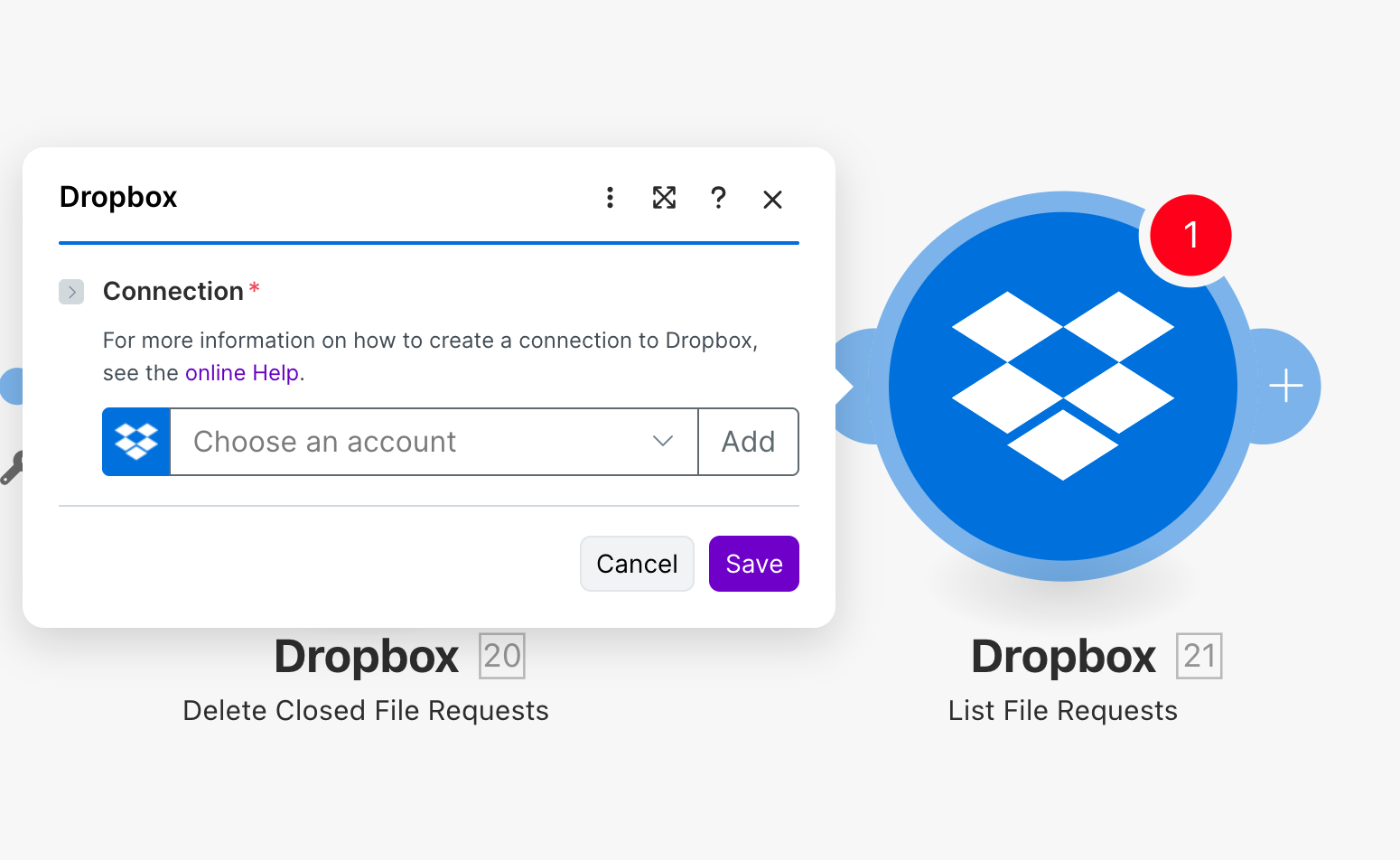
This action cleans up your Dropbox by removing file requests that have been closed. File requests are a Dropbox feature that lets you collect files from others into a specific folder—once they've served their purpose, this action helps you maintain a tidy workspace by deleting them in bulk.
Key parameters: Connection (required) selects your Dropbox connection to authorize deletion of closed file requests.
Use cases: Run weekly cleanup scenarios removing all closed file requests automatically, chain after "close file request" actions for immediate cleanup, maintain Dropbox hygiene as part of broader workspace organization automation.
02 Action 02Update a File Request
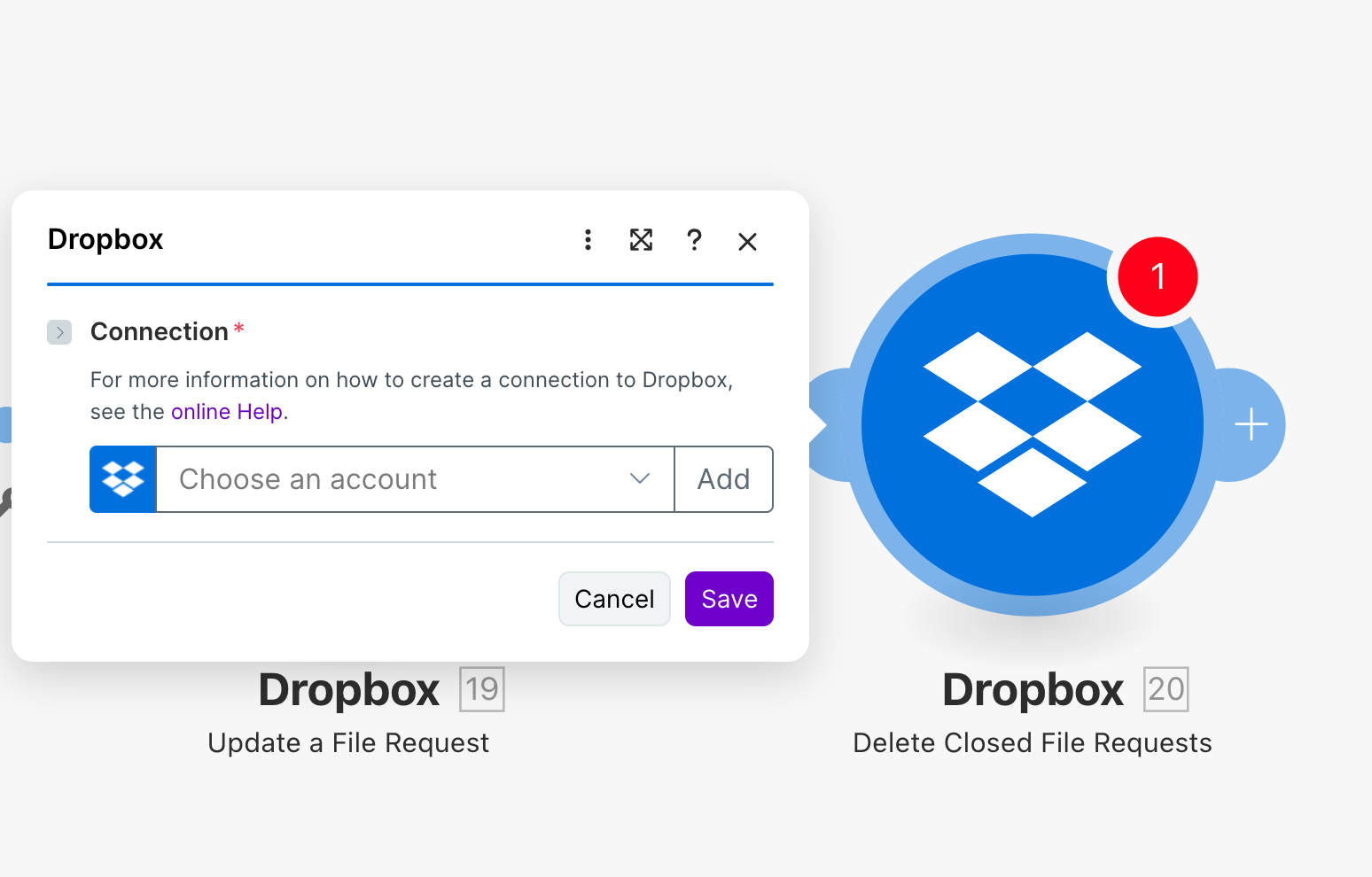
This action lets you modify an existing file request's settings programmatically. You can change the title, deadline, description, or destination folder of an active file request without manually accessing the Dropbox interface.
Key parameters: Connection (required) authenticates access to your file requests.
Use cases: Extend deadlines on file requests automatically based on project timeline changes, update file request descriptions when project requirements evolve, batch-modify multiple file requests as part of project management workflows.
03 Action 03Get a File Request
Retrieve the details of a specific file request, including its title, destination folder, deadline, and current status. This is essential for building conditional workflows that need to check file request properties before taking action.
Key parameters: Connection (required) for authentication and access.
Use cases: Check if a file request is still open before sending reminder emails, retrieve file request details to include in project status reports, validate file request configuration before updating or closing it.
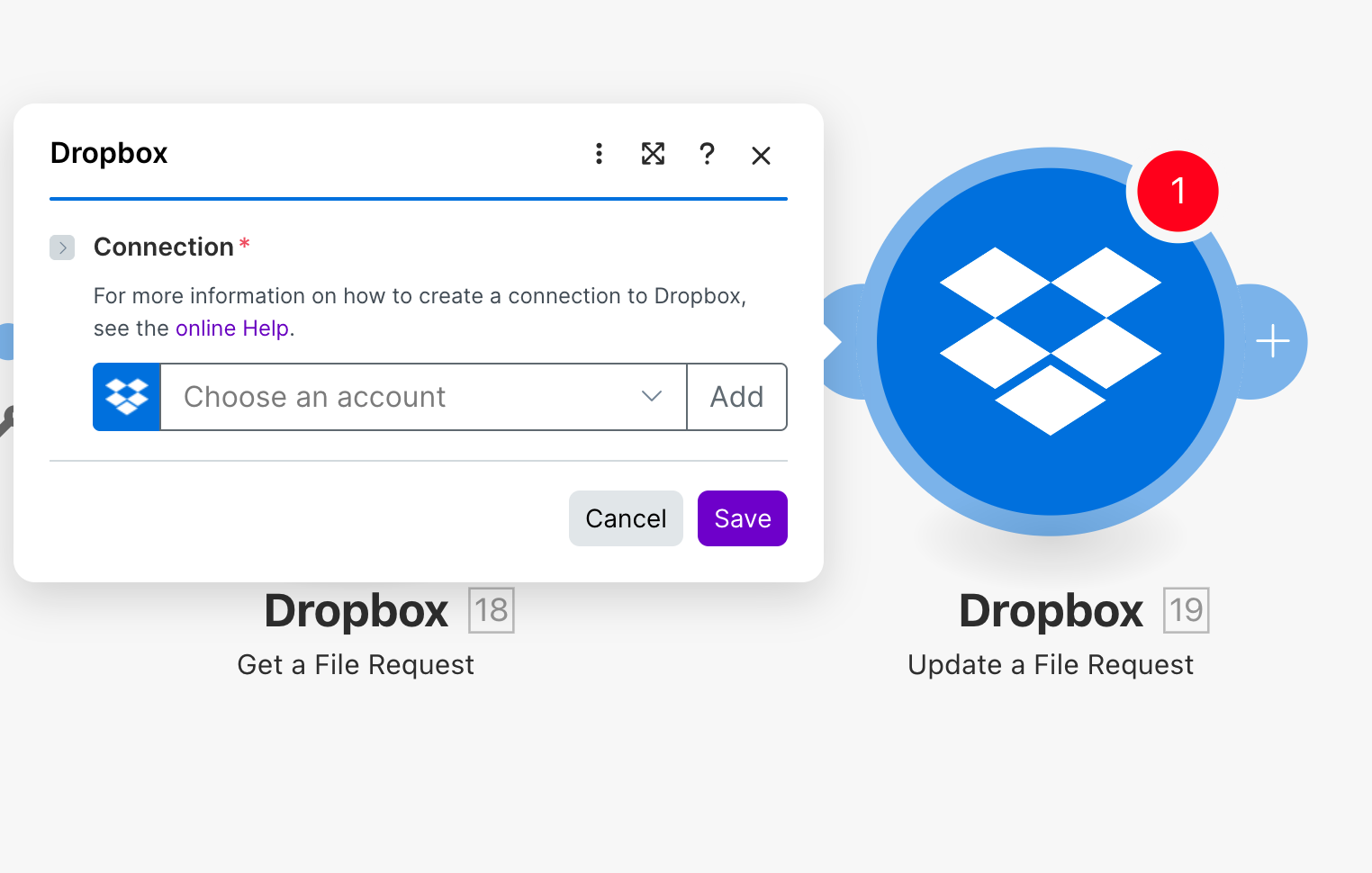
04 Action 04Create a File Request
Programmatically create new file requests in Dropbox, allowing external collaborators to upload files to a specific folder. This action is powerful for automating client intake, gathering submissions, or collecting assets from team members.
Key parameters: Connection (required) to create file requests in your account.
Use cases: Automatically create file requests when new projects are added to your project management tool, set up client intake forms that generate corresponding Dropbox file requests, build submission portals where new requests are created with dynamic titles and deadlines.
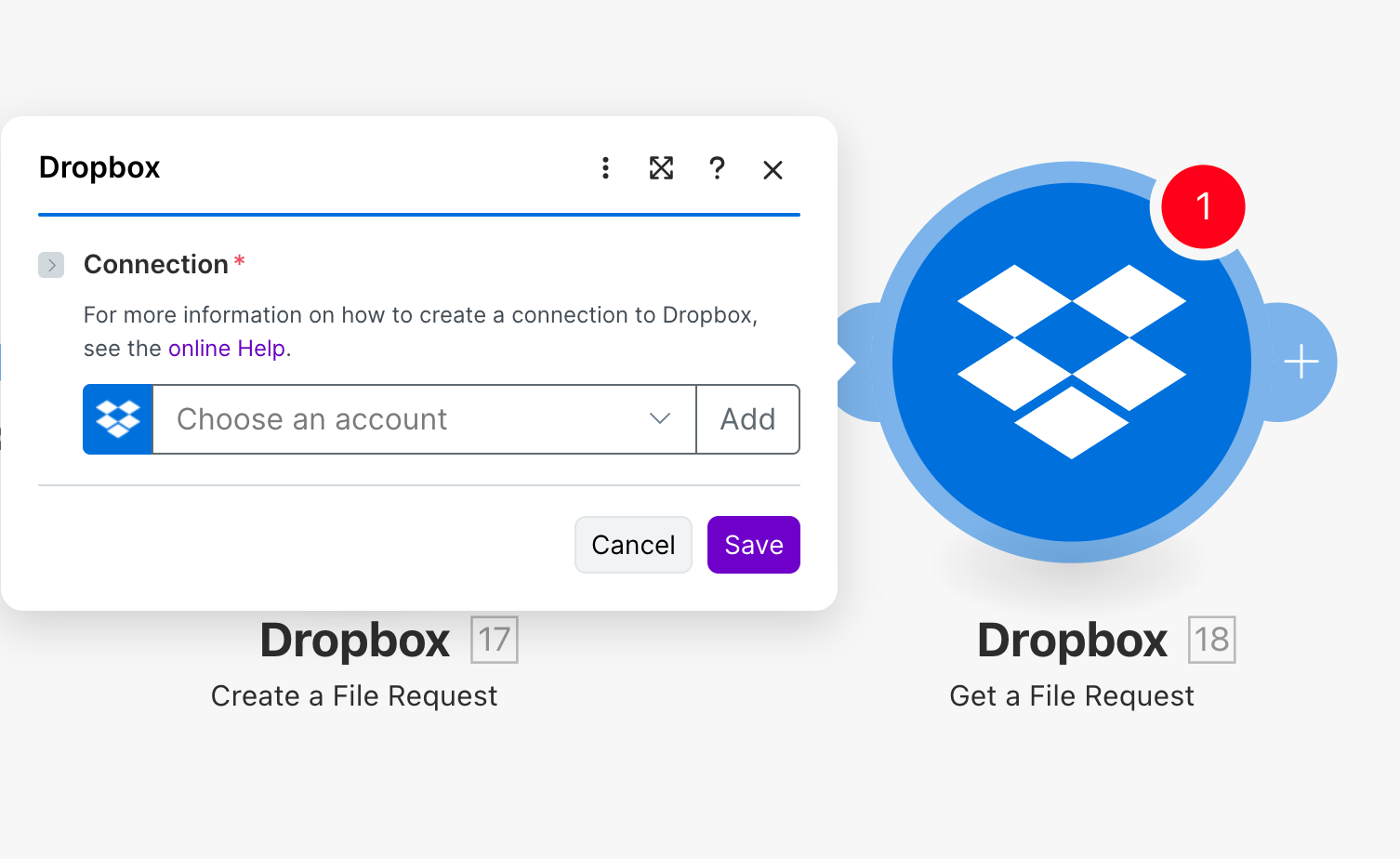
05 Action 05Copy a File or Folder
Duplicate files or folders within your Dropbox account, copying them from one location to another. This action is fundamental for backup workflows, content distribution, and template-based file management.
Key parameters: Connection (required), Source File or Folder (required) specifies the path to copy, Target Path (required) defines the destination folder, Target Name (optional) allows renaming during copy, Generate Name from Source and Autorename options manage naming conflicts.
Use cases: Copy template files to project folders when new projects are created, create backup copies of important files in archive folders, distribute assets to multiple destination folders simultaneously.
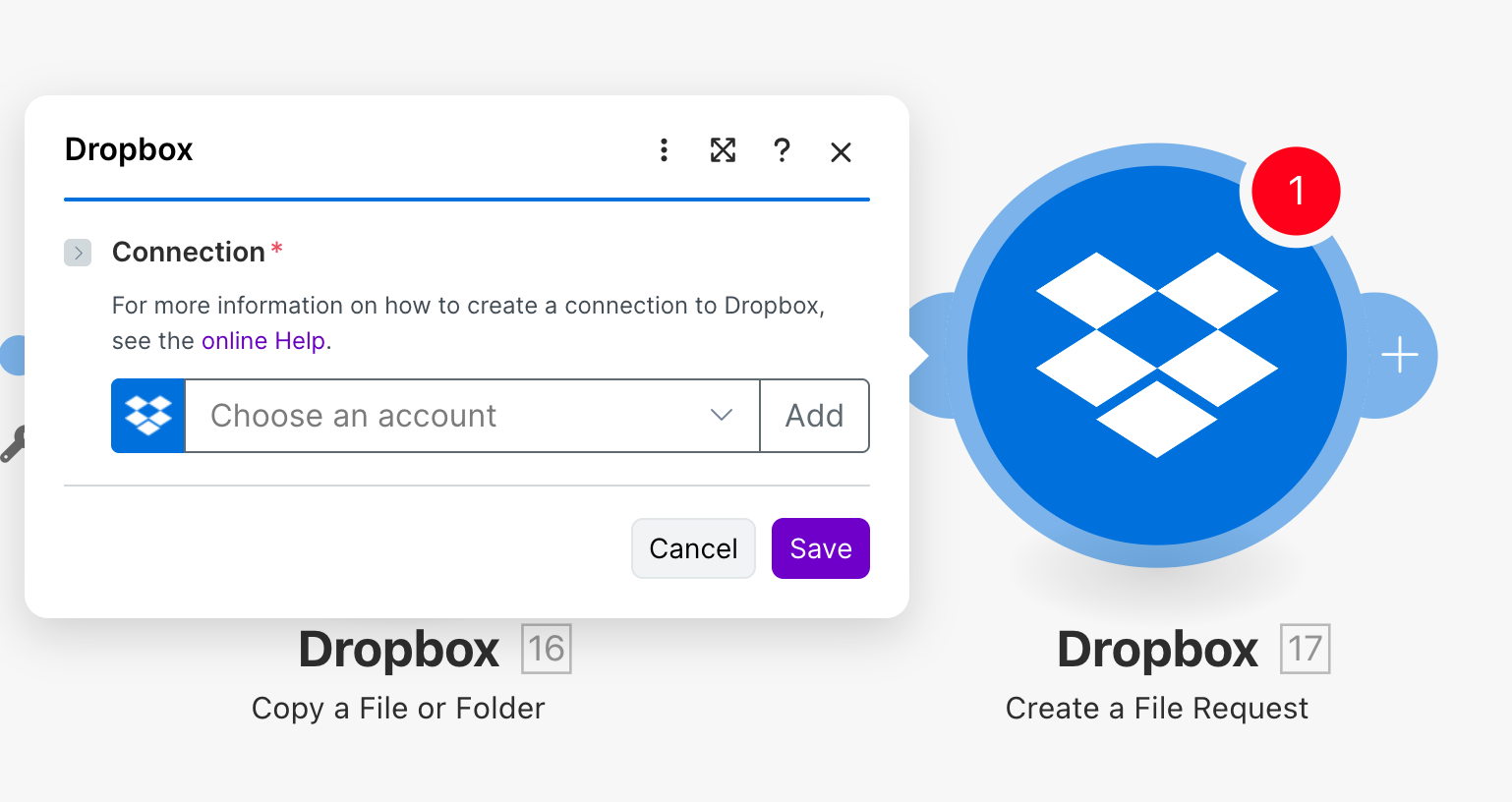
06 Action 06Delete a File/Folder
Permanently remove a file or folder from your Dropbox. Use this action carefully—deleted items go to the trash but can be purged. It's essential for cleanup workflows and managing storage space.
Key parameters: Connection (required), Way of selecting files/folders (required) typically set to "Map a file/folder path", File or Folder Path (required) specifies the exact path to delete.
Use cases: Automatically delete temporary files after processing is complete, clean up outdated folders based on date or naming patterns, remove source files after successful transfer to another system.
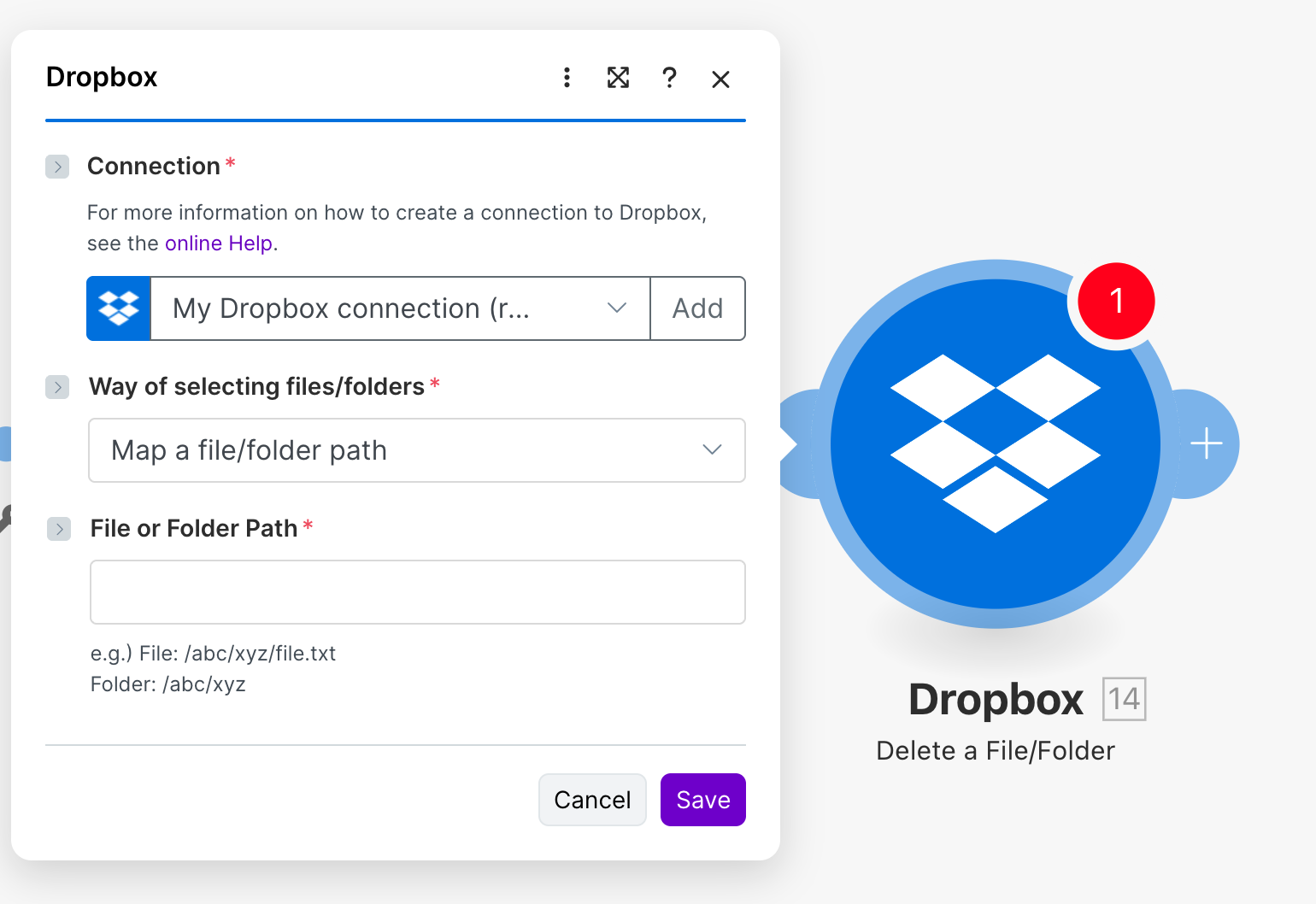
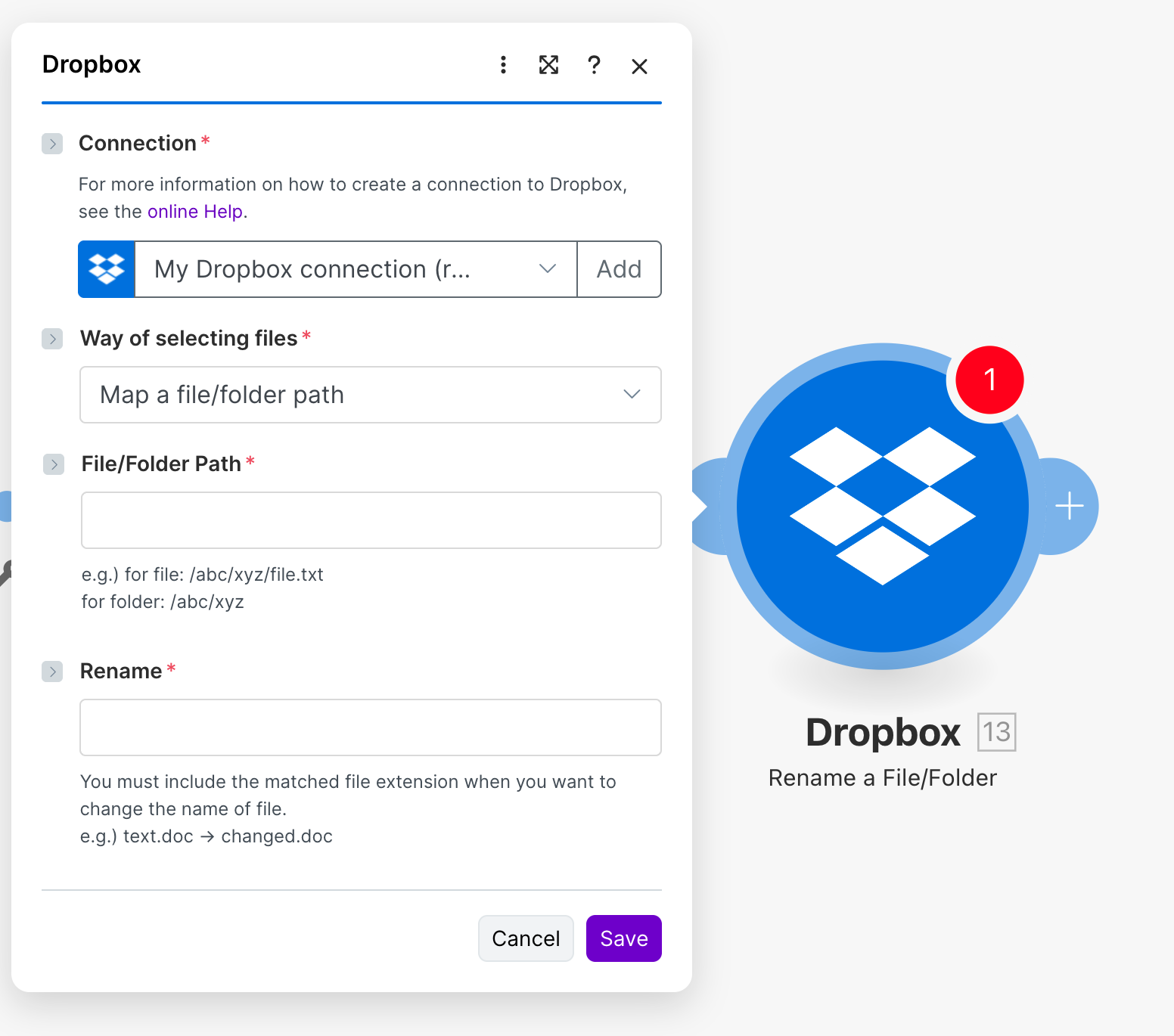
07 Action 07Rename a File/Folder
Change the name of a file or folder in Dropbox. This action is perfect for implementing naming conventions, adding timestamps, or cleaning up file names as part of an organizational workflow.
Key parameters: Connection (required), Way of selecting files (required), File/Folder Path (required) identifies the current path, Rename (required) specifies the new name including extension.
Use cases: Append timestamps to uploaded files for version tracking, standardize file names according to company naming conventions, rename files based on metadata extracted from their contents.
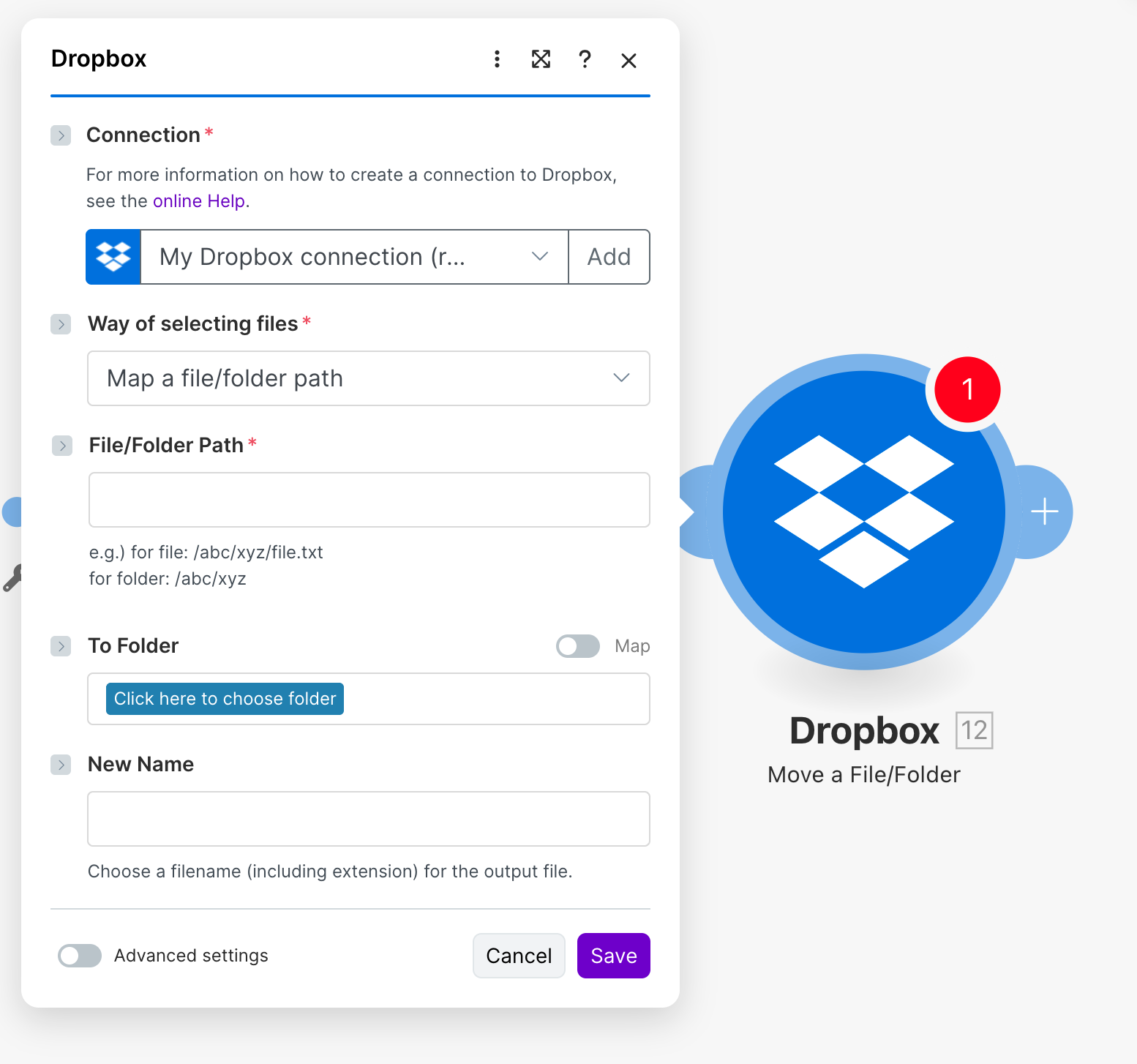
08 Action 08Move a File/Folder
Relocate a file or folder from one location to another within your Dropbox. Unlike copying, moving removes the item from its original location. This is essential for sorting, organizing, and routing files through your folder structure.
Key parameters: Connection (required), Way of selecting files (required), File/Folder Path (required) specifies current path, To Folder (optional) designates destination, New Name (optional) allows renaming during move.
Use cases: Sort incoming files into categorized folders based on file type or content, move processed files from "Incoming" to "Completed" folders, organize client files into dated subfolders automatically.
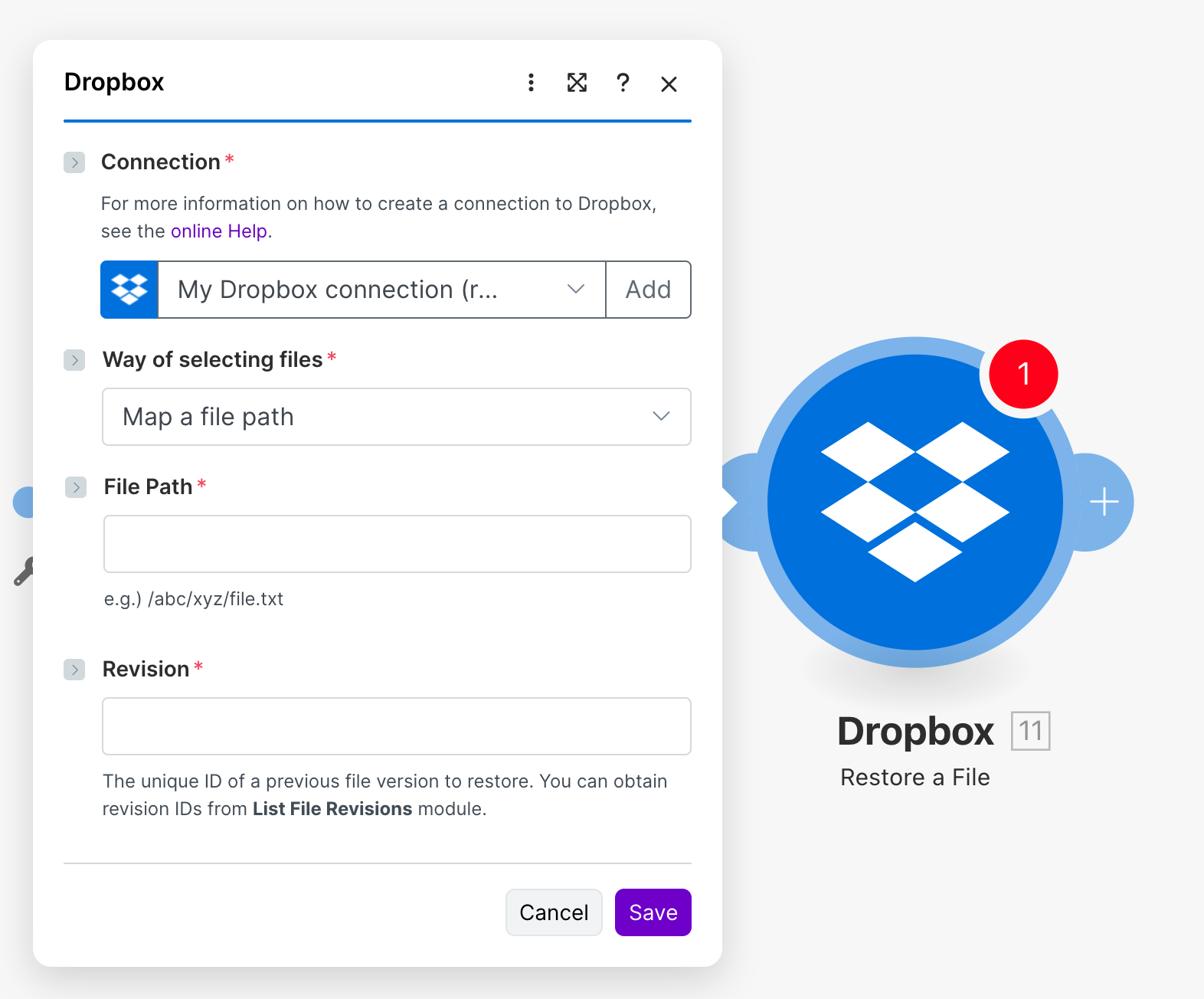
09 Action 09Restore a File
Revert a file to a previous version using Dropbox's version history. This is a safety net action, allowing you to undo changes or recover from accidental overwrites programmatically.
Key parameters: Connection (required), Way of selecting files (required), File Path (required) identifies the file, Revision (required) specifies the unique version ID obtained from "List File Revisions".
Use cases: Build undo mechanisms for document processing workflows, automatically restore files when quality checks fail, create recovery workflows triggered by error conditions.
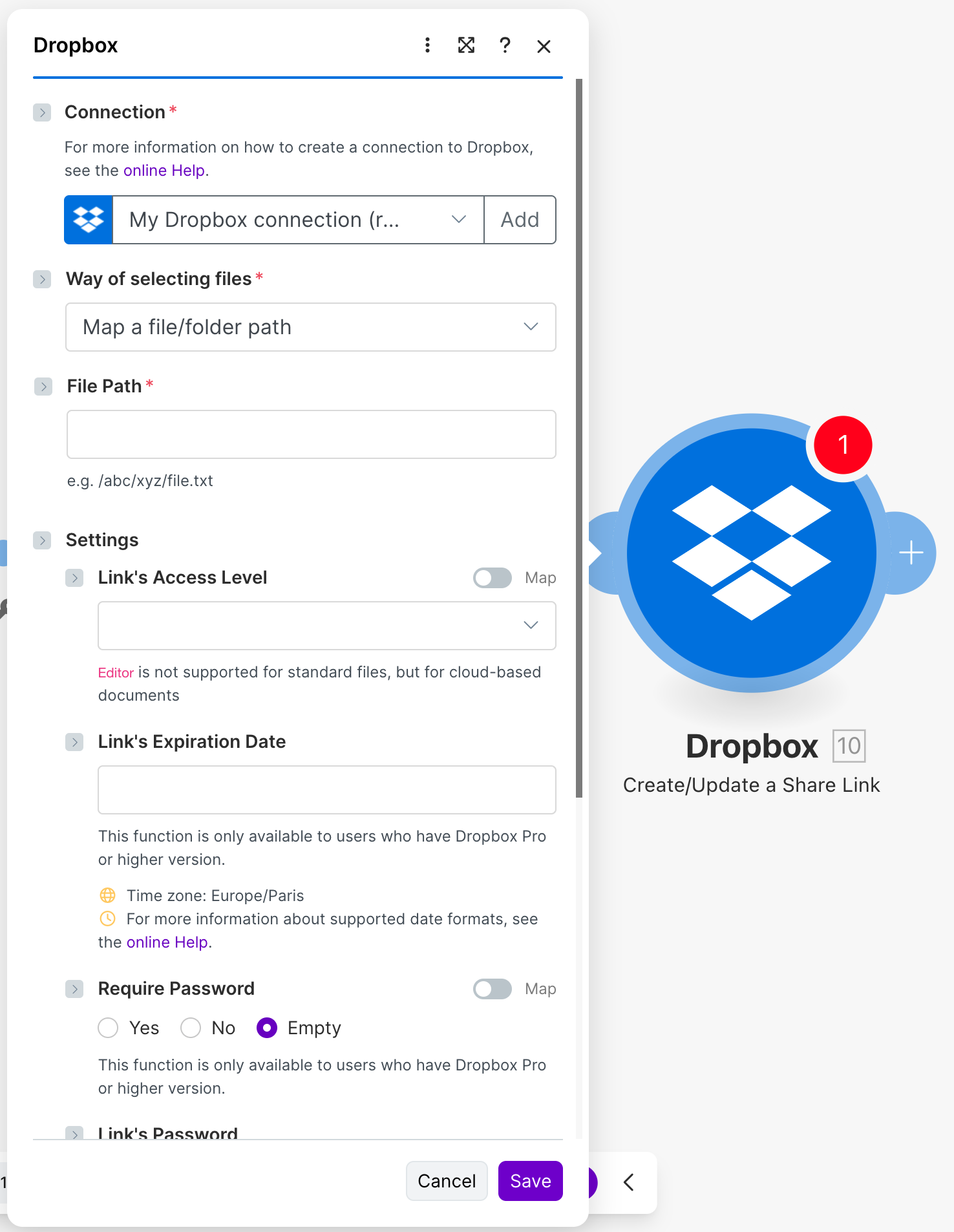
10 Action 10Create/Update a Share Link
Generate a shareable link for a file or folder in Dropbox, or update an existing link's settings. This action powers collaborative workflows where assets need to be distributed externally.
Key parameters: Connection (required), Way of selecting files (required), File Path (required), Link's Access Level (optional) sets permissions, Link's Expiration Date (optional, Pro feature), Require Password (optional, Pro feature).
Use cases: Automatically generate share links for completed deliverables and send via email, create time-limited links for sensitive documents, build content distribution workflows sharing assets with external partners.
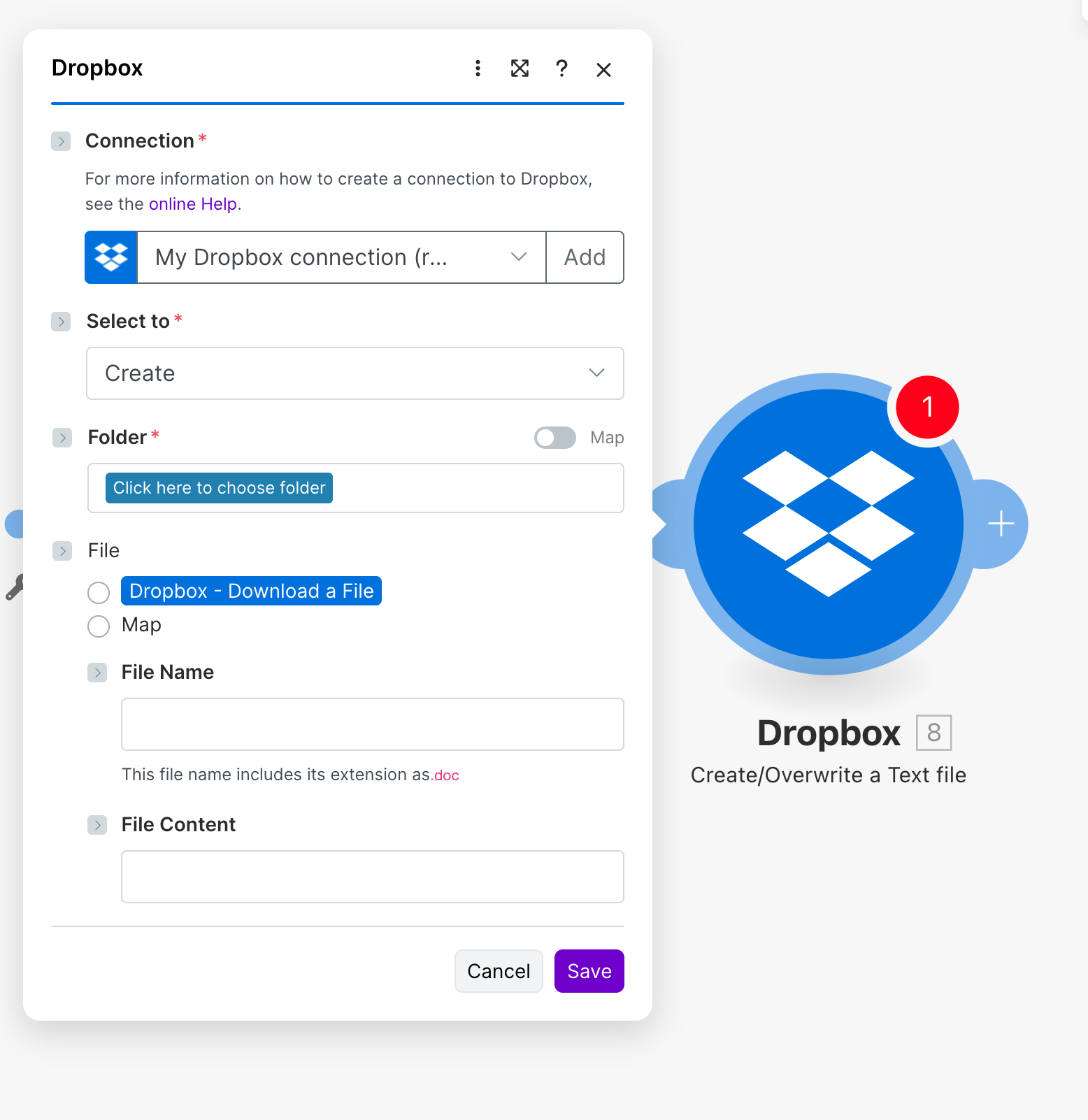
11 Action 11Create/Overwrite a Text file
Create a new text file in Dropbox or overwrite an existing one with specified content. This action is perfect for logging, report generation, and any workflow that produces text-based outputs.
Key parameters: Connection (required), Select to (required) set to "Create", Folder (required) specifies destination, File Name (optional) including extension, File Content (optional) contains the text to write.
Use cases: Generate log files documenting automation run results, create summary reports from processed data, build configuration files dynamically based on workflow inputs.
12 Action 12Create a Folder
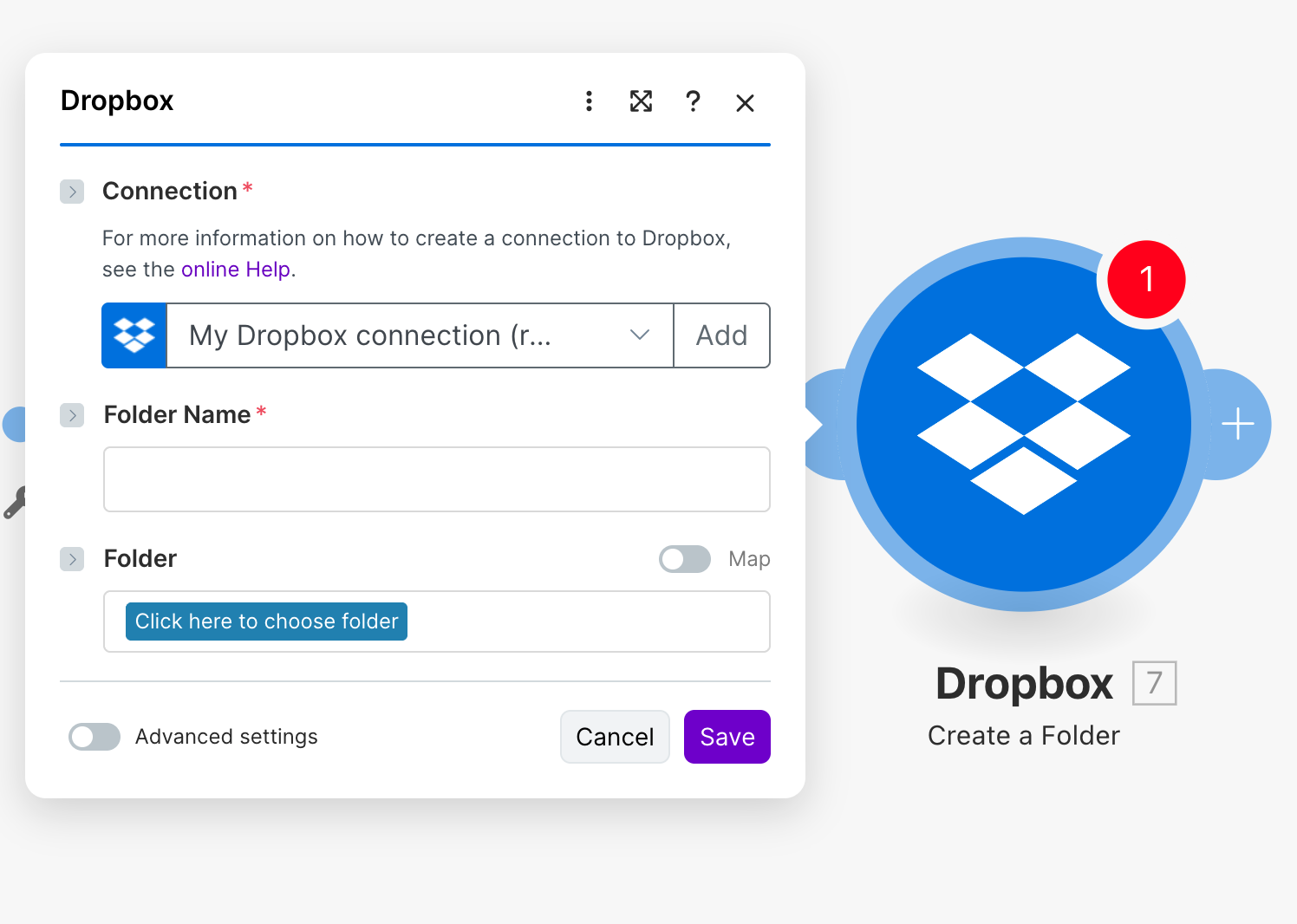
Create a new folder in your Dropbox at a specified location. This action is fundamental for organizing files, setting up project structures, and preparing destinations for file operations.
Key parameters: Connection (required), Folder Name (required) names the new folder, Folder (optional) specifies the parent location, defaulting to root if not specified.
Use cases: Create project folders automatically when new projects are added to your PM tool, set up dated archive folders on a schedule, build client folder structures during onboarding.
13 Action 13Upload a File
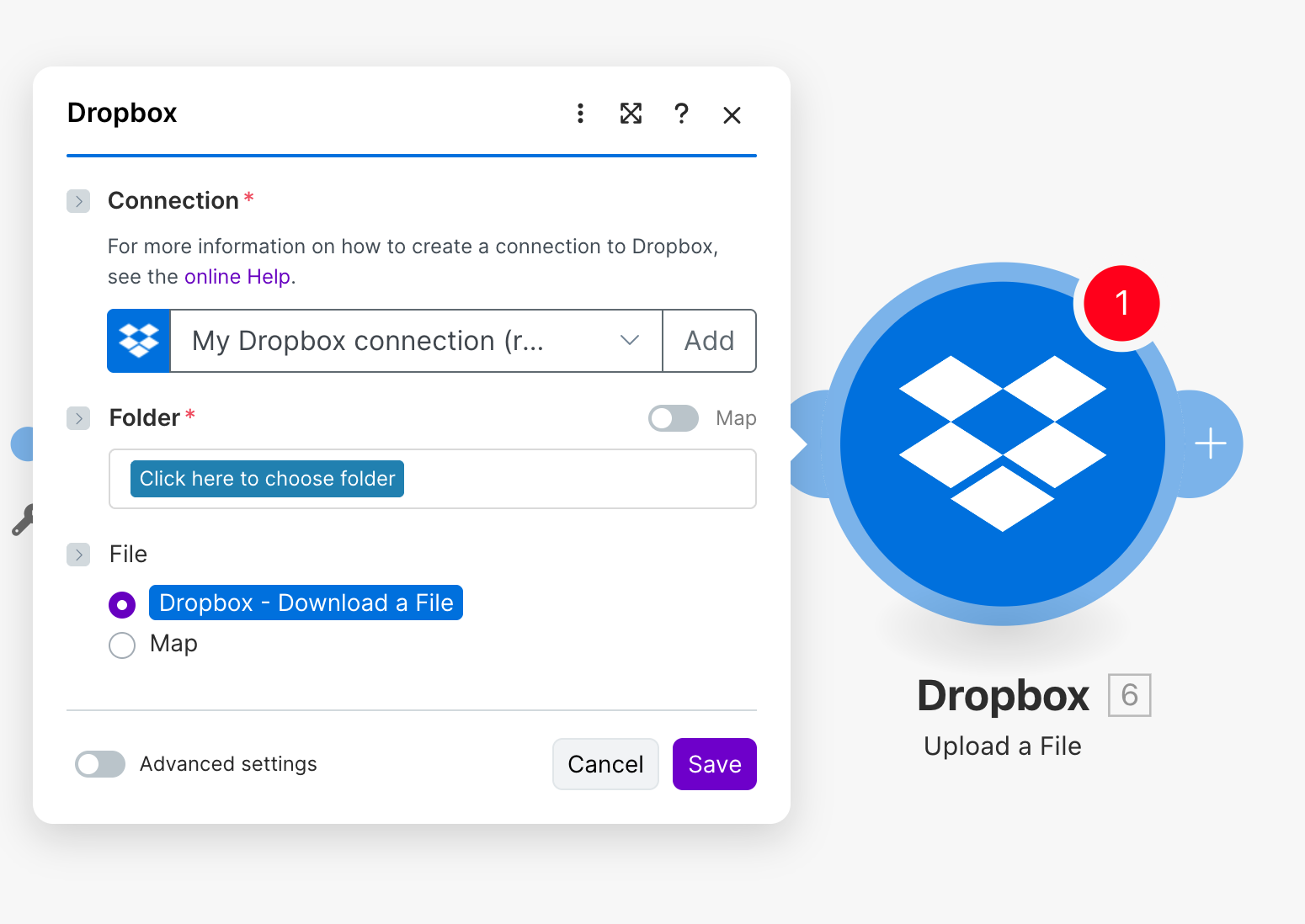
Upload a file to Dropbox from another source—perhaps downloaded from another module, received via webhook, or retrieved from email. This is the primary action for getting files into Dropbox from external systems.
Key parameters: Connection (required), Folder (required) specifies the destination folder, File (required) typically mapped from a previous module's output.
Use cases: Save email attachments to organized Dropbox folders automatically, back up files from other cloud services to Dropbox, upload processed or generated files as part of content pipelines.
14 Action 14List File Revisions
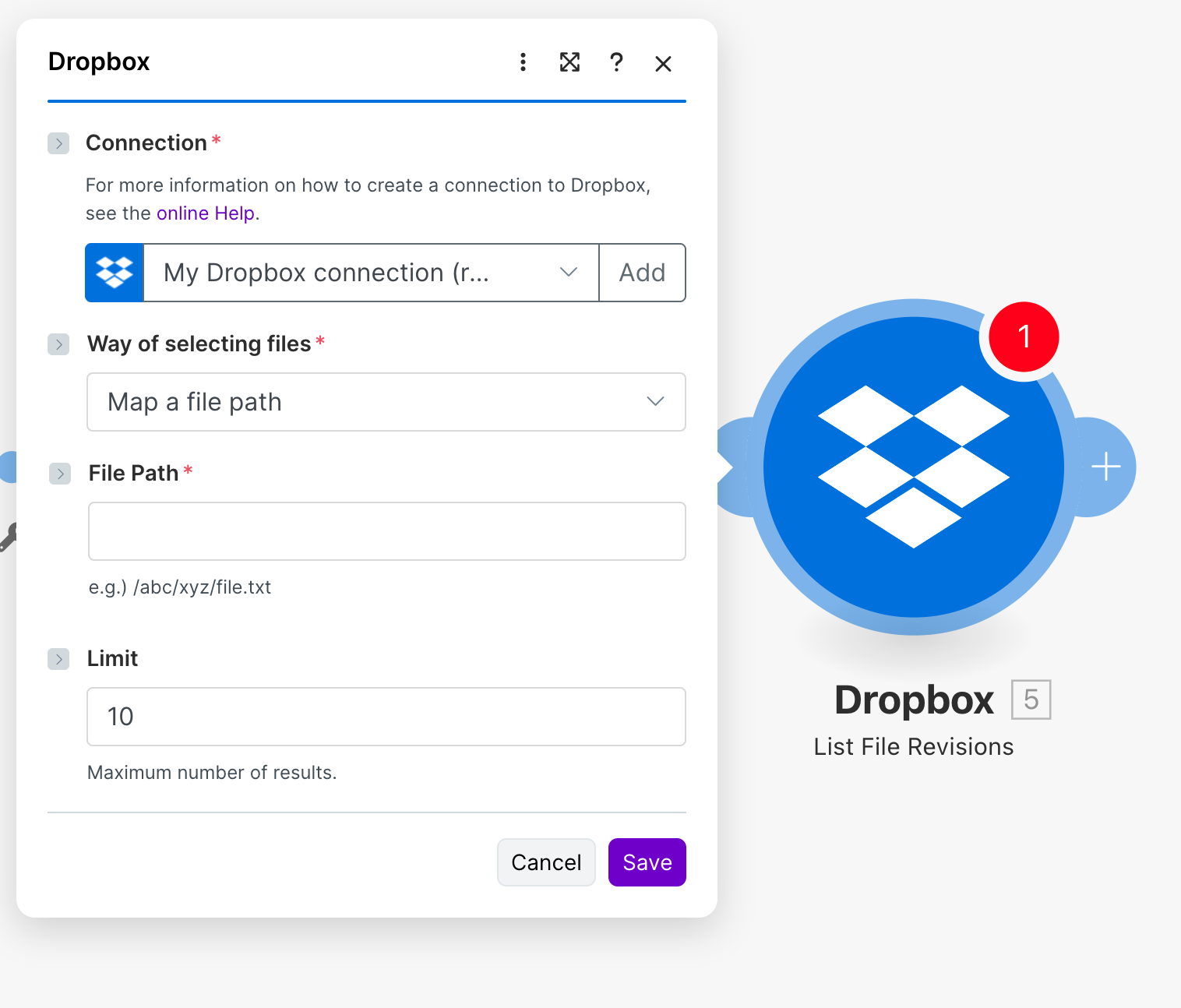
Retrieve the version history of a specific file, returning details about each revision including timestamps and revision IDs. Essential for auditing, version comparison, and building restore functionality.
Key parameters: Connection (required), Way of selecting files (required), File Path (required) identifies the file, Limit (optional) caps the number of revisions returned.
Use cases: Audit document change history as part of compliance workflows, find specific revision IDs for use with Restore a File action, monitor file modification frequency for activity tracking.
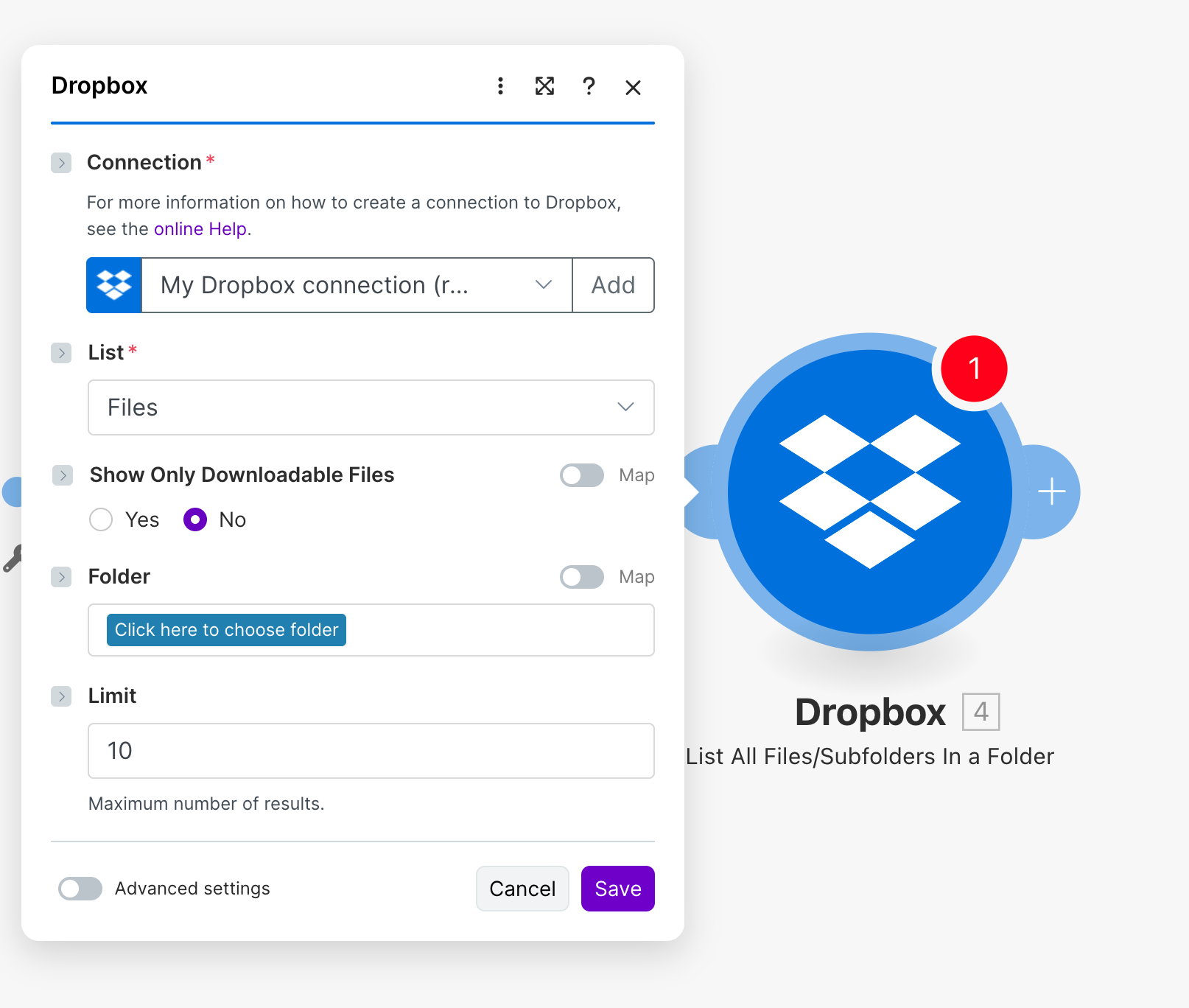
15 Action 15List All Files/Subfolders In a Folder
Enumerate the contents of a Dropbox folder, returning files and/or subfolders based on your filter settings. This action is the foundation for batch processing and folder analysis workflows.
Key parameters: Connection (required), List (required) specifies what to list (Files, Folders, or both), Show Only Downloadable Files (optional) filters results, Folder (optional) specifies the folder to list, Limit (optional) caps results returned.
Use cases: Build batch processing workflows iterating through all files in a folder, generate folder contents reports for inventory tracking, find files matching criteria for subsequent processing.
16 Action 16Dropbox: Download a File
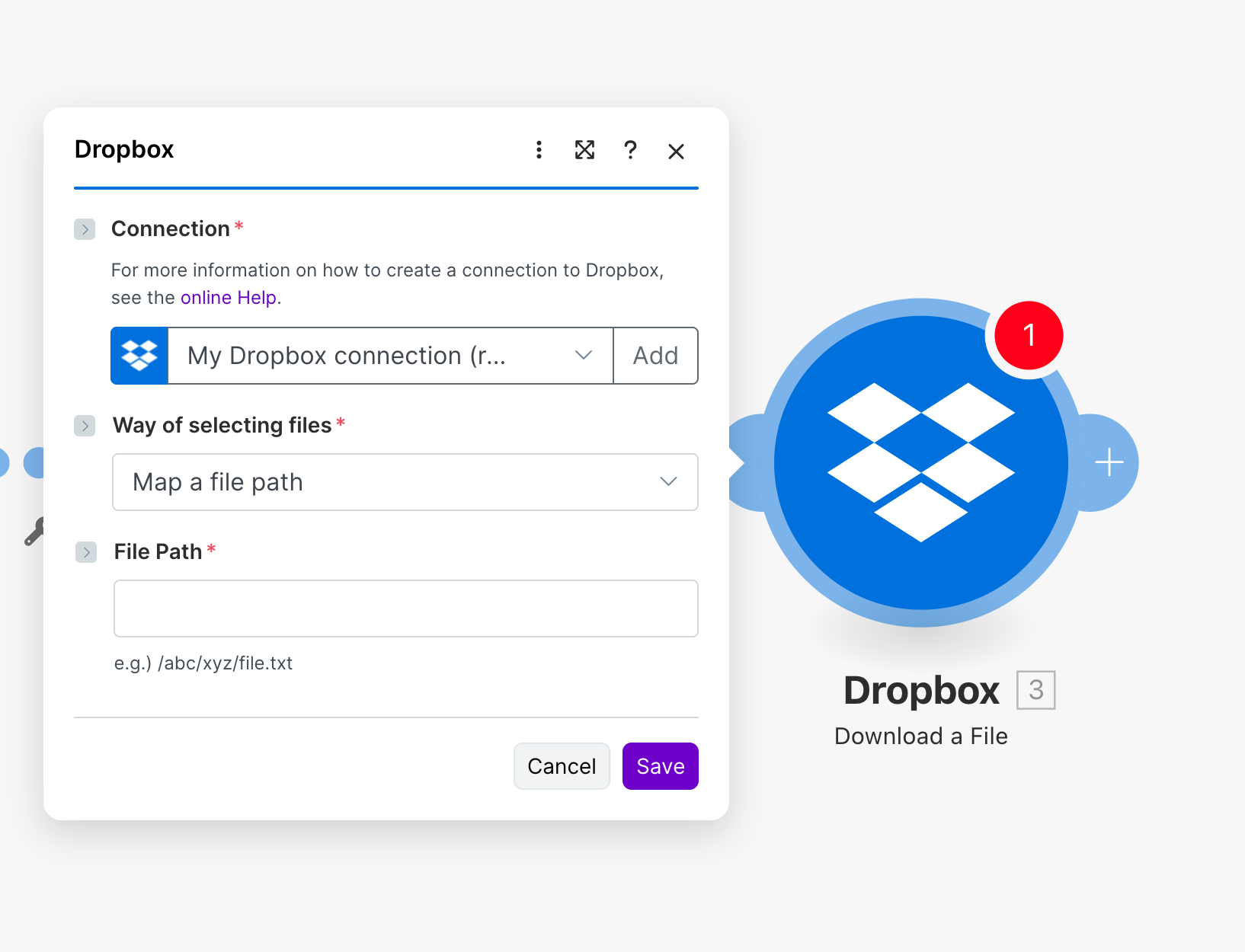
Download a file from Dropbox, making its contents available to subsequent modules in your scenario. This is how you extract files from Dropbox to send elsewhere, process, or analyze.
Key parameters: Connection (required), Way of selecting files (required), File Path (required) specifies the exact path to download.
Use cases: Download files to send as email attachments, retrieve documents for processing or format conversion, sync files from Dropbox to other storage platforms like AWS S3.
17 Action 17Search Files/Folders
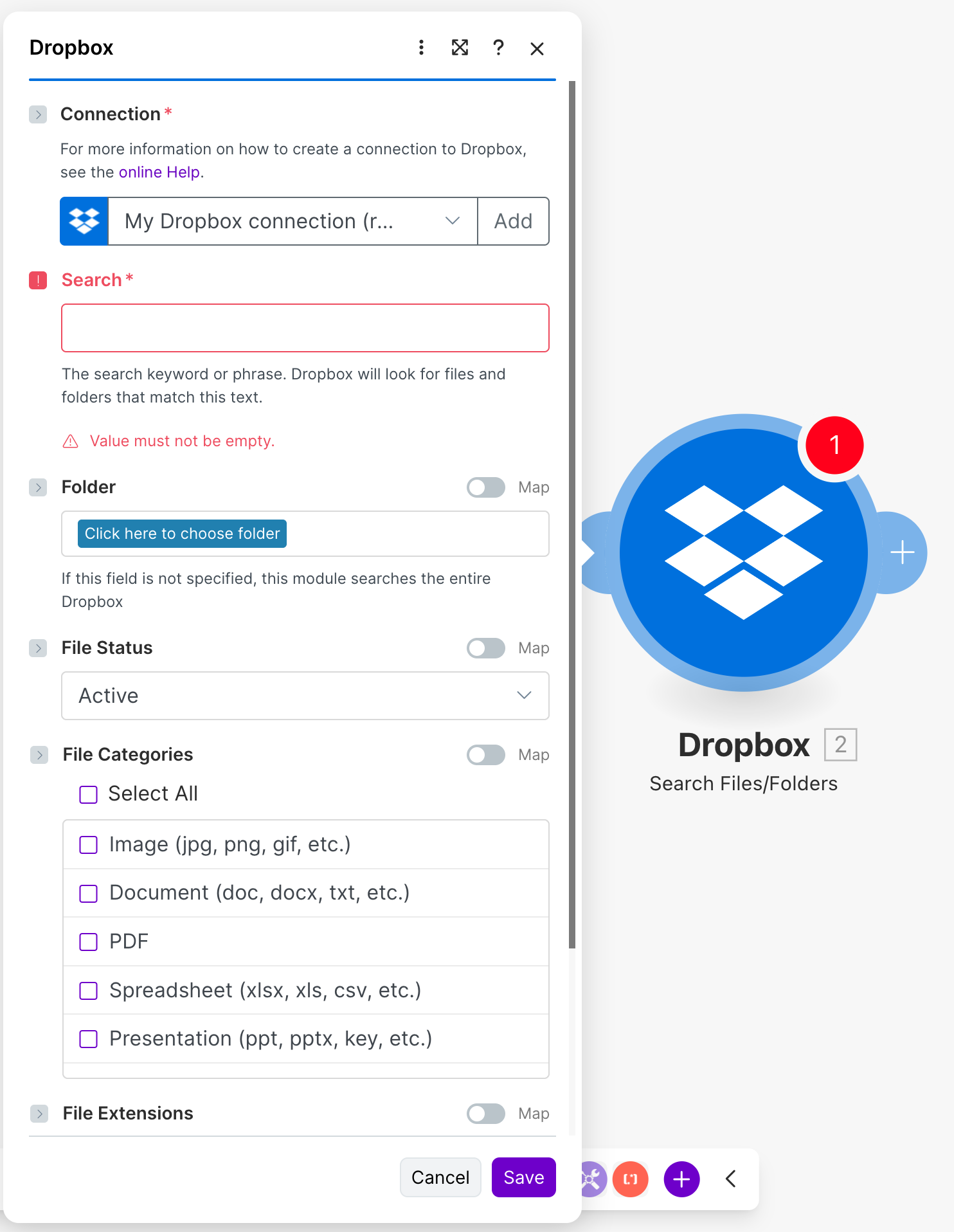
Search your entire Dropbox or a specific folder for files and folders matching your criteria. Filter by keyword, file type, category, extension, or status to find exactly what you need.
Key parameters: Connection (required), Search (required) keyword or phrase, Folder (optional) limits search scope, File Status (optional) filters by status, File Categories (optional) filters by type (Image, Document, PDF, Spreadsheet, Presentation), File Extensions (optional) further refines by extension.
Use cases: Find all documents containing a project name for archival, locate images across your Dropbox for specific campaigns, build smart cleanup workflows that find and process files by type. You can also combine this with n8n workflows for even more powerful automation scenarios.
Build your first workflow with our team
Drop your email and we'll send you the catalog of automations you can ship today.
- Free n8n & Make scenarios to import
- Step-by-step setup docs
- Live cohort + community support
Frequently asked questions
Is the Dropbox Make integration free?
The Dropbox integration itself is included with all Make plans—including the free tier. However, your Make plan determines how many operations and scenarios you can run monthly. Each Dropbox action or trigger execution counts as one operation. The free Make plan includes 1,000 operations per month, which is enough to test and run light automations. For production workflows with higher volume, you'll need a paid Make plan. On the Dropbox side, all features work with free Dropbox accounts, though some advanced share link options (expiration dates, password protection) require Dropbox Pro or higher.What data can I sync between Dropbox and Make?
The integration gives you comprehensive access to your Dropbox data. You can read, create, move, copy, delete, and rename files and folders. You can download file contents and upload new files from any source. File metadata—including names, paths, sizes, and modification dates—flows through your scenarios. Version history is accessible through the List File Revisions action. Share links can be created and managed. File requests can be created, updated, retrieved, and deleted. Essentially, anything you can do manually in Dropbox, you can automate through Make, and all this data can be routed to any of Make's 1,500+ connected apps. Our Make Agency can help you design complex data synchronization workflows.How long does it take to set up the Dropbox Make integration?
The initial connection takes about 2 minutes—literally just clicking through the OAuth authorization flow. From there, building your first simple automation (like watching a folder and sending a Slack notification) takes another 5-10 minutes. More complex workflows involving multiple Dropbox actions, conditional logic, and integrations with other apps might take 30 minutes to an hour to configure properly. The Make interface is visual and intuitive, so you don't need coding skills. The time investment is in designing your workflow logic, not fighting with technical configuration. For detailed guidance, check the official Make Dropbox documentation.