
ZULIP n8n INTEGRATION: AUTOMATE ZULIP WITH N8N
Looking to automate Zulip with n8n? You're in the right place. The Zulip n8n integration gives you access to 16 actions to streamline your team communication workflows without writing a single line of code.
Whether you need to automatically send messages to streams, manage users, or synchronize your Zulip data with other tools, n8n provides a powerful no-code interface to connect Zulip to hundreds of other applications. From creating new users when someone joins your organization to posting automated notifications in specific streams, this integration covers all essential Zulip operations.
In this guide, you'll discover exactly how to connect Zulip to n8n, and we'll walk through each available action with detailed explanations of their parameters and practical use cases. Let's dive in.
Need help automating Zulip with n8n?
Our team will get back to you in minutes.
Why automate Zulip with n8n?
The Zulip n8n integration gives you access to 16 powerful actions covering three main resources: Messages, Users, and Streams. This means you can automate virtually every aspect of your Zulip team communication from a single workflow builder.
Significant time savings: No more manual message posting or user management. Set up smart rules that automatically send notifications when events occur in other apps, create users when they're added to your HR system, or update stream configurations based on project changes. What used to take minutes of manual work now happens instantly in the background.
Improved responsiveness: Trigger instant messages to your team the moment something important happens. A new lead comes in? Post to your sales stream. A deployment completes? Notify your dev team. Payment fails? Alert your support channel. Your team stays informed in real-time without anyone manually copying information between systems.
Zero oversight: With n8n automations running 24/7, every critical event triggers the appropriate Zulip action. No more forgotten notifications or delayed updates—your communication flows are consistent and reliable.
Seamless integration: Connect Zulip to over 400 applications in n8n's ecosystem. Common workflow examples include:
- Posting GitHub deployment notifications to development streams
- Creating Zulip users automatically when they're added to your identity provider
- Sending private messages to team leads when high-priority tickets arrive
- Archiving messages to external databases for compliance
How to connect Zulip to n8n?
! 1 stepHow to connect Zulip to n8n?
- 01
Add the node
Connecting Zulip to n8n requires API credentials from your Zulip instance. Here's how to set everything up:Basic configuration:Access your Zulip settings: Log into your Zulip organization and navigate to Personal Settings > Account & Privacy > API Key section.Generate your API key: Click on "Show/Change your API key" and authenticate if prompted. Copy your API key—you'll need this for n8n.Note your Zulip URL: Your Zulip instance URL (e.g., yourorg.zulipchat.com or your self-hosted domain) is required for the connection.Configure n8n credentials: In n8n, create a new Zulip credential by entering your Zulip URL, email address, and API key.Test the connection: Add any Zulip node to your workflow and select your newly created credentials. The connection indicator will confirm successful authentication.
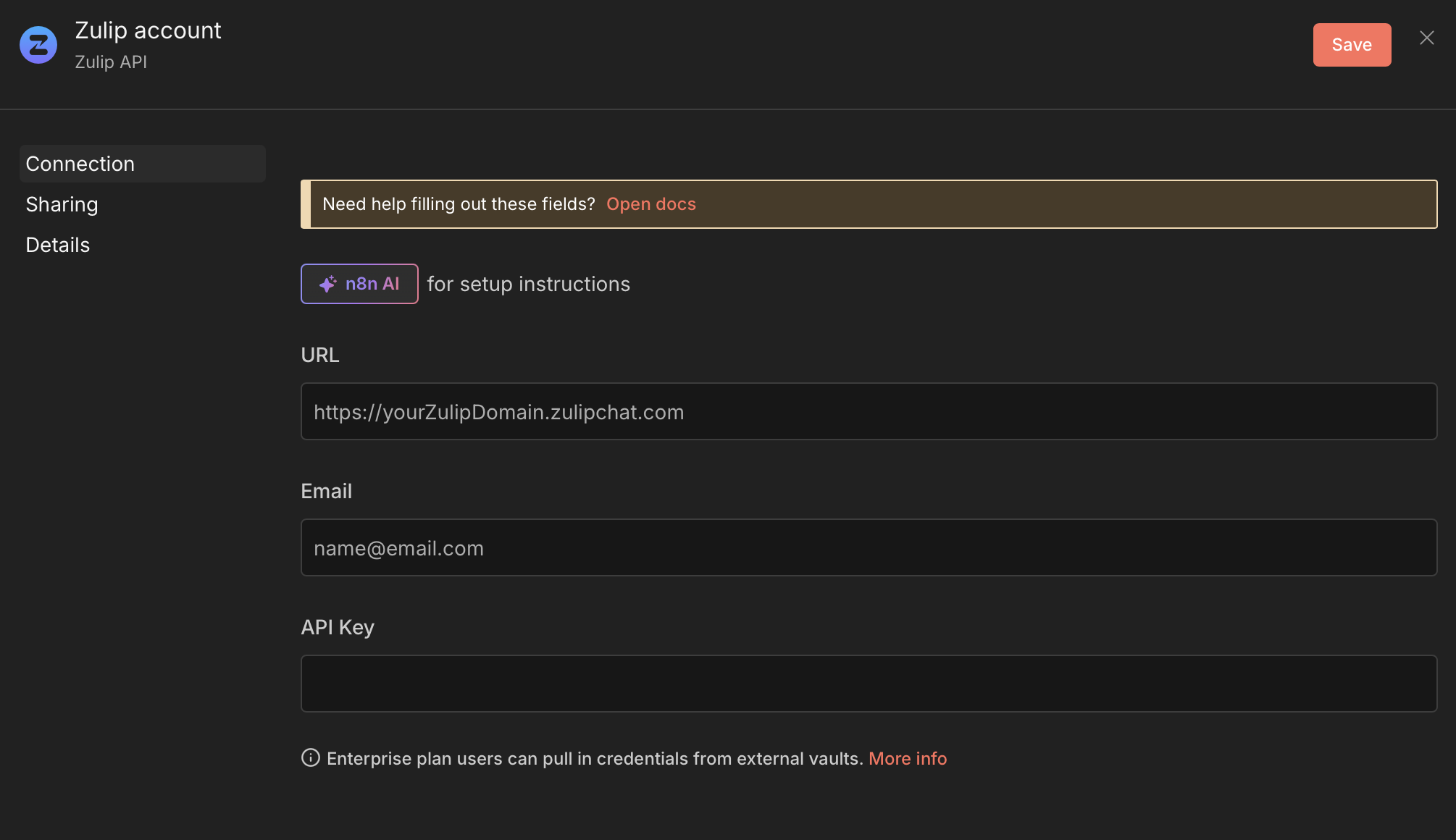 TIP💡 TIP: Store your API key securely and never share it publicly. If you suspect your key has been compromised, regenerate it immediately from your Zulip settings. Also, consider using a bot account for automations rather than your personal account—this makes it easier to track automated actions and maintain security when team members leave.
- 01
Need help automating Zulip with n8n?
Our team will get back to you in minutes.
Zulip actions available in n8n
01 Action 01Create User
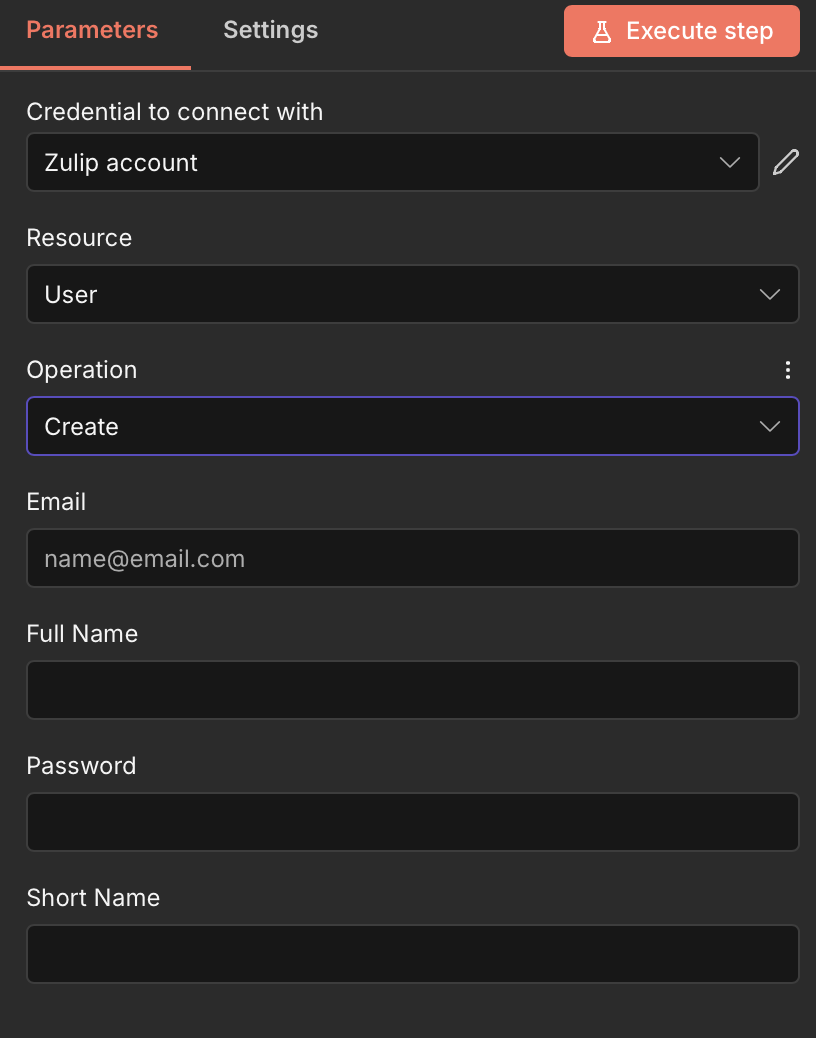
This action allows you to programmatically create new user accounts in your Zulip organization. It's essential for automating user provisioning workflows, especially when onboarding new team members from HR systems or external directories.
Key parameters:
- Email: A required text field where you enter the email address for the new Zulip user. This will be their login identifier.
- Full Name: A required text field for the user's complete display name as it will appear in Zulip.
- Password: A required text field to set the initial password for the new account.
- Short Name: An optional text field for a brief username or display identifier within Zulip.
Use cases:
- Automatically create Zulip accounts when new employees are added to BambooHR or Workday
- Provision users when they're invited to a Notion workspace or added to a project in Asana
- Sync user creation with your identity provider (Okta, Auth0) for seamless onboarding
02 Action 02Get User
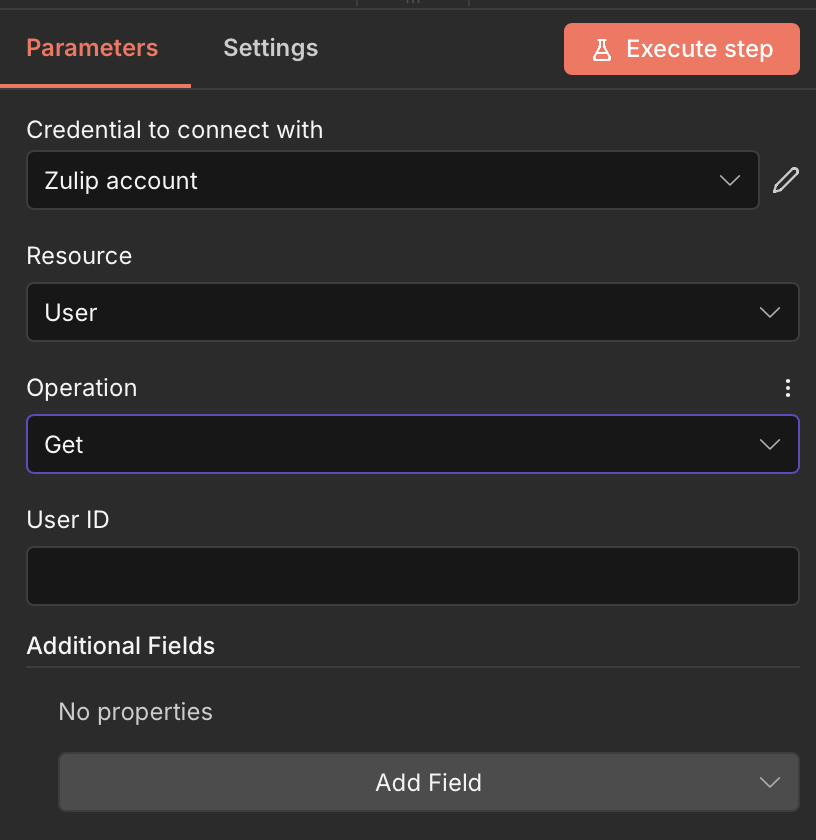
This action retrieves detailed information about a specific Zulip user by their unique ID. Perfect for verifying user existence, fetching profile data, or enriching workflows with user context before performing other operations.
Key parameters:
- User ID: A required text field where you provide the unique numerical identifier of the Zulip user whose information you want to retrieve.
- Additional Fields: An optional section allowing you to add extra query parameters or specify which data to return.
Use cases:
- Fetch user details before sending personalized private messages
- Verify that a user exists in Zulip before attempting to add them to a stream
- Retrieve user information for logging or audit purposes
03 Action 03Zulip: Get Many Users
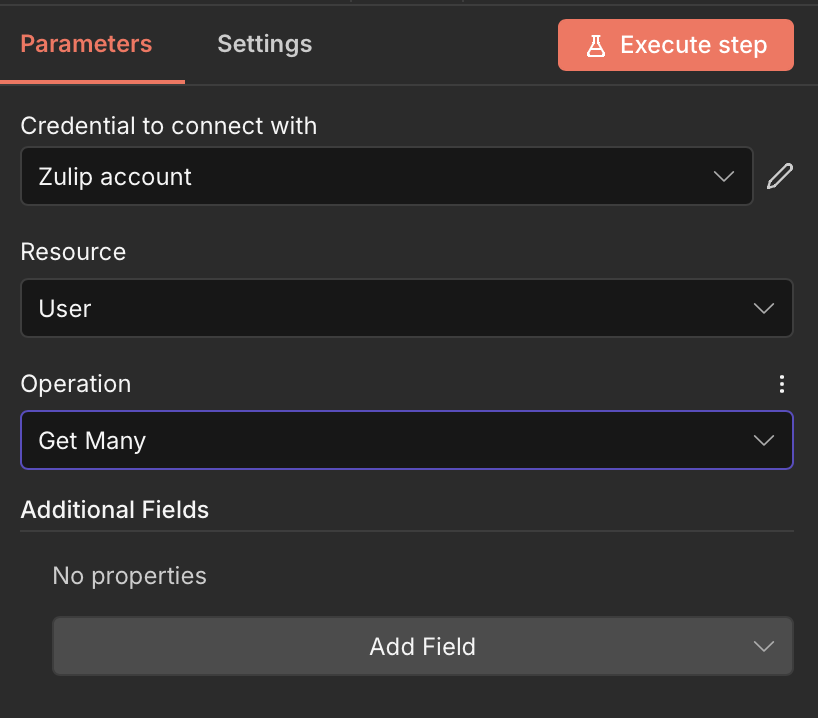
This action retrieves a list of multiple users from your Zulip organization in a single request. Ideal for synchronization workflows, reporting, and batch operations that need to work with your entire user base or filtered subsets.
Key parameters:
- Additional Fields: An optional section where you can add extra parameters to filter or customize the user retrieval, such as limiting results or specifying particular query criteria.
Use cases:
- Sync your Zulip user list with an external database or spreadsheet
- Generate periodic reports of all active users
- Compare Zulip users against another system to identify missing accounts
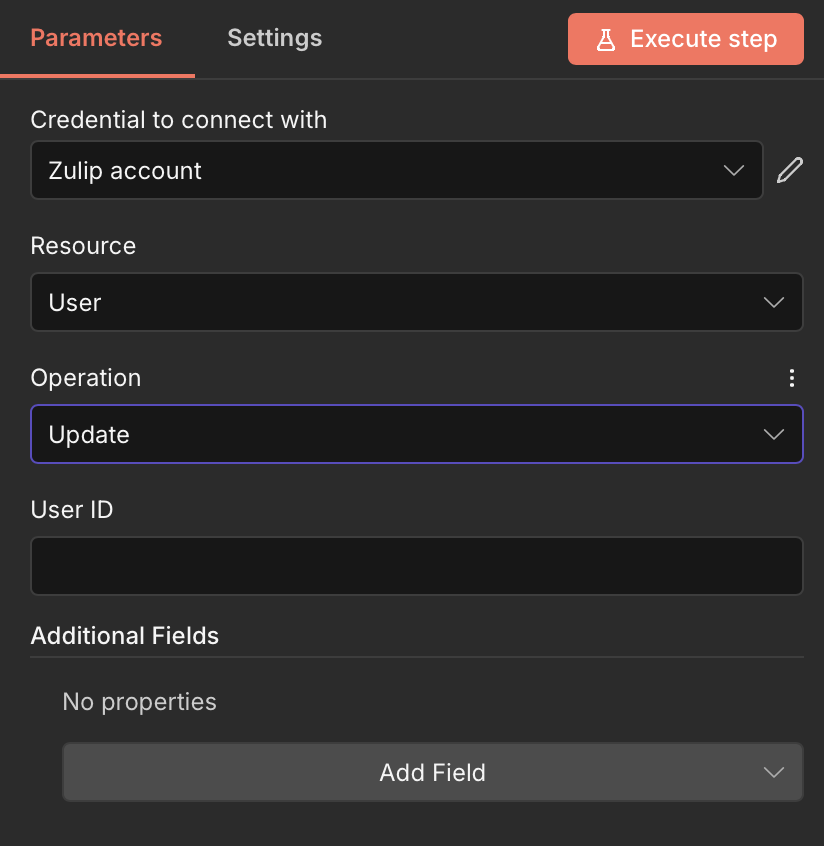
04 Action 04Update User
This action modifies existing user account details in Zulip. Use it to keep user profiles synchronized with your source of truth or to programmatically update user information based on events in other systems.
Key parameters:
- User ID: A required text field specifying the unique identifier of the user to be updated.
- Additional Fields: An optional section with an "Add Field" button allowing you to dynamically select which properties to update, such as full name, email, or other user attributes.
Use cases:
- Update user names in Zulip when they change in your HR system
- Sync role or title changes from your org chart tool
- Bulk update user properties based on spreadsheet imports
05 Action 05Deactivate User
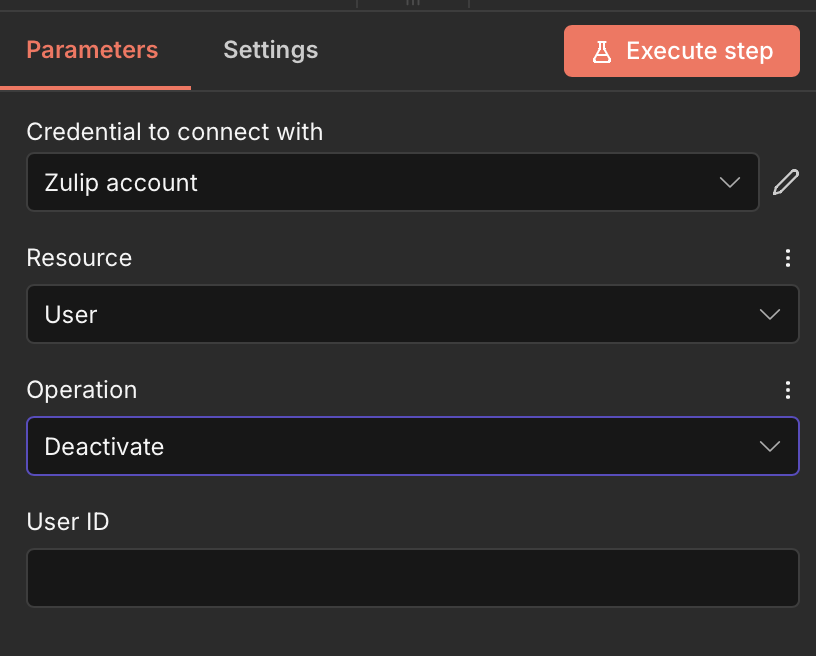
This action deactivates a user account in Zulip, preventing them from accessing your organization while preserving their message history. Essential for offboarding workflows and access management.
Key parameters:
- User ID: A required text field where you must enter the unique identifier of the Zulip user to be deactivated.
Use cases:
- Automatically deactivate Zulip access when an employee is marked as terminated in your HR system
- Revoke access when a contractor's project ends
- Part of a broader offboarding automation that also removes access from other tools
06 Action 06Create Stream
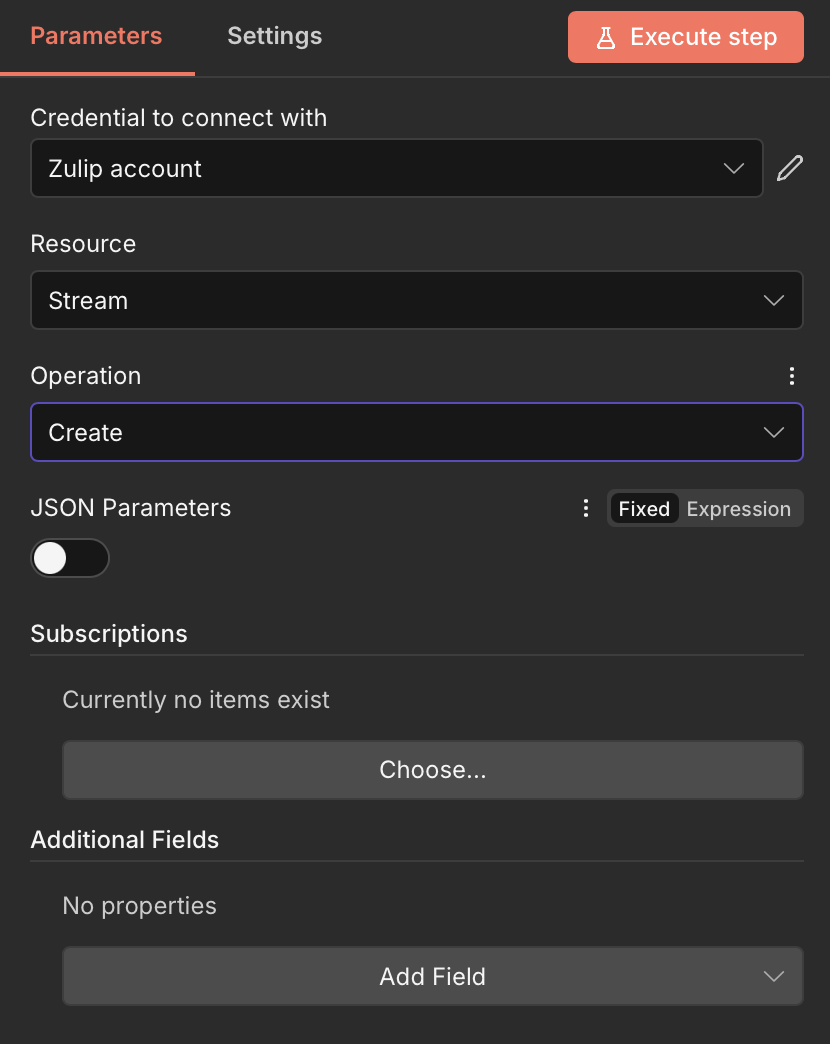
This action creates a new stream (channel) in your Zulip organization. Streams are fundamental to Zulip's topic-based communication, and automating their creation helps maintain consistent organization structures.
Key parameters:
- JSON Parameters: A toggle switch that, when enabled, allows you to define stream configuration in raw JSON format for advanced setups.
- Subscriptions: An optional section where you can define who should be subscribed to the new stream, including stream name, description, and subscriber details.
- Additional Fields: An optional section for adding custom properties like stream description, privacy settings, or other configuration options.
Use cases:
- Automatically create project-specific streams when new projects are initiated in Jira or Monday.com
- Generate customer support streams when new enterprise clients sign contracts
- Create onboarding streams for new team members with preset configurations
07 Action 07Delete Stream
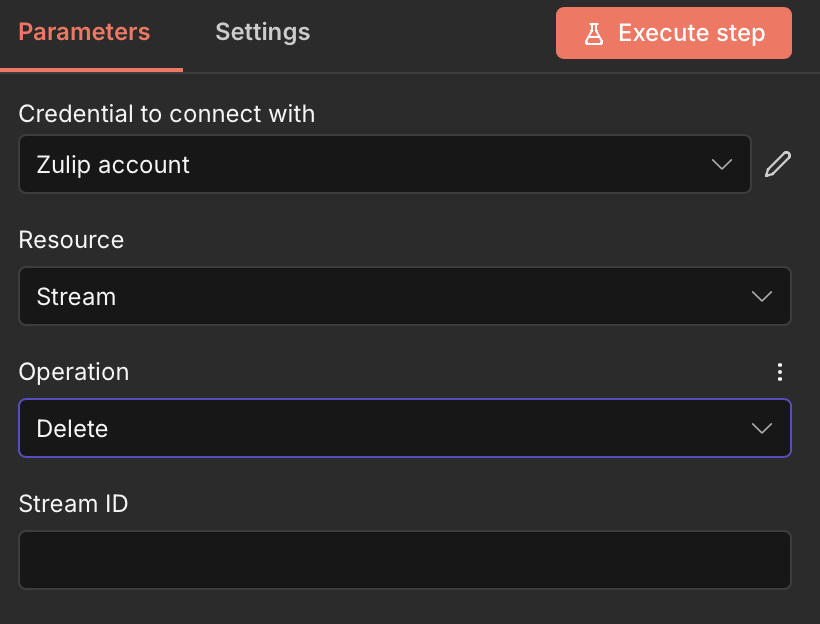
This action permanently removes a stream from your Zulip organization. Use with caution as this also deletes all messages and topics within the stream.
Key parameters:
- Stream ID: A required text field where you must provide the unique identifier of the Zulip stream to be deleted.
Use cases:
- Clean up temporary project streams when projects are completed
- Remove deprecated channels as part of organization restructuring
- Automated housekeeping for streams that haven't been active for a specified period
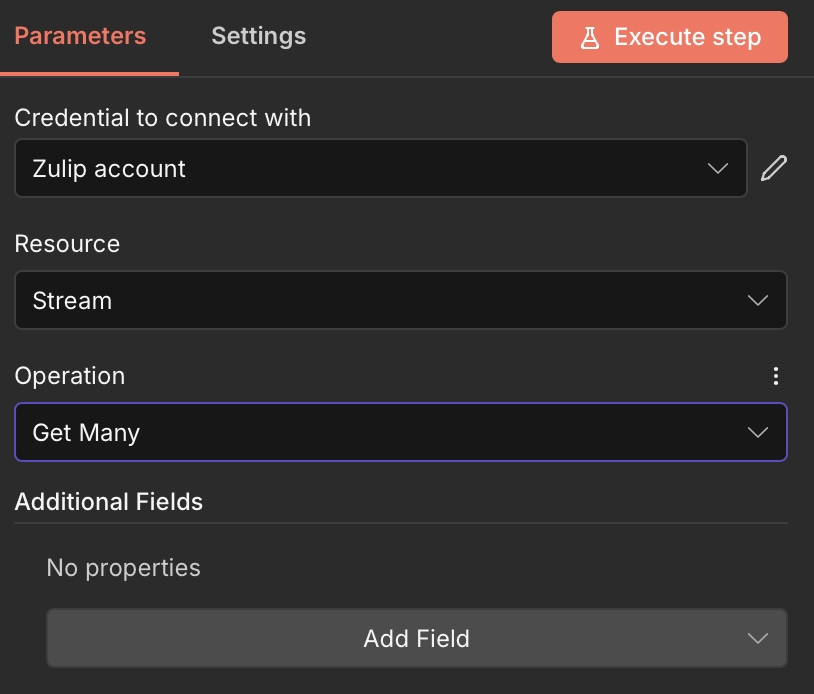
08 Action 08Zulip Stream: Get Many
This action retrieves a list of multiple streams from your Zulip organization. Useful for discovering available streams, generating reports, or building dynamic stream selection interfaces.
Key parameters:
- Additional Fields: An optional section that allows you to add filtering criteria or limit parameters to customize which streams are returned and how many.
Use cases:
- Build a dashboard showing all active streams in your organization
- Sync stream metadata to an external documentation system
- Audit stream permissions and configurations periodically
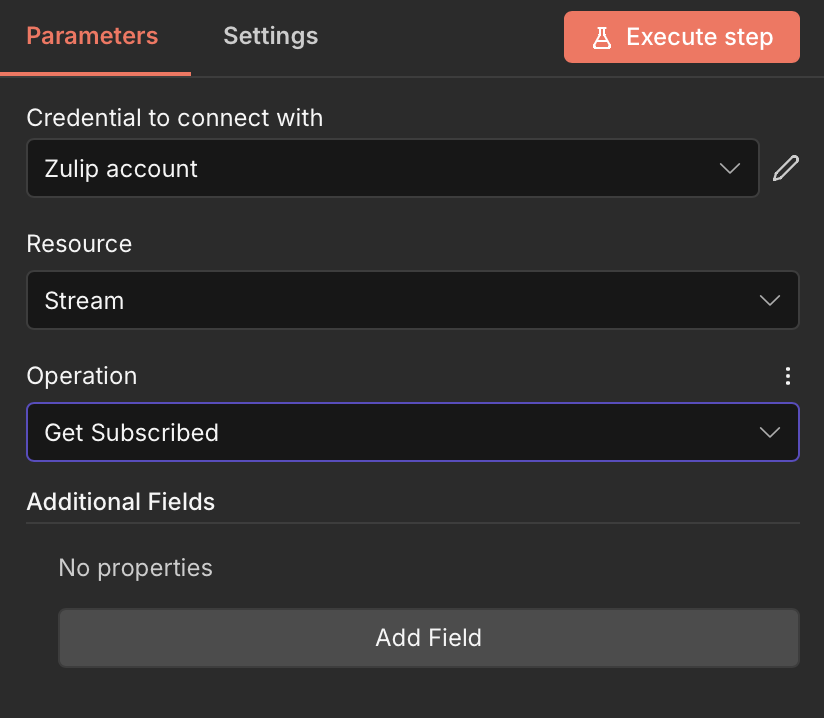
09 Action 09Get Subscribed Streams
This action retrieves a list of all streams that the authenticated Zulip account is subscribed to. Perfect for understanding the connected account's visibility and permissions within the organization.
Key parameters:
- Additional Fields: An optional section for adding extra parameters to refine the subscription query if needed.
Use cases:
- Verify which streams a bot account can post to before sending automated messages
- Generate reports of stream subscriptions for specific users
- Check subscription status before attempting to send stream messages
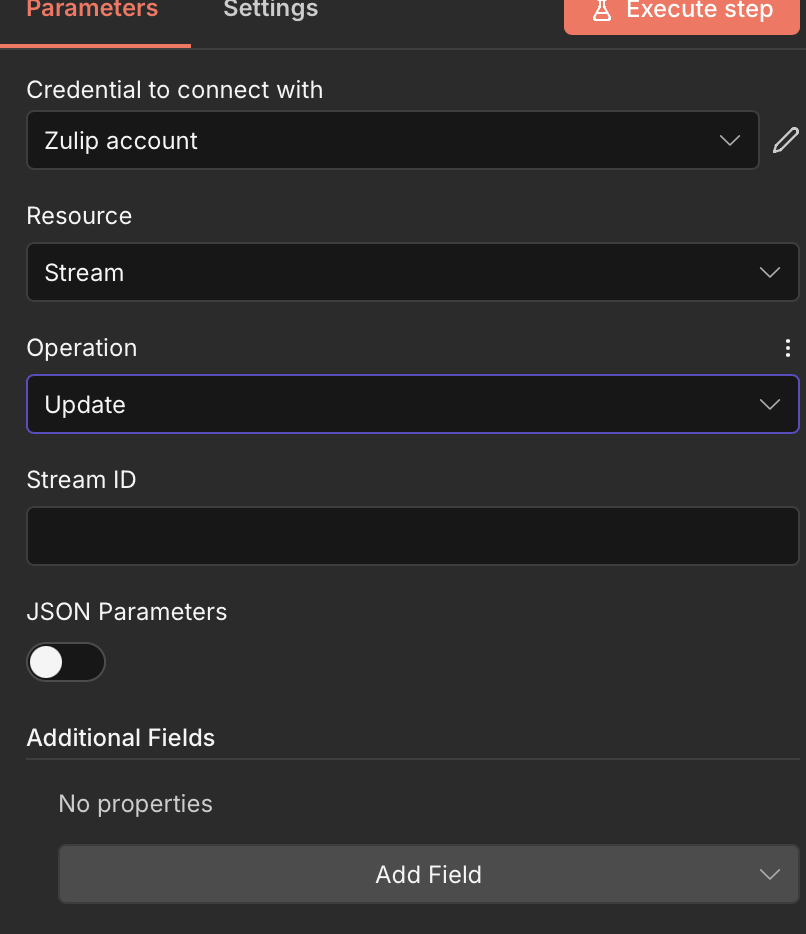
10 Action 10Update Stream
This action modifies the properties of an existing stream in Zulip, such as its name, description, or permission settings. Essential for keeping stream configurations synchronized with external systems.
Key parameters:
- Stream ID: A required text field specifying the unique identifier of the stream to be updated.
- JSON Parameters: A toggle switch that allows you to provide update parameters in raw JSON format for advanced configurations.
- Additional Fields: An optional section where you can dynamically add specific properties to update, such as stream name, description, or privacy settings.
Use cases:
- Update stream descriptions when project details change in your project management tool
- Modify stream permissions based on team restructuring
- Rename streams to match new naming conventions from a central configuration
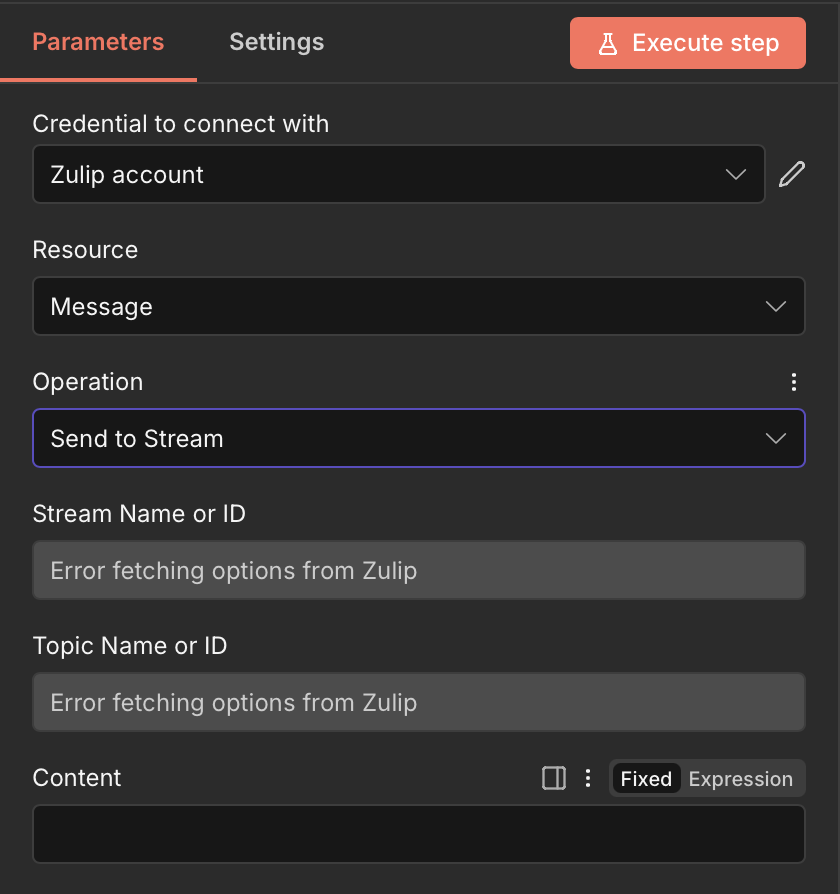
11 Action 11Zulip Message: Send to Stream
This action posts a message to a specific stream and topic in Zulip. It's the most commonly used action for notification workflows, allowing you to broadcast information to entire teams or project groups.
Key parameters:
- Stream Name or ID: A required field where you specify the target stream, either by name or unique ID.
- Topic Name or ID: A required field for the message topic, which helps organize conversations within the stream.
- Content: A required multi-line text field where you compose the message body. Supports both fixed text and dynamic expressions for personalized content.
Use cases:
- Post deployment notifications from CI/CD pipelines to development streams
- Share daily sales summaries from your CRM to the sales team stream
- Broadcast system alerts or monitoring notifications to operations channels
- Send automated standup reminders to project-specific streams
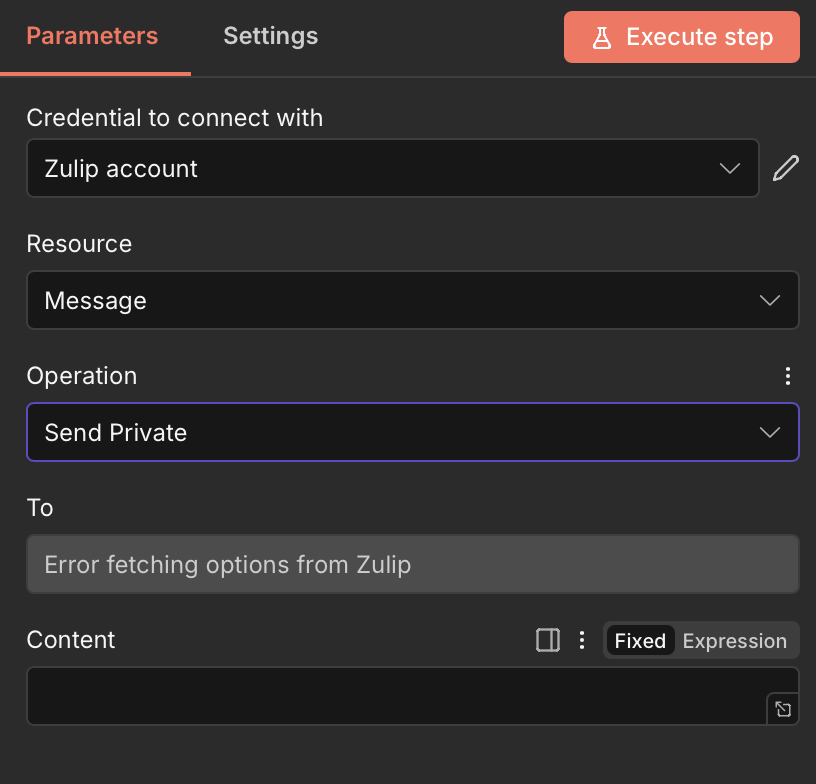
12 Action 12Send Private
This action sends a direct private message to one or more specific users in Zulip. Perfect for targeted notifications that shouldn't be shared publicly or for personal alerts to individuals.
Key parameters:
- To: A required field specifying the recipient(s) of the private message. You can target individual users or create group private messages.
- Content: A required multi-line text field for composing the message body. Supports both fixed text and dynamic expressions.
Use cases:
- Send private onboarding instructions to new team members
- Alert managers privately when their team members submit time-off requests
- Deliver personal notifications about individual performance metrics
- Send confidential system credentials or access information securely
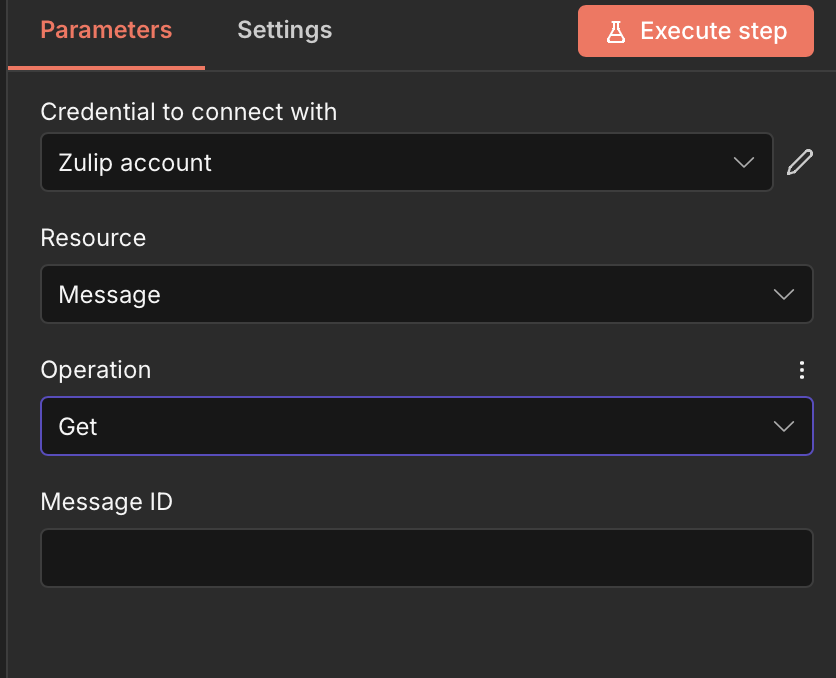
13 Action 13Zulip Message: Get
This action retrieves the details of a specific message by its ID. Useful for workflows that need to read message content, verify message delivery, or process message data.
Key parameters:
- Message ID: A required text field where you provide the unique numerical identifier of the message to retrieve.
Use cases:
- Fetch message content for logging or archival purposes
- Verify that an automated message was successfully posted
- Read message details as input for subsequent workflow steps
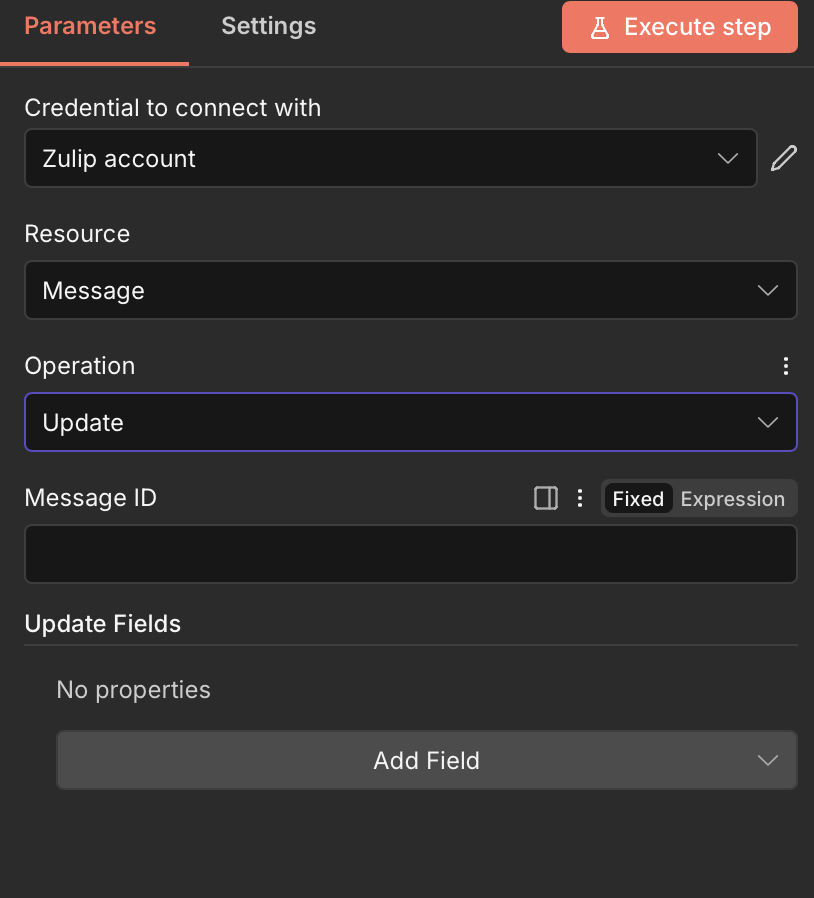
14 Action 14Update Message
This action modifies an existing message in Zulip, allowing you to edit content or change message properties after posting. Useful for correcting automated messages or adding information.
Key parameters:
- Message ID: A required text field accepting the numerical ID of the message to be updated.
- Update Fields: An optional section with an "Add Field" button allowing you to specify which properties to modify, such as message content, topic, or reactions.
Use cases:
- Update deployment notification messages with final status once builds complete
- Correct typos or errors in automated messages
- Append additional context to existing notifications as workflows progress
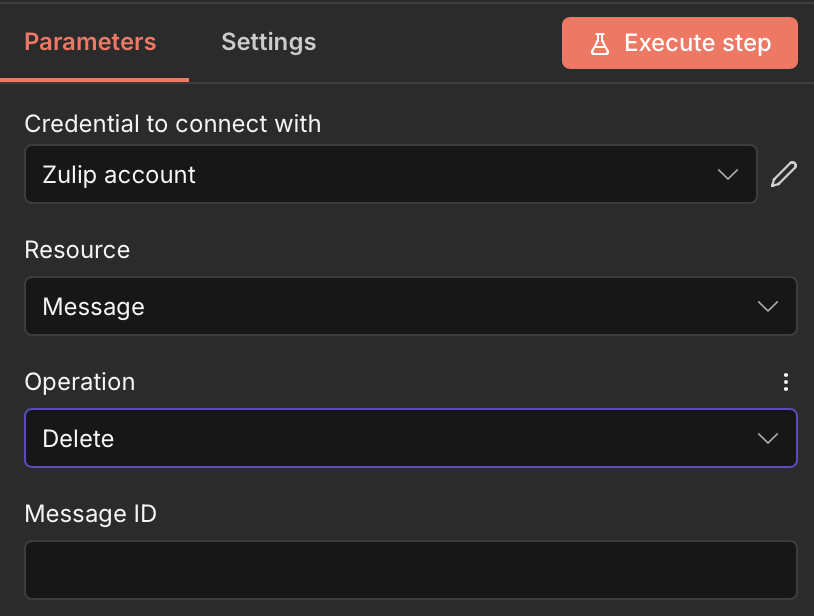
15 Action 15Delete Message
This action permanently removes a message from Zulip. Use for cleaning up test messages, removing outdated notifications, or as part of data retention workflows.
Key parameters:
- Message ID: A required text field where you specify the unique numerical ID of the message to be deleted.
Use cases:
- Clean up automated test messages after workflow testing
- Remove temporary notifications that are no longer relevant
- Implement message retention policies for compliance
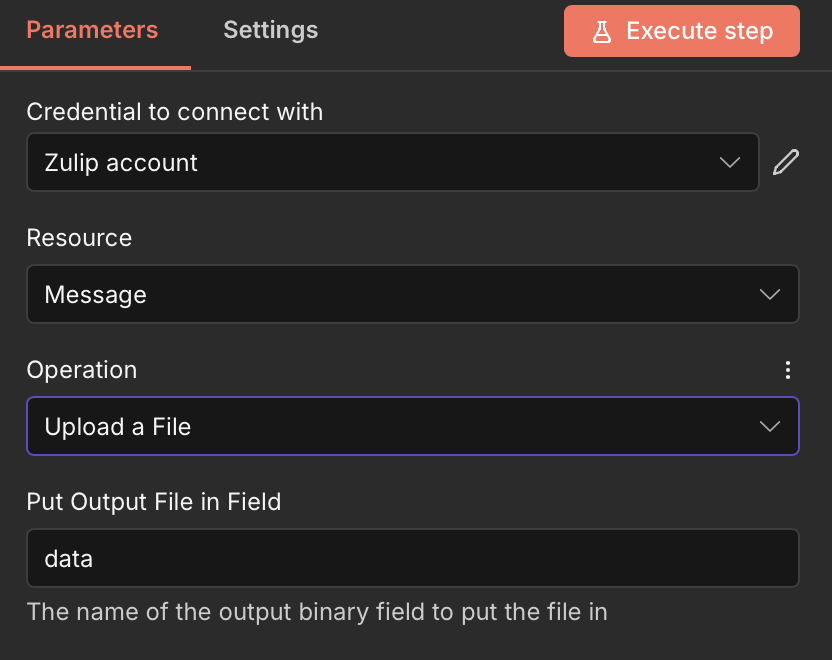
16 Action 16Upload a File
This action uploads a file to Zulip, making it available for sharing in messages. Essential for workflows that need to share documents, reports, or media files with team members.
Key parameters:
- Put Output File in Field: An optional text field (defaulting to "data") that specifies the output binary field name where the uploaded file's reference will be stored for use in subsequent workflow steps.
Use cases:
- Upload generated reports and share them in relevant streams
- Attach screenshots from monitoring tools to alert messages
- Share exported documents from other applications with your Zulip team
Build your first workflow with our team
Drop your email and we'll send you the catalog of automations you can ship today.
- Free n8n & Make scenarios to import
- Step-by-step setup docs
- Live cohort + community support
Frequently asked questions
Is the Zulip n8n integration free?
The Zulip integration is included with n8n at no additional cost. n8n itself offers a free self-hosted option where you can run unlimited workflows, as well as a cloud-hosted version with a free tier that includes limited workflow executions. Zulip also offers a free plan for small teams and open-source projects. The main costs you might encounter relate to n8n cloud subscriptions for higher execution volumes or Zulip's paid plans for larger organizations with advanced features. For most teams starting out, you can use both tools completely free.What types of messages can I send through the Zulip n8n integration?
The integration supports all core Zulip messaging types. You can send public messages to streams (with required topic assignment following Zulip's topic-based organization), send private messages to individuals or groups, and upload files to share with your team. Message content supports Zulip's markdown formatting, so you can include bold text, links, code blocks, and emoji in your automated messages. You can also update and delete messages after they're posted, giving you full control over your automated communications.Can I manage user permissions and roles through the n8n integration?
The current Zulip n8n integration focuses on core user management operations: creating users, retrieving user information, updating user details, and deactivating accounts. For advanced permission management like assigning admin roles or managing stream subscriptions for specific users, you may need to combine the n8n integration with Zulip's API directly using HTTP Request nodes, or handle these configurations within Zulip's admin interface. The available actions cover the most common automation needs like onboarding and offboarding users automatically.


